Add Mode is used to create a new order in the New Order Screen.
This is where users enter all required order details, including customer, shipment, and transportation information.
Use Add Mode when:
A new order needs to be created in SWS
No existing order record is available to update
Manual entry is required for new shipments
Navigate to the New Order Screen
Press CTRL + N to enter Add Mode
The screen will display blank or editable fields for a new order entry
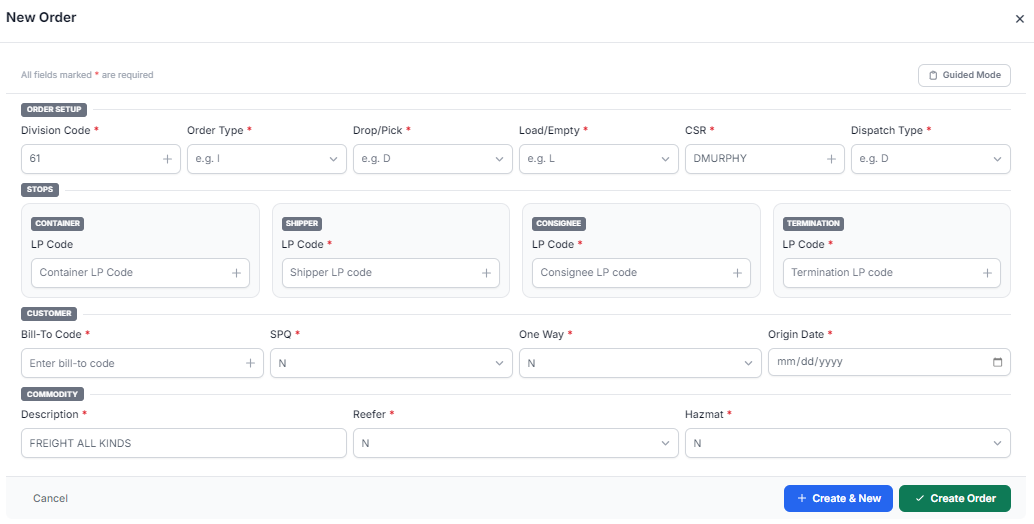
Use the image above as a reference for entering a new order. The screen is organized into key sections that should be completed in a top-to-bottom workflow.
Begin with required identification fields (such as customer, order references, or system identifiers)
These fields establish the order record
Enter or verify:
Customer name/account
Billing details
Ensure accuracy, as this drives invoicing and reporting
Provide shipment-specific information, such as:
Commodity or load details
Equipment/container information (if applicable)
Input pickup and delivery locations
Confirm address/location selections are correct
Enter movement-related data, including:
Carrier (if assigned)
Routing or movement information
If appointment details are needed:
Launch the Appointment modal from the applicable section
Enter required appointment date/time details
Before saving:
Confirm all required fields are populated
Check for missing or incorrect data
Review all sections (customer, shipment, locations, transportation)
Select the Create Order button to save and create the new order
If entering multiple orders, select Create & New
This will create the current order
Then return you to a blank screen in Add Mode to begin the next order
Use CTRL + N as a quick way to enter Add Mode
Required fields must be completed before saving
Work through the screen in a logical sequence (top-to-bottom)
Use dropdowns/lookups to ensure accurate data entry
Skipping required fields before saving
Entering incorrect customer or location data
Forgetting to add appointment details when needed
Not reviewing the order before saving
Add Mode allows users to create a new order by entering all required information directly into the New Order Screen. Using CTRL + N provides a quick way to begin a new order and helps streamline the process.
