The F8 Accessorials function allows users to view accessorial charges and costs associated with a Pro. Accessorials include items such as Freight, Fuel Surcharge, Chassis Positioning, Detention, and other billable charges or costs tied to an order.
A Pro must first be queried before the F8 Accessorials function becomes available. (As below)
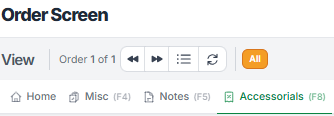
Users can view accessorial information in Query mode; however, accessorials can only be added, changed, or deleted while in Update mode.
Before using the F8 Accessorials function:
Query the desired Pro.
Once the Pro is displayed, locate the Accessorials (F8) tab at the top left of the Order Screen.
Press the F8 key or left click the Accessorials (F8) tab.
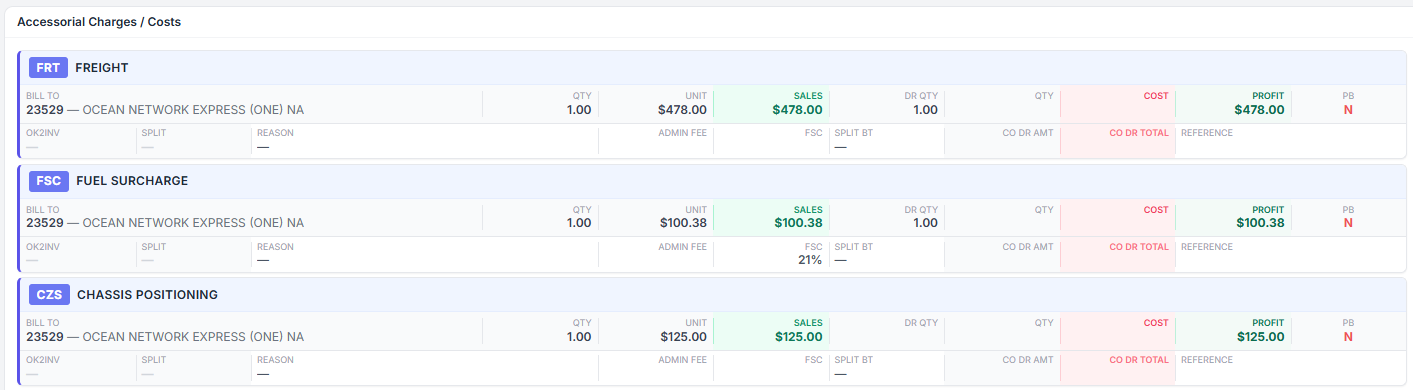
The Accessorial Charges / Costs section will open. (Example below)
To close the Accessorial Charges / Costs section:
Press the F8 key again.
The window will collapse, returning the user to the main Order Screen.
The Accessorial Charges / Costs section displays all accessorial charges currently associated with the Pro.
Information displayed may include:
Accessorial Code
Description
Bill-To Information
Quantity
Unit Amount
Sales Amount
Cost Amount
Profit
Accessorial changes can only be made while the Pro is in Update Mode.
To change an existing accessorial:
Query the Pro.
Initiate Update Mode.
Open the F8 Accessorials section.
Locate the accessorial you wish to update.
Left click the Edit symbol located on the right side of the accessorial. (As below)

The selected accessorial will then become editable. (As below)

Modify the accessorial information as needed.
Left click on the blue Update button or left click on the Cancel button to abort the process.
Left click the Save Update action button located at the top right of the screen or the Cancel button to abort the process. (As below)

Accessorials can only be deleted while the Pro is in Update Mode.
To delete an accessorial:
Query the Pro.
Initiate Update Mode.
Open the F8 Accessorials section.
Locate the accessorial you wish to remove.
Left click the Trash Can symbol located to the right of the accessorial. (As below)

The below message will display:
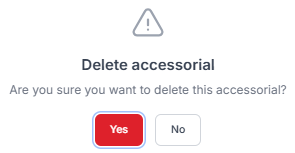
Left click on the Yes button to delete the accessorial or No to abort the process. Once the selected accessorial is deleted, left click the Save Update action button located at the top right of the screen or the Cancel button to abort the process.
Accessorials can only be added while the Pro is in Update Mode.
To add a new accessorial:
Query the Pro.
Initiate Update Mode.
Open the F8 Accessorials section.
Left click the Add New Accessorial action button. (As below)

The Add New Accessorial window will open.
Complete the required fields including:
Code
Description
Unit Amount
Left click Save to create the new accessorial or Cancel to abort the process. (As below)

Once the selected accessorial is added, left click the Save Update action button located at the top right of the screen or the Cancel button to abort the process.