The F5 Notes function allows users to view and manage order-related notes associated with a PRO number. Notes are organised by note type and provide a centralised location for operational instructions, customer service communications, invoice notes, and dispatch-related information.
Important: The F5 Notes tab is not available until a PRO number has been queried.
Use the F5 Notes function to:
Review existing notes associated with an order
View customer service communications
View dispatch instructions
View notes that may print on an invoice
Add new notes while in Update Mode
Before the Notes function becomes available, you must first query an existing PRO number.
Once a PRO has been successfully retrieved, the Notes (F5) tab appears in the upper-left section of the Order Screen. (As below)
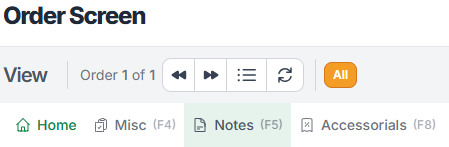
To open the Notes window:
Press F5 on your keyboard, or
Left-click the Notes (F5) tab
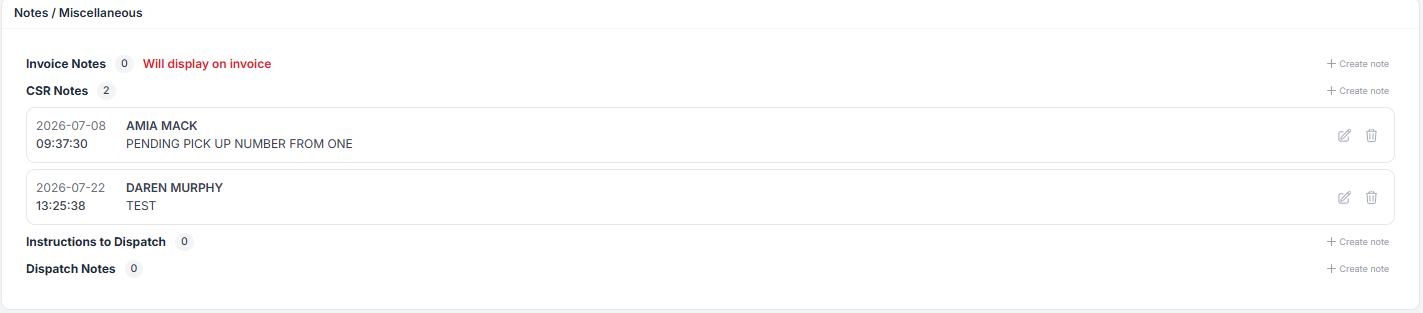
The Notes window opens and displays all available note categories associated with the order. (As below)
To close the Notes window:
Press F5 again, or
Left-click the Notes (F5) tab again
The Notes panel collapses and returns you to the Order Screen.
The Notes window contains several different note categories:
Notes entered under this category are printed on the customer invoice.
General customer service notes associated with the order.
Operational instructions intended for drivers or external vendors. (Notes in this section will show in Power Direct and on the Vendor Delivery Order (D.O.) on brokered moves)
Additional dispatch-related notes that may be used during order management and planning.
NOTE: A counter appears beside each note type indicating the number of notes currently stored for that category.
Note: New notes can only be added while the order is in Update Mode.
Within the Notes window, find the note category where you want to add a note.
Examples include:
CSR Notes
Instructions to Dispatch
Dispatch Notes
Invoice Notes
Left-click + Create note located to the right of the note type. (As below)

A text entry field appears beneath the selected note type.
Type the desired note information into the field provided. (As below)

After entering the note:
Left-click the Save (+) icon to save the note.
Left-click the Cancel (X) icon to discard the note without saving. (As below)

If a note has been previously entered, action icons will appear to the right of the note.
Available actions include:
Edit note – Modify an existing note.
Delete note – Remove a note from the order. (As below)

Only users with the appropriate permissions should edit or delete existing notes.