The F11 Truck Pay function in the New Order Screen provides a read-only view of truck pay information associated with an equipment move. This screen is used to review driver compensation details that have been generated from completed or assigned moves.
The Truck Pay screen displays information in four sections:
Delivered Moves
Move Pay Before Manifest
Accessorial Pay Items
Accessorial Pay Before Manifest
Note: The F11 Truck Pay screen is read-only and cannot be edited by users. Information will only appear when an IMC driver has been assigned to an equipment move.
Use the Truck Pay function when you need to:
Review driver pay associated with an equipment move.
View completed move activity that contributes to truck pay.
Verify pay amounts generated before manifesting.
Review any accessorial pay items associated with the move.
Confirm that truck pay information exists for an assigned IMC driver.
A PRO must first be queried before the Truck Pay function becomes available.
Open the New Order Screen.
Query the desired PRO.
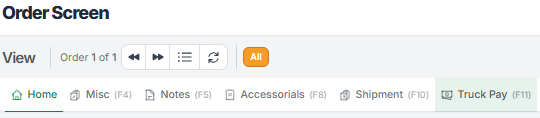
Once the order has been retrieved, locate the Truck Pay (F11) tab at the top of the screen. (As below)
Press F11 on your keyboard or click the Truck Pay (F11) tab.
To close the Truck Pay screen window:
Press F10 again.
After opening the Truck Pay screen, the system displays up to four sections containing truck pay information related to the assigned driver and move activity. (See example below)
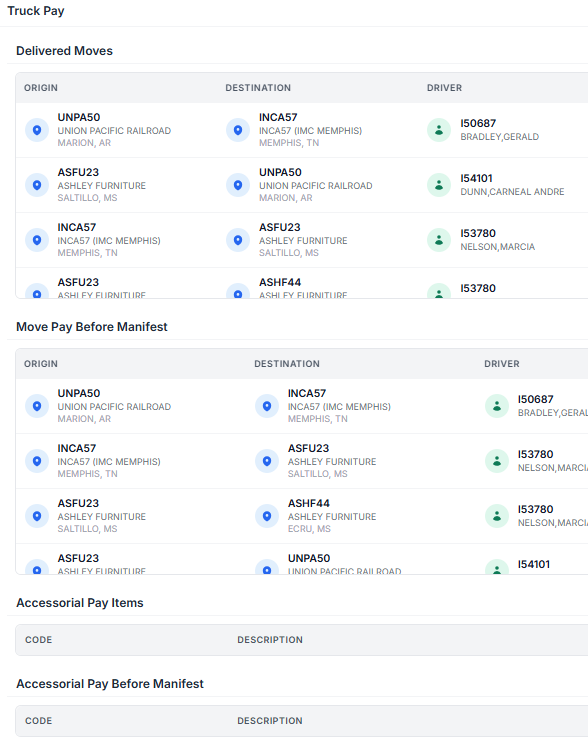
The Delivered Moves section displays completed equipment moves that have been delivered by the assigned IMC driver.
Information displayed includes some of the below:
Origin location
Destination location
Driver ID
Driver name
Driver Type
Truck Pay
Driver Pay
Fuel Pay
This section provides visibility into completed move activity that contributes to driver compensation calculations.
The Move Pay Before Manifest section displays pay-related move information prior to the order being manifested.
Information displayed includes some of the below:
Origin location
Destination location
Driver ID
Driver name
Driver Type
Truck Pay
Driver Pay
Fuel Pay
Users can review move activity that is scheduled to generate pay but has not yet been manifested.
The Accessorial Pay Items section displays accessorial compensation that has been generated for the assigned driver.
Examples may include driver payments associated with approved accessorial activities.
Available information includes:
Accessorial Code
Accessorial Description
Driver name
Total pay amount
If no qualifying accessorial pay exists, this section will remain blank.
The Accessorial Pay Before Manifest section displays accessorial pay records that have been generated but not yet manifested.
Available information includes:
Accessorial Code
Accessorial Description
Driver name
Total pay amount
If no accessorial pay exists for the move, no records will be displayed.