Defer places an order on hold, updating its status to "Deferred" and notifying the CSR on the order — plus any additional email recipients entered at the time of deferral. Defer is only available once a Pro has been queried on the Order screen.
Use Defer when you need to:
Hold an order that cannot move forward yet (for example, freight that is still on the water).
Notify other people beyond the default CSR — such as a manager or another department — that an order has been placed on hold and why.
Temporarily remove an order from the active queue without canceling it, so it can be picked back up later.
Query the Pro/order on the Order screen.
Locate the Defer button on the toolbar. (As below)
Press F7, or left-click Defer on the toolbar, to open the Defer Order window.

NOTE: Defer cannot be initiated until a Pro has been queried.
The Defer Order window opens with the order number in the title and lets users add notification recipients and enter notes before processing the deferral. (As below)
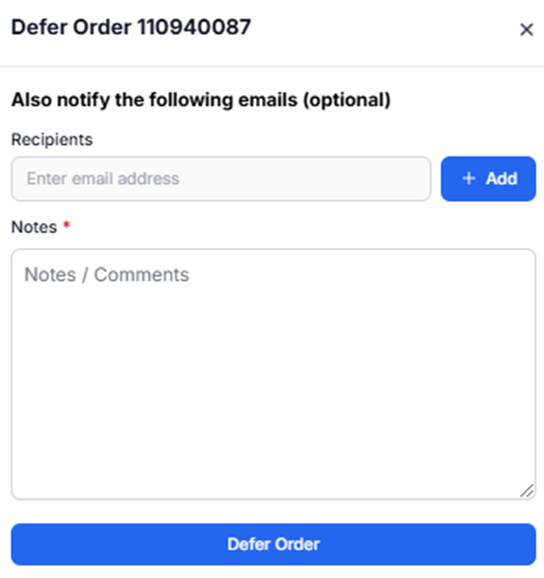
Recipients — email address field for adding additional people to notify of the deferral, beyond the default CSR on the order.
+ Add — button that adds the entered email address to the notification list.
Notes — required field for entering the reason for the deferral or any other comments; marked with a red asterisk.
Defer Order — button that processes the deferral.
Type an email address into the Recipients field.
Left-click + Add to add it to the notification list.
Repeat for each additional recipient.
Added recipients appear as chips below the Recipients field under a Hide [#] emails toggle, which expands or collapses the list. (As below) Each chip includes an edit icon to change the address and an "x" icon to remove it. (As below)
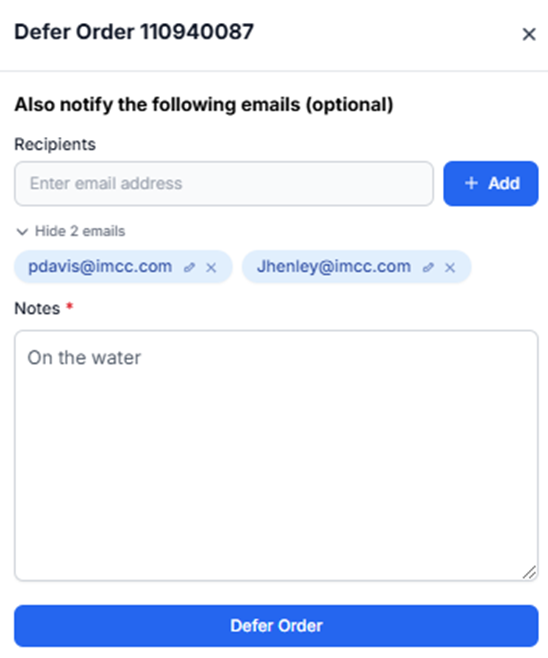
Enter the reason for the deferral, or any other relevant comments, in the Notes field.
Left-click Defer Order to process the deferral.
Important: Notes are required — the deferral cannot be processed without an entry in the Notes field.
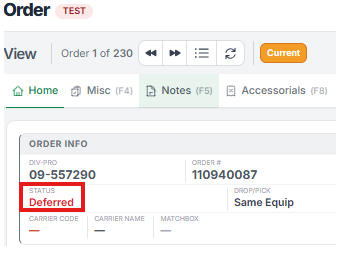
Once processed, the order's status updates to Deferred (shown in red) on the Order screen's Home tab, in the Order Info panel. (As below)
Query or navigate to the deferred order on the Order screen.
Press F7.
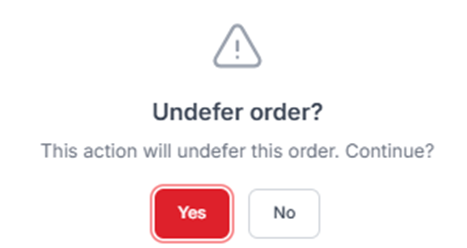
A confirmation prompt reads "Undefer order? This action will undefer this order. Continue?" Left-click Yes to undefer the order, or No to cancel and leave it deferred. (As below)