Navigation Path:
SWS Main Menu → Easy Operations > Dispatch > Driver Wait (Unity)
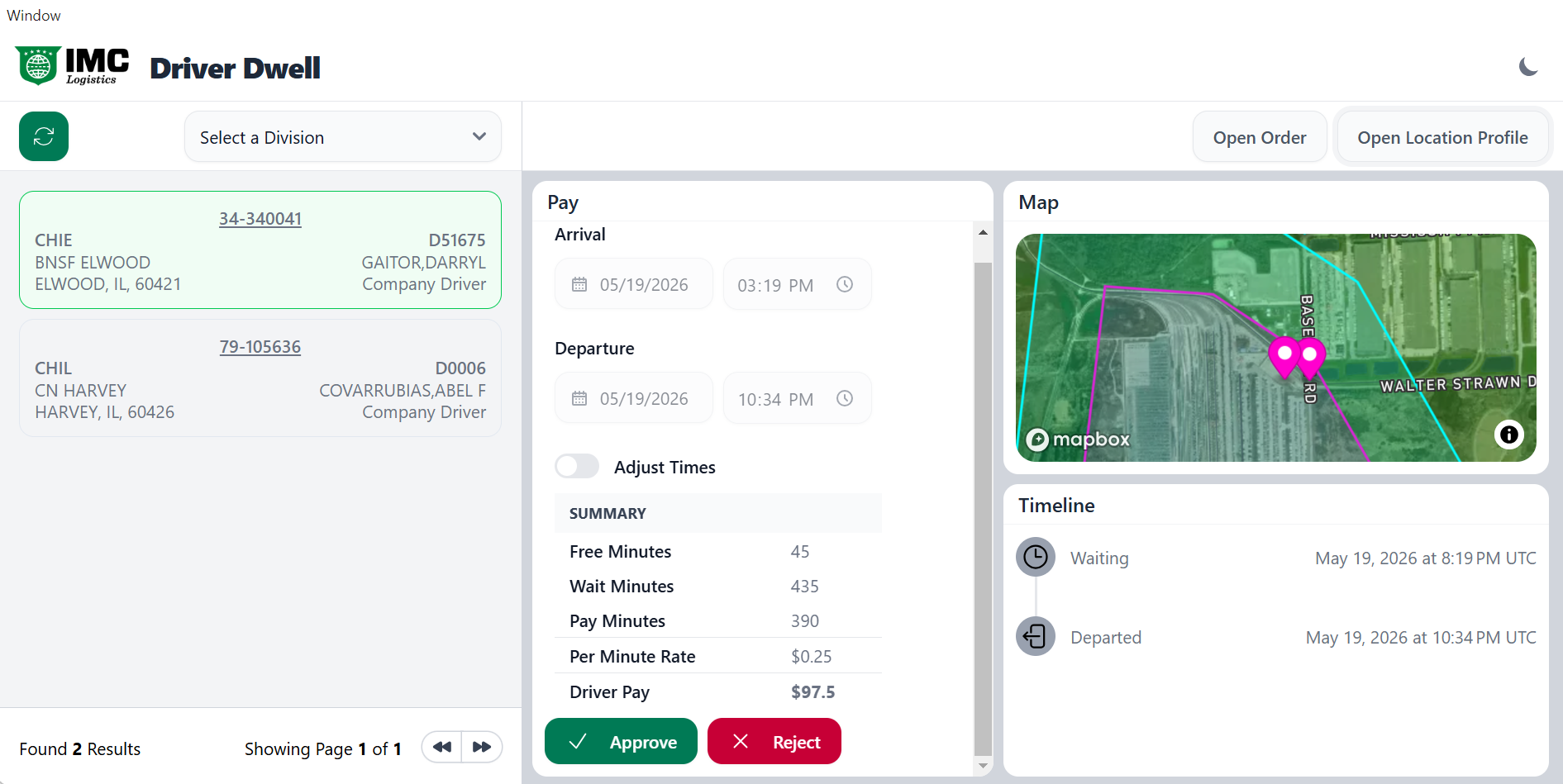
The Driver Dwell screen is used to review, validate, and approve driver wait (dwell) time at a location. This screen provides:
Arrival and departure times
Calculated wait time and pay
Location and driver details
A visual timeline and map reference
Users can review system-calculated dwell time and either approve or reject the calculated pay.
Located at the top of the screen.
Use the Select a Division dropdown to filter results by division.
Reload icon (left of dropdown) refreshes available data.
Displays available dwell records to review.
Each record includes:
Order Number (clickable)
Division/Terminal Code (e.g., CHIE, CHIL)
Location Name and Address
Driver ID and Name
Driver Type (e.g., Company Driver)
Tip:
Selected records are highlighted. Selecting a record loads details in the centre panel.
This section displays and allows review of driver dwell details.
Arrival Date/Time
Departure Date/Time
These timestamps are used to calculate total wait time.
Toggle Adjust Times to manually edit arrival and departure times.
Use this only when system-recorded times need correction.
Displays calculated dwell metrics:
Free Minutes
Time not eligible for pay.
Wait Minutes
Total time driver waited at the location.
Pay Minutes
Wait time eligible for compensation (Wait Minutes – Free Minutes).
Per Minute Rate
Rate used to calculate pay.
Driver Pay
Total calculated dwell pay amount.
NOTE: Driver Wait Settings are updated in the Location Profile Screen. To view the training information for this screen, click on the below link to access the SWS Help Centre articles.
Location Profile Screen | Sixth Wheel Software
At the bottom of the panel:
✅ Approve
Confirms the dwell time and pay for processing
❌ Reject
Rejects the dwell record for correction or further review
Provides a geographic view of the dwell location.
Displays the precise location where the dwell occurred
Useful for validating location accuracy
Displays key event timestamps:
Waiting
Indicates when the driver began waiting
Departed
Indicates when the driver left the location
Timestamps are displayed in UTC.
Open Order
Navigates to the associated order record
Open Location Profile
Opens the location profile for additional site details
Choose a dwell record from the left-hand list.
Confirm:
Arrival and departure times
Location and driver information
Timeline accuracy
Review:
Free minutes
Pay minutes
Per minute rate
Total driver pay
Toggle Adjust Times
Update arrival/departure times if needed
Reconfirm updated calculations
Click Approve to finalize
Click Reject if corrections are needed
Use the Driver Dwell screen when:
Reviewing driver wait time at customer locations
Validating automated dwell calculations
Approving driver compensation for wait time
Investigating discrepancies in arrival/departure events
Verify timeline events before approving
Use the map to validate the correct location
Only adjust times when confirmed discrepancies exist
Reject records with incomplete or inaccurate data rather than guessing
