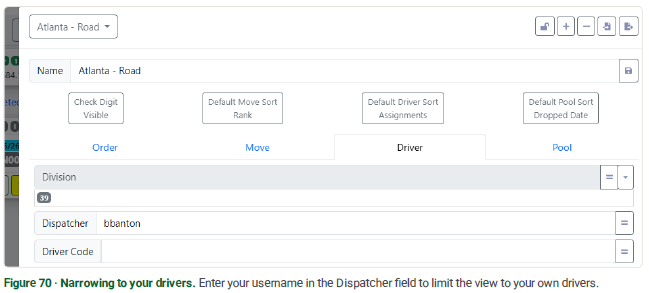

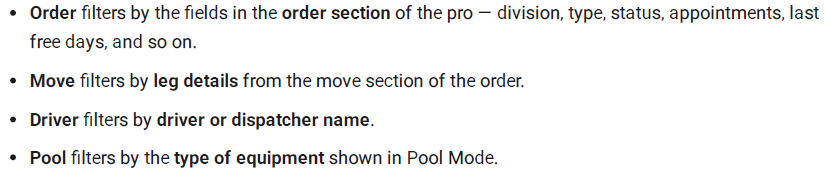
Creating your own filter is straightforward once you understand how the filter is organised. Open the filter settings, and you'll see the filter is split into four tabs — Order, Move, Driver, and Pool. Each tab filters a different part of the data.
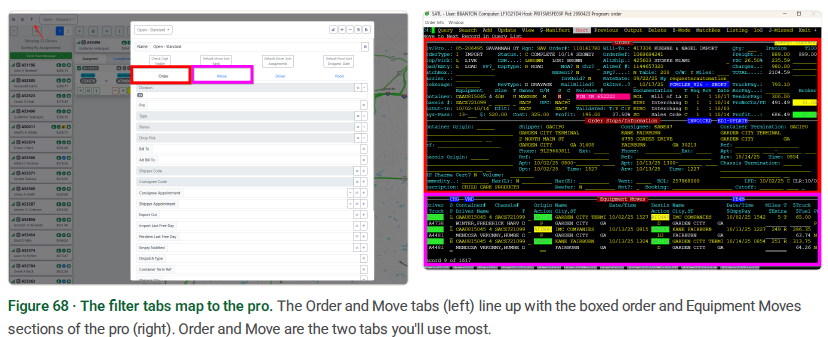
The Order and Move tabs map directly to the two halves of the pro. The top of the pro is the order section — the fields the Order tab reads from. The Equipment Moves block at the bottom is the move section — the leg details the Move tab reads from. Compare the highlights below: the Order and Move tabs on the left line up with the boxed order and move sections of the pro on the right.
Example — imports for tomorrow, my division
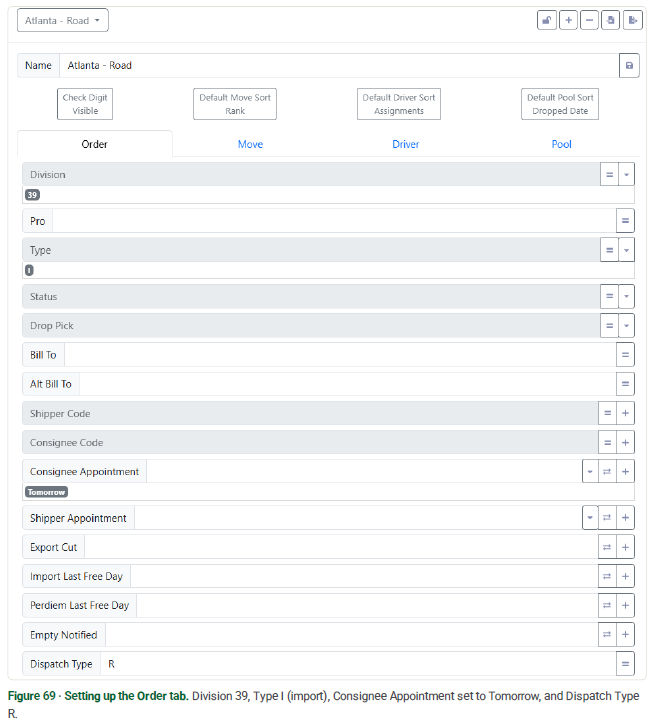
Say you want every order with a Dispatch Type of R that's an import for division 39 (ATL), delivering tomorrow. On the Order tab, set Division to 39, Type to I, Consignee Appointment to Tomorrow, and Dispatch Type to R.
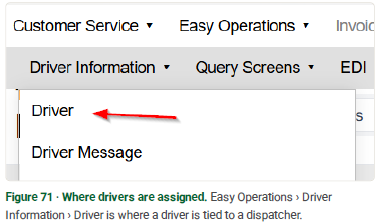
To narrow the same filter down to just your drivers, go to the Driver tab and enter your username in the Dispatcher field.