The Driver Schedule is the tool for recording why a driver isn't moving freight. Logging it here, instead of in a side spreadsheet, gives the terminal one accurate picture.
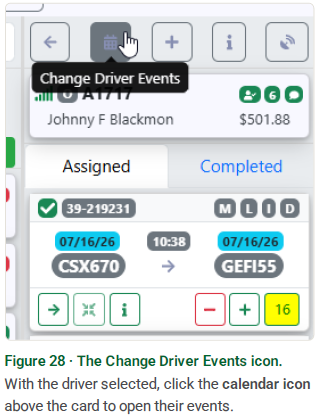
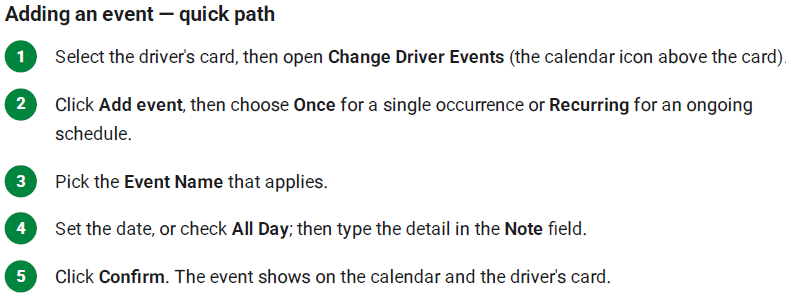
Select the driver's card in the driver list, then click the Change Driver Events (calendar) icon directly above the card.
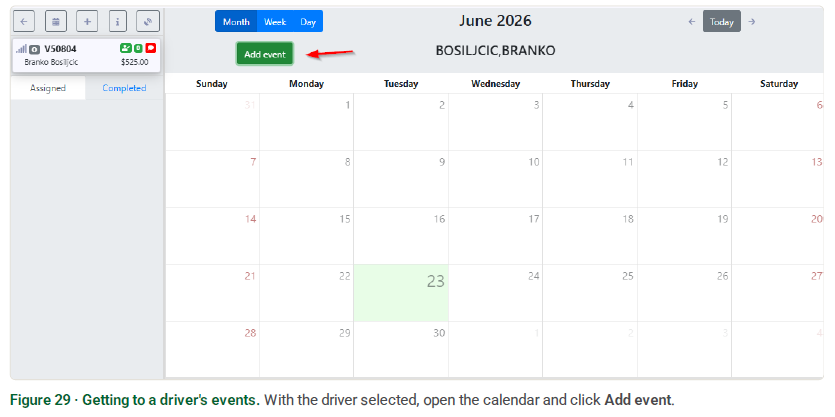
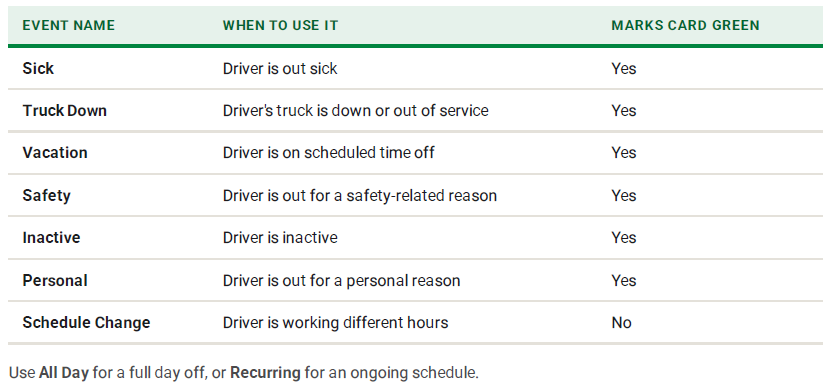
The Event Name you choose tells the board what's happening. Most events mark the driver as not working — the card turns green and the driver shows as unavailable. Schedule Change is the exception: it keeps the driver active and records that the driver is working different hours.
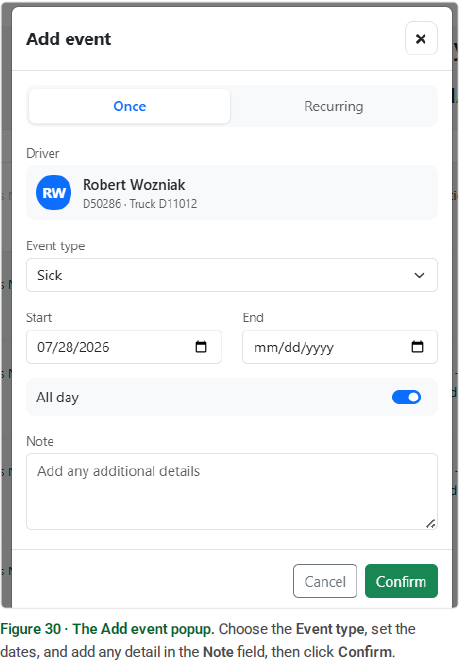
Pick the reason that fits. The Marks card green column shows which events flag the driver as not working. For Schedule Change, type the detail into the Note field.

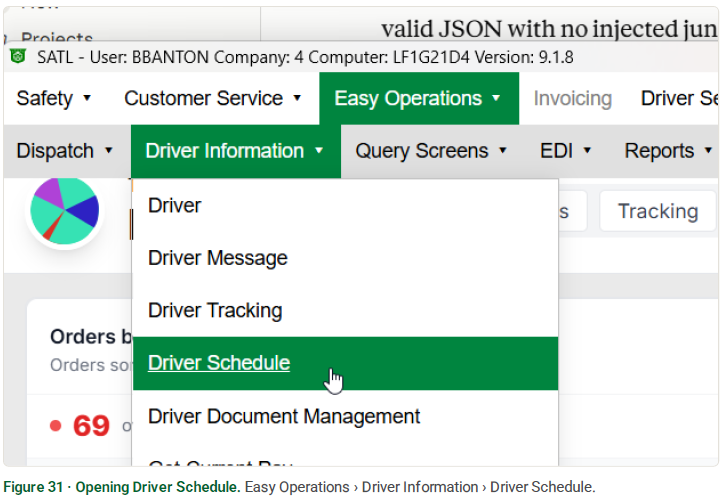
The Driver Schedule screen gives you every driver's week in one place — past, current, and planned moves, plus any logged events like time off. Open it from the SWS menu at Easy Operations › Driver Information › Driver Schedule.
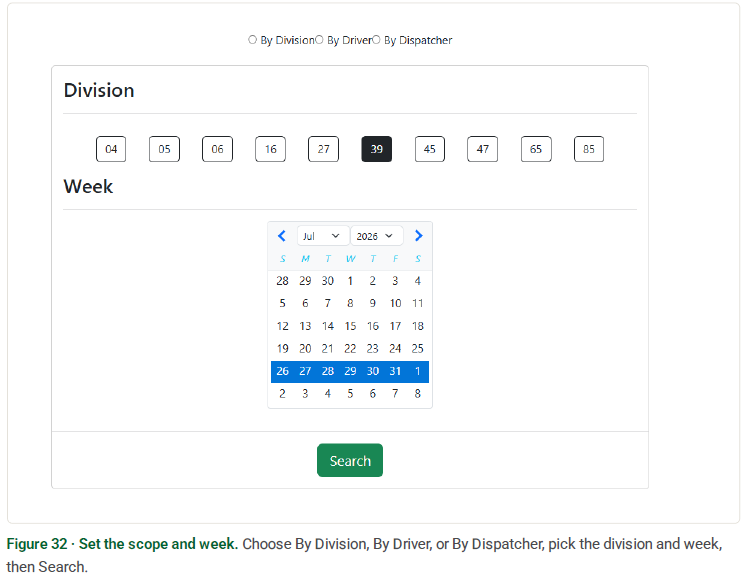
Pick how you want to scope it — By Division, By Driver, or By Dispatcher — choose the division and the week, then click Search.
The schedule lays out every driver across the week, with Actual,Planned, and Final runs, miles, and pay per day, and weekly totals on the right.
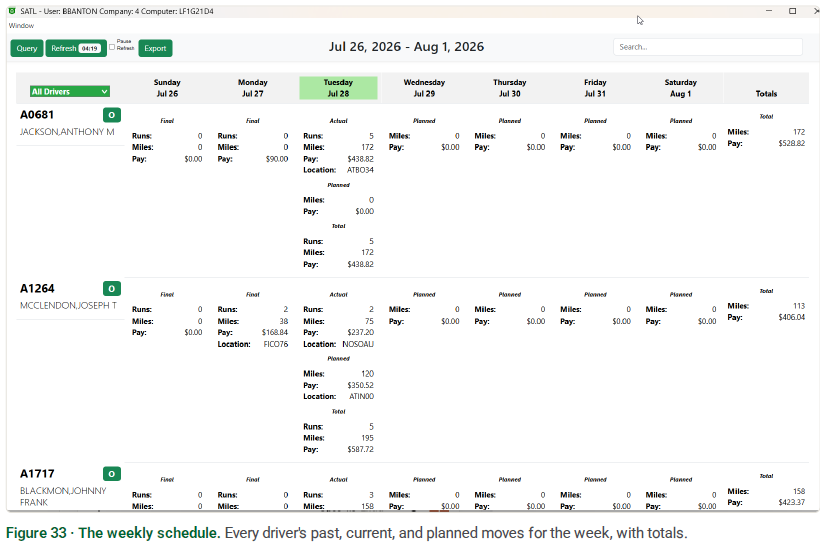
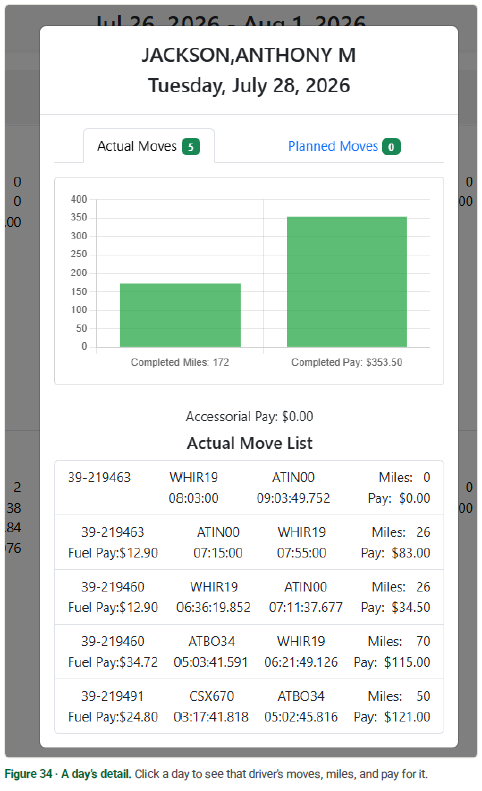
Click any day to open the detail — that driver's Actual and Planned moves for the day, with the move list and pay breakdown.