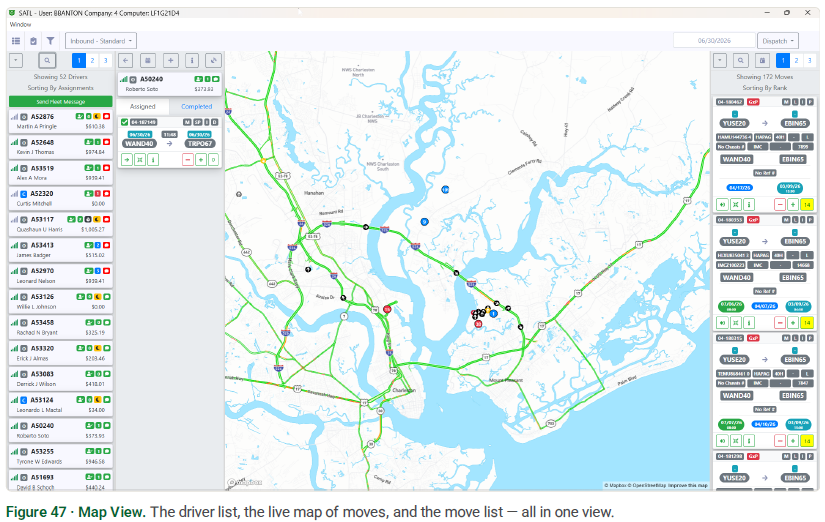
Both views assign the same moves — each mode has its strengths and use cases.
Map View is the strongest choice for assigning work based on where a driver is and what they're
already carrying. With the Rank sort on, the D.O. recommends the next move for each driver by
looking at their location and their assigned moves — so you build efficient, geographically tight
routes in real time. Assign by clicking the left arrow on the move card.
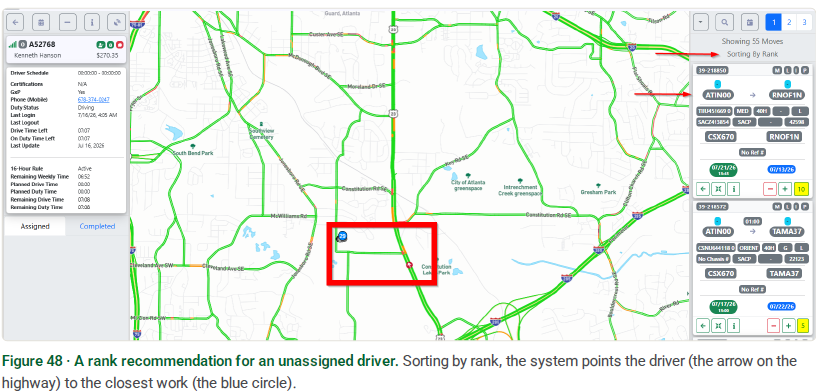
Rank works even when a driver has no assignments yet. Sorting by rank, the D.O. recommends the driver's next move based on their location and the closest available work. On the map, the driver is the arrow on the highway and the recommended work is the blue circle — the nearest move(s) the system is pointing them to.
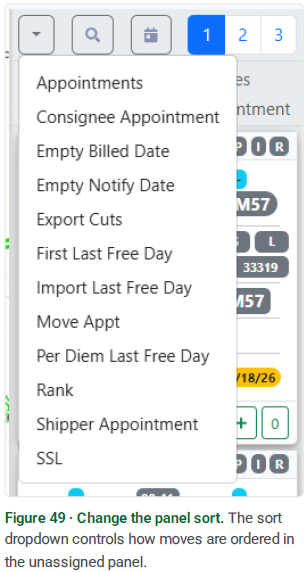
You can change what shows in the unassigned panel by changing the sort. Click the sort dropdown at the top of the panel and pick how the moves are ordered — Rank, appointments, last free days, SSL, and more.
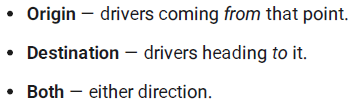
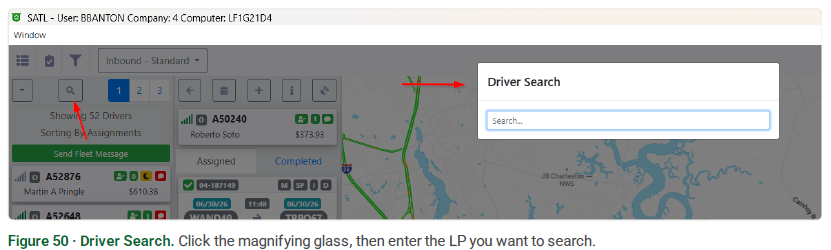
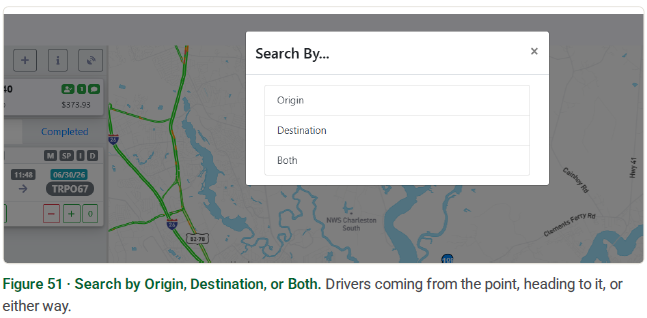
Find drivers by location. To see who's running to or from a particular point, click the magnifying glass and enter an LP — the location code. Then choose how to match it:
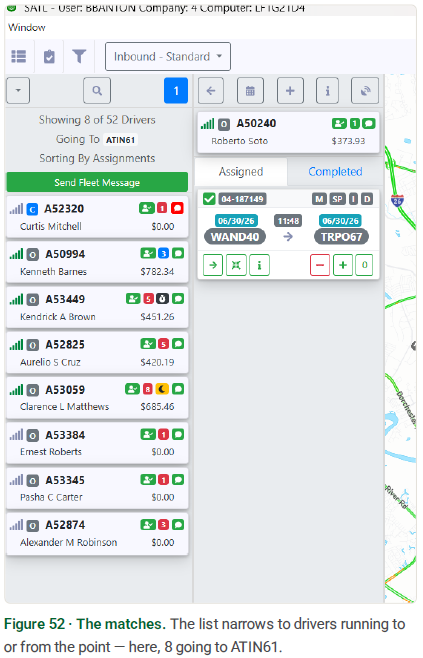
The driver list narrows to just the matches — here, the eight drivers Going To ATIN61.
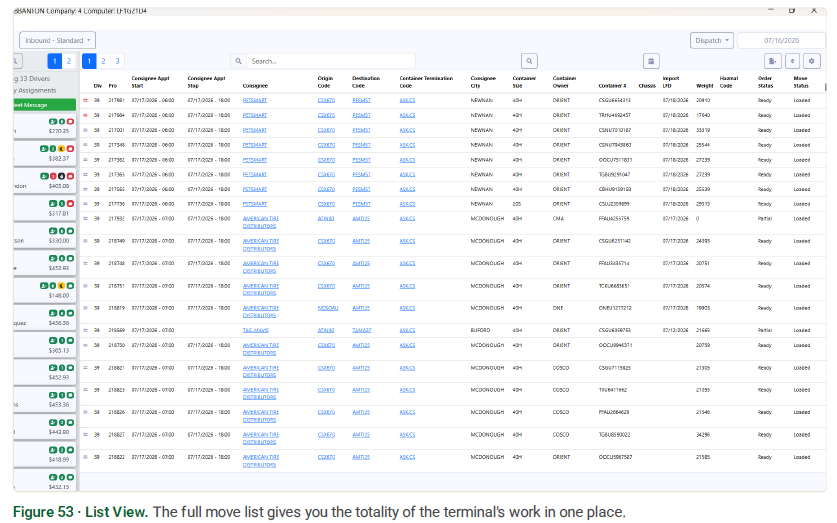
List View shows more moves in a single view, across the days they're due — the best way to see the totality of the work for the terminal at a glance. The list format lets you scan and stage moves methodically rather than working node-by-node on the map. Assign by double-clicking the six dots to the left of the PRO; right-click those dots for more info, to open the order in legacy, view the logs, or view the moves on an order.
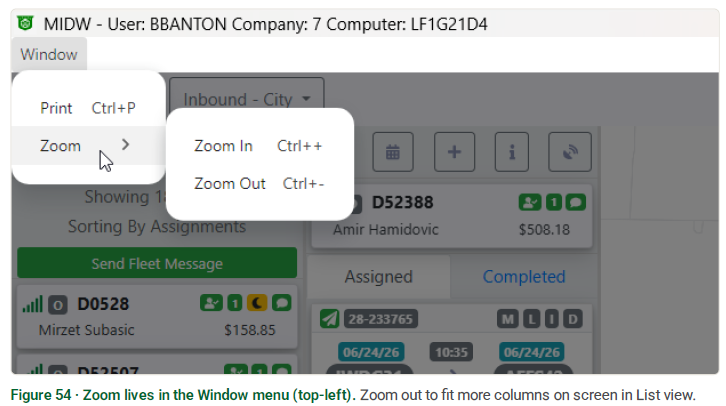
Tip — zoom to fit more columns. The D.O.'s zoom is in the Window menu at the top-left corner: Zoom › Zoom In (Ctrl +) or Zoom Out (Ctrl −). Zooming out shrinks the view so more columns fit on screen — handy in List view when you want to see more of the board at once. Zoom back in any time for readability.