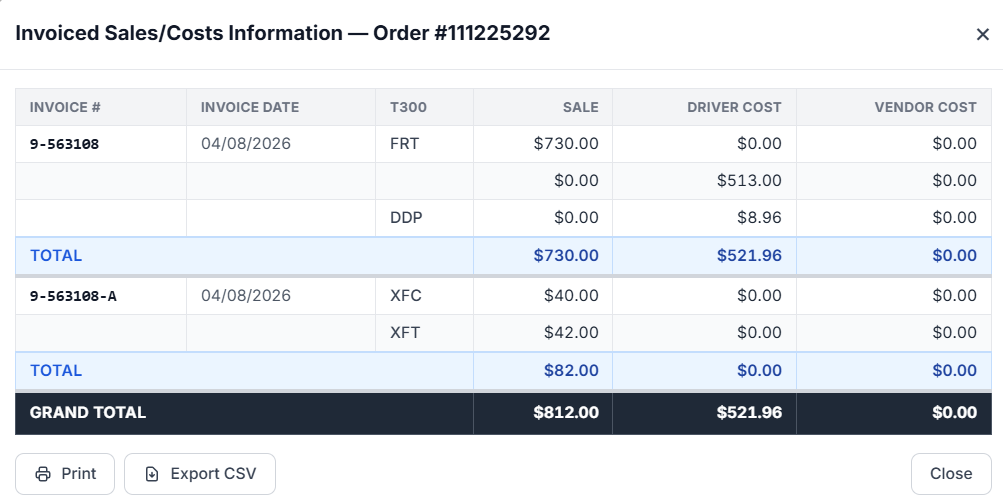
The Manifest function on the Order screen allows users to view the Invoiced Sales/Costs Information for an order — including invoice numbers, invoice dates, T300 codes, and the associated Sale, Driver Cost, and Vendor Cost amounts.
Important: The Manifest window only displays information if the order is in Completed status and has been invoiced. If no invoice exists for the order, there will be no data to display.
Use the Manifest function when you need to:
Review the invoice number(s) and invoice date(s) associated with an order.
View the T300 codes recorded against an invoice (e.g., FRT, DDP, XFC, XFT).
Compare Sale, Driver Cost, and Vendor Cost amounts for each invoice line.
Confirm subtotal and grand total amounts across multiple invoices on the same order.
Print or export invoice/cost details for recordkeeping or review.
Open the desired order in the Order screen.
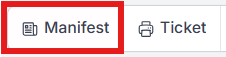
Locate the Manifest icon in the order toolbar, next to Ticket. (As below)
Left-click Manifest.
Note: The order must have at least one existing invoice for information to appear. Orders that have not yet been invoiced will not display any sales/cost data.
When the Manifest window opens, it displays the Invoiced Sales/Costs Information for the order, including:
Invoice # — the invoice number(s) associated with the order.
Invoice Date — the date the invoice was generated.
T300 — the cost/sale type code recorded on the invoice line (e.g., FRT, DDP, XFC, XFT).
Sale — the sale amount recorded for that line.
Driver Cost — the driver cost recorded for that line.
Vendor Cost — the vendor cost recorded for that line.
If an order has more than one invoice (Split Bill), each invoice is listed separately with its own TOTAL row, and a GRAND TOTAL row appears at the bottom summarizing all Sale, Driver Cost, and Vendor Cost values across every invoice on the order. (See example below)
From the Manifest window, users can:
Left-click Print to generate a printable copy of the invoice/cost details.
Export CSV
Left-click Export CSV to download the invoice/cost details as a CSV file.
To close the Manifest window without making changes:
Left-click Close, or click the X in the upper right corner of the window.