The Change Division function on the Order screen allows users to move an order from its current division to a different division. Changing the division assigns the order a new DIV-PRO and Order number under the new division.
Important: Once the division is changed, the original PRO and Order number will no longer exist. The order can only be found going forward under its new DIV-PRO and Order number.
Use Change Division when you need to:
Move an order that is being powered by a different division than the one on the order.
Reassign an order to a different division for correct routing, reporting, or billing.
Query the desired Pro in the Order screen.
Locate the Change Division button in the top right of the screen, next to Rerate. (As below)
Left-click Change Division.

Note: Change Division only becomes available once a Pro has been queried.
When Change Division is selected, a Change Division for Order #xxxx window opens (as below), displaying:
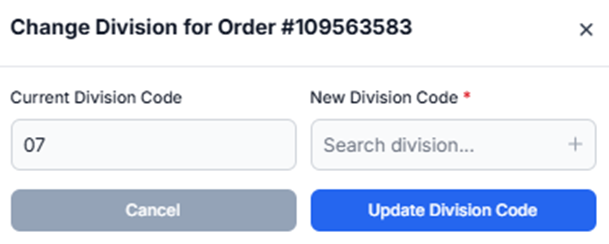
Current Division Code — a read-only field showing the division code currently assigned to the order.
New Division Code — a searchable field used to look up and select the division the order should be moved to.
Left-click into the New Division Code field.
Type to search for the desired division. Matching divisions appear in a dropdown list showing the division Key and Value. (As below)
Left-click the desired division from the list to select it.
Left-click Update Division Code to confirm the change.
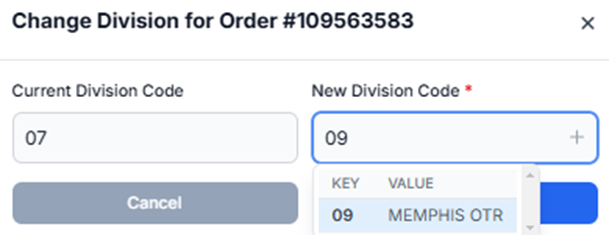
Important: A New Division Code must be selected before Update Division Code can be completed.
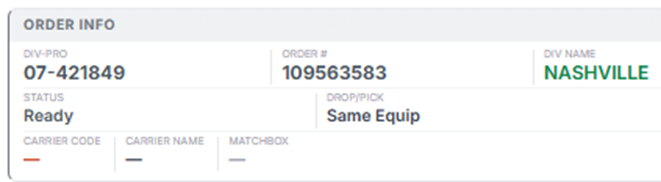
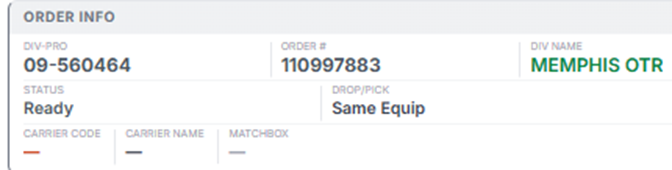
Once confirmed, the Order screen refreshes and displays the order under its new division — including a new DIV-PRO, new Order #, and the new Division Name. For example, an order queried as DIV-PRO 07-421849 / Order #109563583 / NASHVILLE can be moved to MEMPHIS OTR, where it becomes DIV-PRO 09-560464 / Order #110997883. (As below)
Left-click Cancel, or click the X in the upper right corner of the window, to close Change Division without making any changes.
Once Update Division Code has been selected, the change is final — the original PRO/Order number will no longer exist.