Right click on any line to display the below action box.
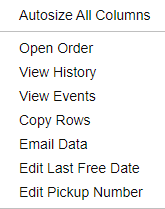
View History - Provides a more detailed list of worksheet "values" for the selected equipment line including changes to sightings, ETAs, etc.
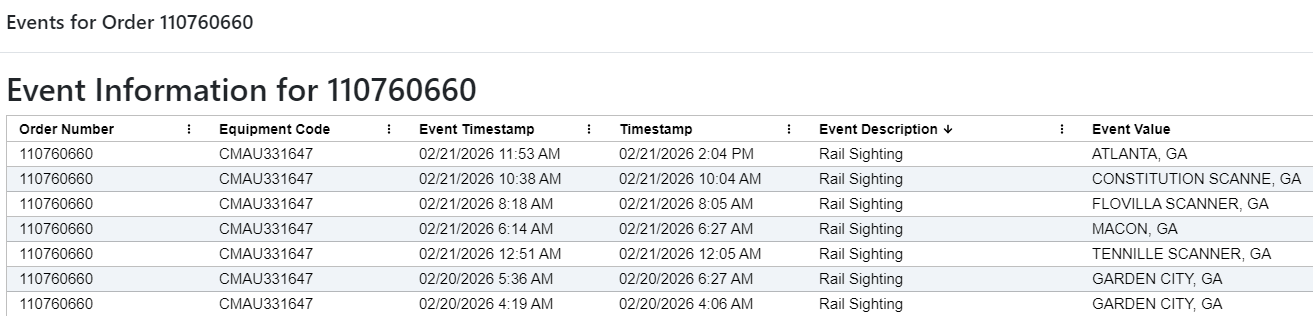
View Events - Provides a list of container movements (Port/Rail arrival/departures, interchange events, sightings, etc. (See example below)
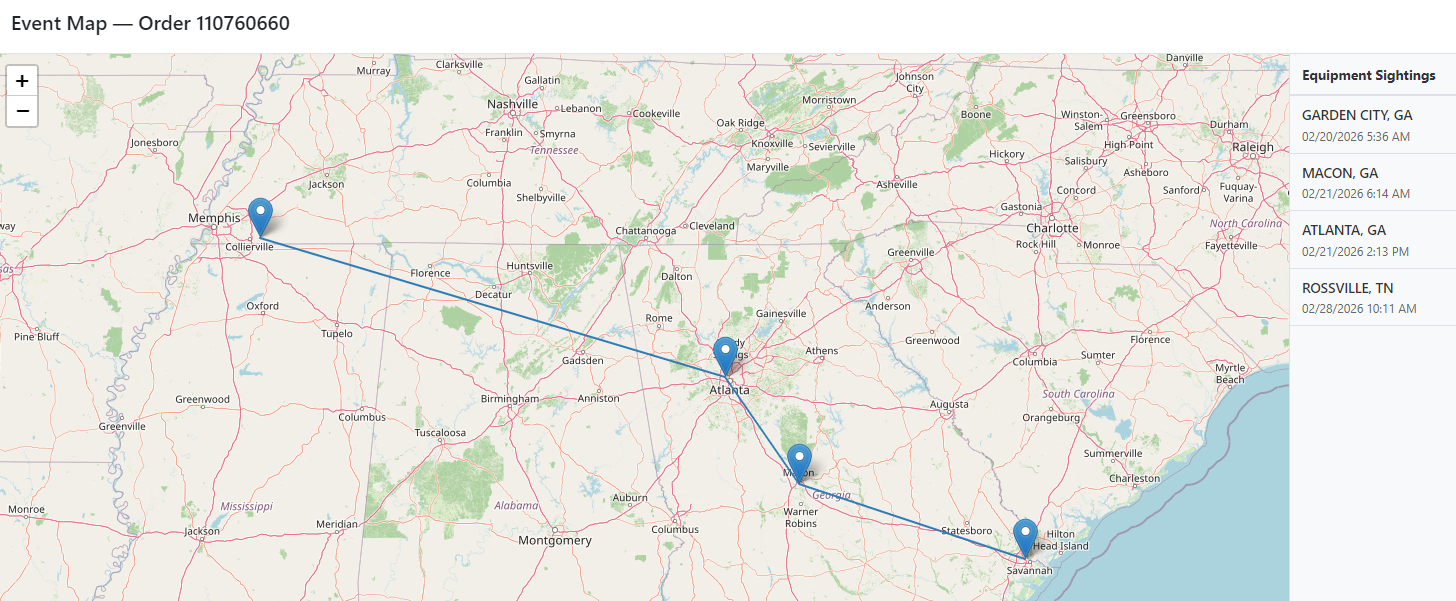
Additionally, if the blue "View on Map" action button (located at the top right of the screen) has a number next to it, left click on the button to view the Equipment Sightings. (See example below)
To Copy data lines, select the line(s) first, then right click and select ”Copy Rows” from the action box. The copied data can then be pasted into an external spreadsheet or document.
To Email data lines, select the line(s) first, then right click and select “Email Data” from the action box. The below box will display:
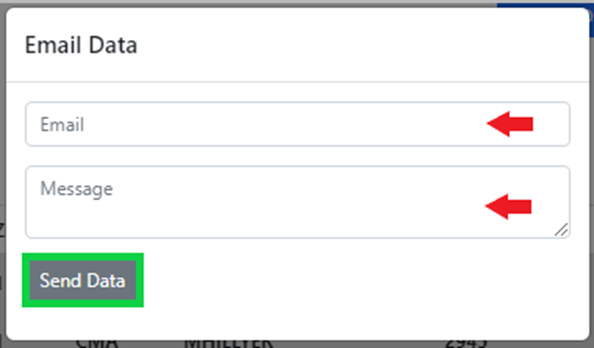
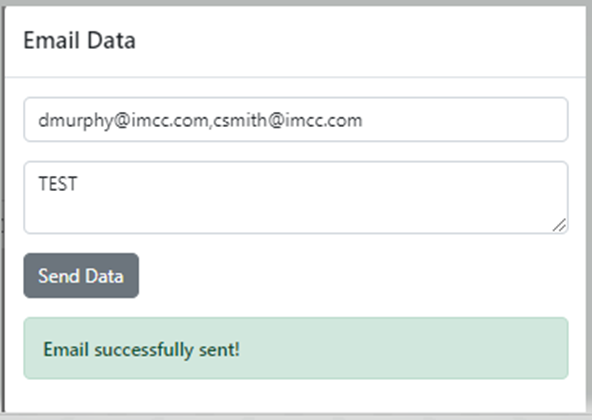
Enter the Email address (separate multiple email addresses with a comma) and Message if applicable and then left click the “Send Data” button. If the process is successful the below message will display:
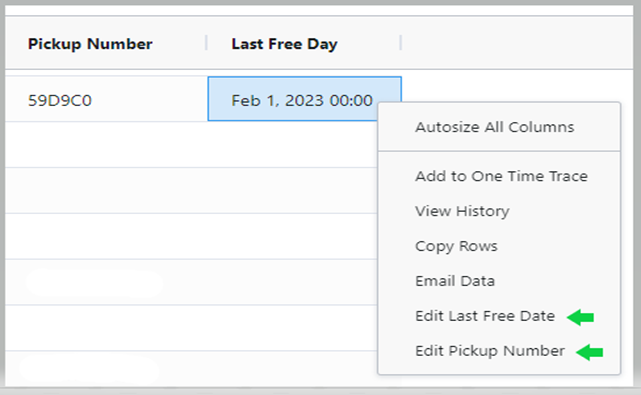
To Update the “Last Free Day” or the “Pickup Number”, right click on the line & select the applicable edit line from the action box. (See below)
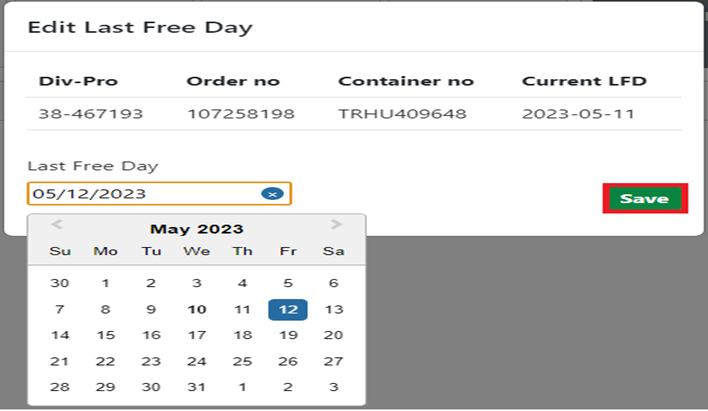
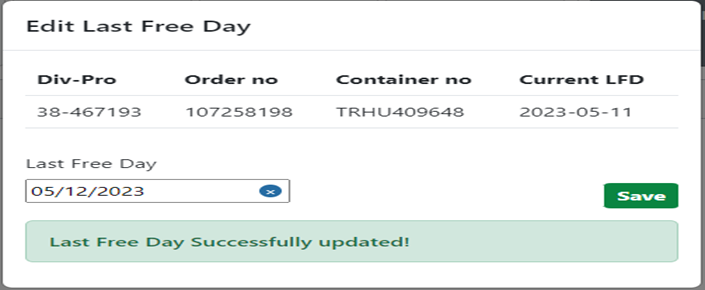
To Edit Last Free Day, select the calendar date and left click on the “Save” button to process the change. (As below)
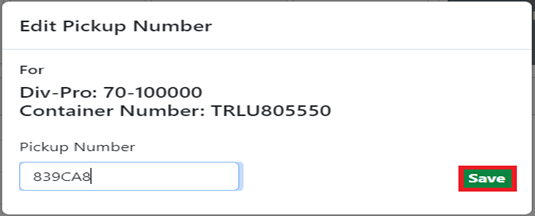
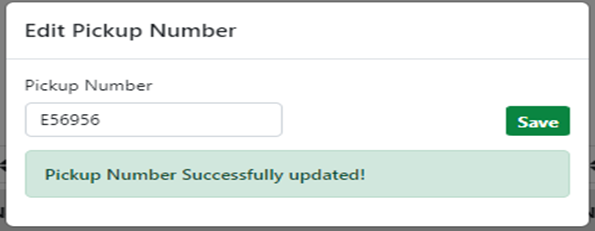
To Edit Pickup Number, enter the number and left click on the “Save” button to process the change. (As below)