
Accessing the New Order Screen
From the SWS Main Menu, select Customer Service → Order Entry, then left click on New Order Screen.
The New Order Screen replaces the legacy Order Entry screen.
Overview of the Order Screen
The Order Screen is your central workspace for viewing, reviewing, and validating customer orders. From this screen, you can quickly access key order details, confirm customer and shipment information, and ensure all required data is complete before moving the order forward.
This screen consolidates multiple sections—such as Order Information, Customer Information, Charges, Origin and Destination, and Transportation Details—allowing you to view the full order without navigating to multiple pages.
What You’ll Use This Screen For
You will use the Order Screen to:
· Search for and retrieve existing orders
· Review customer, billing, and shipping information
· Verify charges, commodities, and carrier details
· Confirm pickup and delivery locations and timing
· Identify missing or incorrect data prior to invoicing
How the Screen is Organized
The Order Screen is divided into several key areas:
· Top Navigation & Search Options allow you to locate orders quickly and filter results.
· Order and Customer Information panels display order numbers, references, and customer details.
· Detail sections display shipment, origin, destination, and transportation data for validation.
· Status indicators and flags help identify items that may require attention.
Query Mode
Query mode allows you to search for and retrieve existing orders based on available criteria.
From the launch screen, use the CTRL+Q command to initiate “Query” mode. The below screen will then display:
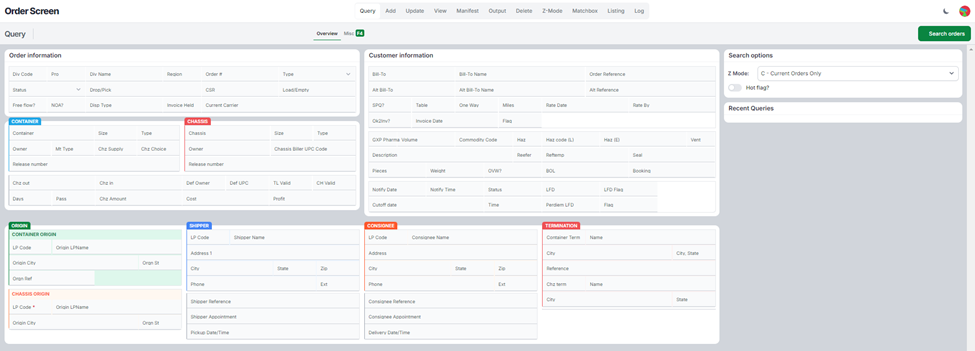
Refer to the other training articles within the New Order Screen Subcollection for specific instructional information on the use of this screen.