The Complete function on the Order screen marks a Pro as complete once all work (equipment movements or driver bobtail events) on the order has finished.
Important: Complete should only be used when all existing equipment moves on the order have been completed and no other moves will be added.
Use Complete when you need to:
Mark an order finished once all existing equipment moves are completed and no additional moves will be added.
Notify the CSR on the order that the order has been completed. (Optional)
Reverse a completion (Uncomplete) if an order needs to be reopened for additional moves or corrections.
Apply a Freight and/or FSC charge to each equipment move on a Repo-status order. (e.g. Shuttle Moves)
Query the desired order in the Order screen.
Locate the Complete icon in the order toolbar, next to Manifest. (As below)
Press F6, or left-click Complete.
When the Complete Order window opens, it displays the order number in the title bar along with the following: (As below)
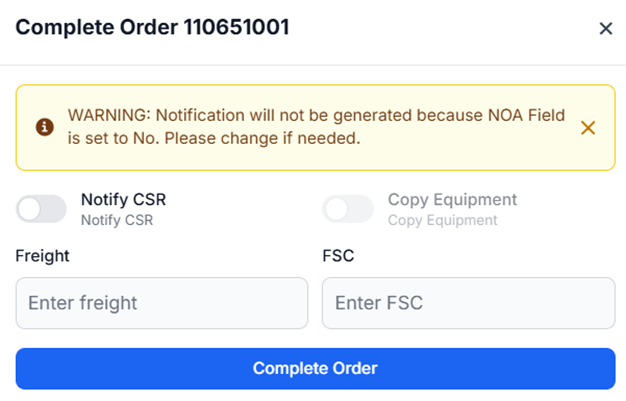
Warning banner — advises that a notification will not be generated because the NOA field is set to No; can be left as-is or dismissed by clicking the X.
Notify CSR — toggle that, when switched on, notifies the CSR assigned to the order that it has been completed.
Copy Equipment — toggle that becomes active only when the order's Status is Repo (see Special Note below).
Freight — field for entering a freight charge. Only used when Copy Equipment is toggled on.
FSC — field for entering an FSC charge. Only used when Copy Equipment is toggled on.
Complete Order — button that submits the completion.
Note: The Freight and FSC fields only apply when Copy Equipment is toggled on. Copy Equipment is only available on orders with a Status of Repo (see Special Note below).
If the NOA warning banner displays, review it and click the X to clear it, or leave it as-is — it does not prevent completion. (As below)

To notify the CSR of the completion, left-click the Notify CSR toggle to move it into the right-hand (on) position. (As below)
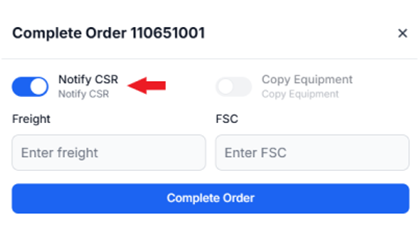
Left-click Complete Order.
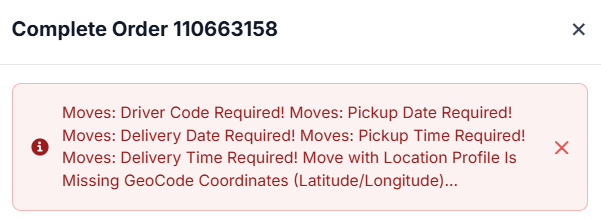
Important: Any errors on the order display in red inside the Complete Order window and must be corrected before the order can be completed successfully. (As below)
Once the order has been completed successfully, the Status field in the Order Info section updates to Complete. (As below)
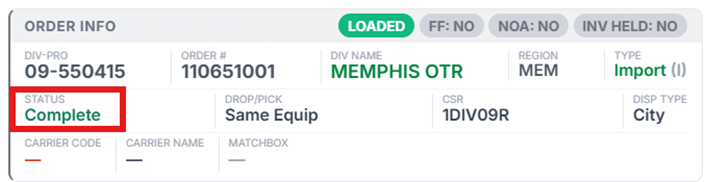
Press F6 again, or left-click Uncomplete in the order toolbar. (As below)

In the confirmation window, left-click Yes to uncomplete the order, or No to abort the process. (As below)
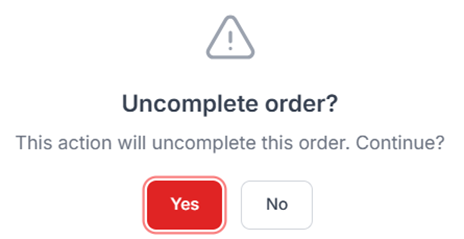
NOTE: If the Uncomplete order function is performed, the order status will revert back to the status it was prior to being Completed.
For orders with a Status of Repo, the Copy Equipment toggle becomes active. (As below)
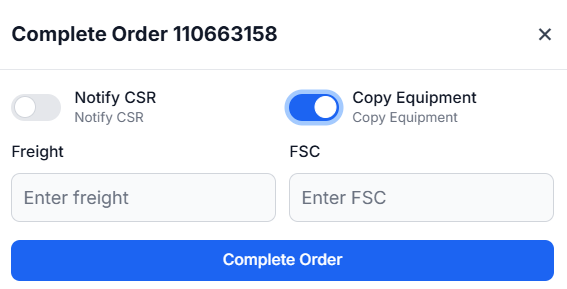
Turning on Copy Equipment allows a Freight and/or FSC charge to be entered that applies to each equipment move on the order.
These charges then appear in the F12 Multi-Repo function when selected. (As below)

Important: The Freight and FSC fields have no effect unless Copy Equipment is toggled on. If a charge needs to be applied to the order's equipment moves, toggle Copy Equipment on before entering the Freight and/or FSC amount.