
Location Profile Screen – Access Audit Logs
The Audit Log provides a historical view of changes made to a Location Profile (LP) record, including updates to key fields and record status.
To access the Audit Log, first query up the desired Location Profile record on the Location Profile screen.
Once the record is displayed, press Control + G on your keyboard.
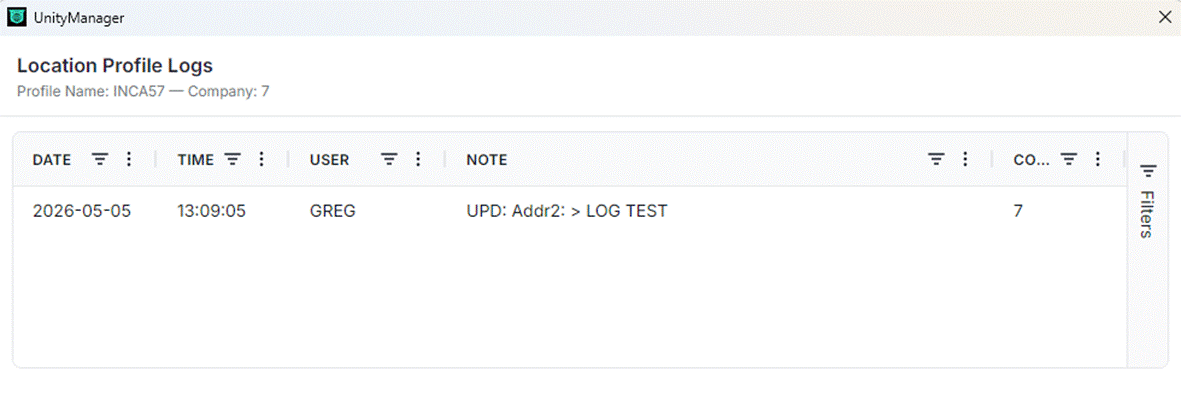
This keyboard shortcut will immediately open the Audit Log for the active LP record. (As below)
Audit Log Details
The Audit Log displays a chronological list of changes made to the record.
Typical information shown includes:
Date and time of the change
User who made the update
Field(s) changed
Previous value and new value
(See example below)
Using the Audit Log
Users can scroll through the log to review historical changes to the record.
This is especially helpful when:
Verifying when a change was made
Identifying who updated a specific field
Troubleshooting unexpected data changes
IMPORTANT NOTES
NOTE: The Audit Log is read-only. Users cannot edit, delete, or modify audit entries.
NOTE: Only changes made after the record was created will appear in the log.
REMINDER: Audit Logs are record-specific. Pressing Control + G will display logs only for the record currently queried.
TIP: If the Audit Log does not appear, confirm that:
A record is actively queried on the screen
The correct keyboard shortcut (Control + G) is used