The Appointment Modal allows users to set or update a pickup or delivery appointment for an individual equipment move directly from the Order screen.
Appointments are managed at the move level, allowing each leg of an order to have its own scheduling details.
When no appointment has been created, the move will display a + Appointment option. (As below)
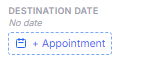
What this means:
No appointment is currently scheduled
You can select + Appointment or open the modal to create one
When an appointment exists, the move will display the scheduled time or window.
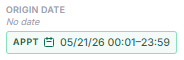
What this means:
An appointment has already been scheduled for this move
You can update your appointment using Reschedule or remove it using Cancel Appointment
Open the Order Screen
Once a pro has been queried and is displayed, locate the appropriate move in the Move List by pressing CTRL + M
Identify the correct move in the Move List
Select the Appointment icon (calendar with plus symbol) next to:
Pickup, or
Drop
The Appointment Modal will open for the selected leg
At the top of the modal, select:
Pickup – to schedule or update the pickup appointment
Drop – to schedule or update the delivery appointment
Use the Appointment Window section to configure the date and time range.
Date
Today – Sets the appointment date to the current day
Tomorrow – Sets the appointment date to the next day
Time Increments
+1h, +4h, +8h, +24h – Adds time to the current selection
Time Filters
Morning, Afternoon, Evening – Applies predefined time ranges
Time Type
All Day – Full-day availability (12:00 AM – 11:59 PM)
Business – Standard business hours (system-defined)
From
Start date and time of the appointment window
To
End date and time of the appointment window
The system displays a summary of the selected window below these fields.
What this shows:
A confirmed appointment window with start and end times
Status indicators such as Appointment Confirmed and Dates Locked
Action buttons to manage the existing appointment
From (Date/Time)
The beginning of the appointment window. Required to schedule an appointment.
To (Date/Time)
The end of the appointment window. Must be later than the "From" time.
Window Indicator
Displays the total duration of the appointment window (example: 23h 58m window).
Clear
Removes the current appointment window selection.
PIN
Used for facility access or identification requirements.
Reference No
Customer or facility reference associated with the appointment.
Reservation
Reservation or confirmation details provided by the facility.
Note
Free-text field for additional instructions or context.
Reason Code
Identifies why the appointment was created or updated. Used for tracking or reporting.
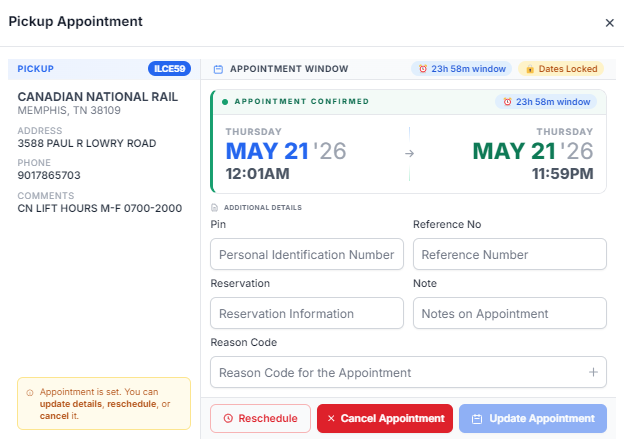
When an appointment is already set, the modal provides additional actions:
Reschedule
Updates the existing appointment time
Note: For certain EDRAY customers (e.g., Walmart, Bob's), a Reason Code is required when rescheduling an appointment due to a service exception. Be sure to select an appropriate Reason Code before saving.
Cancel Appointment
Removes the appointment from the move
Update Appointment
Saves changes to appointment details
Select Schedule Appointment (or Update Appointment if editing)
The appointment is applied to the selected move
The updated time displays in the Move List
Appointments apply to individual moves, not the entire order
Ensure the correct Pickup or Drop leg is selected before saving
Use quick-select options to reduce manual entry when possible
Always verify the From/To window before scheduling
After saving:
The appointment time is updated in the Move List
The corresponding Pickup or Drop displays the new schedule
Updates are immediately available for operational use
