
To access the Doc Audit Portal, go to:
Upon launch of the portal, “Rejected” is the default status. The current status will display at the top center of the page. (As below)

Users will have five (5) statuses to choose from under the “DocAudit” dropdown located at the top right of the page upon launch of the portal. Left click on the dropdown, then left click on the desired status name to select. (As below)
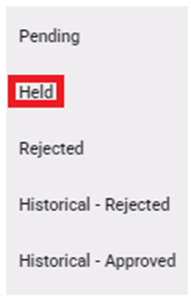
“Held” status will display those documents that are not yet in the Audit queue.
NOTE: If any customer required document has been uploaded into the Pro, regardless of order “Status”, these Pros will show under the “Held” status selection.
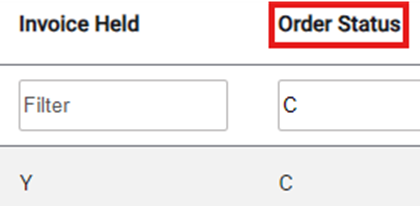
Users can adjust the filter under the “Invoice Held” and “Order Status” Columns to display only Pros in “C” (Completed) status as well as show those Pros with the ”InvHold” flag still set to “Y”. (As below)
To view a particular Pro in “Held” status, left click on the line to open the document viewer and action window.
Left click on the “Cancel” button at the bottom of the page to return to the list of Held Docs. (As below)
