To access the Doc Audit Portal, go to:
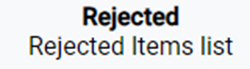
Upon launch of the portal, “Rejected” is the default status. The current status will display at the top center of the page. (As below)
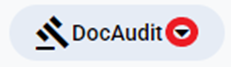
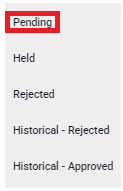
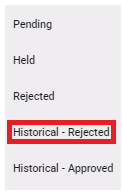
Users will have five (5) statuses to choose from under the “DocAudit” dropdown located at the top right of the page upon launch of the portal. Left click on the dropdown, then left click on the desired status name to select. (As below)
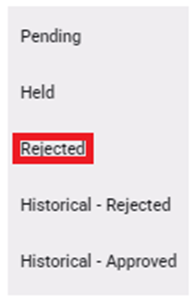
NOTE: Except for “Rejected” status, Operations will have “Read Only” access to the other dropdown selections.
To ACTION a particular Pro in “Rejected” status, left click on the line to open the document viewer and action window. (See abbreviated example below)
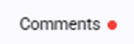
NOTE: The “Comments” tab will be the displayed default upon launch of the Portal. If a red dot appears to the right of “Comments”, this indicates a new message exists. (As below)
The person rejecting the document, the reason for rejection and the date/time of the rejection will be listed in this section. (As below)


NOTE: If you wish to enter any comments related to the reason for document rejection, enter them in the “Leave a comment here” field above, then left click the “Submit” button. Comments are NOT required.
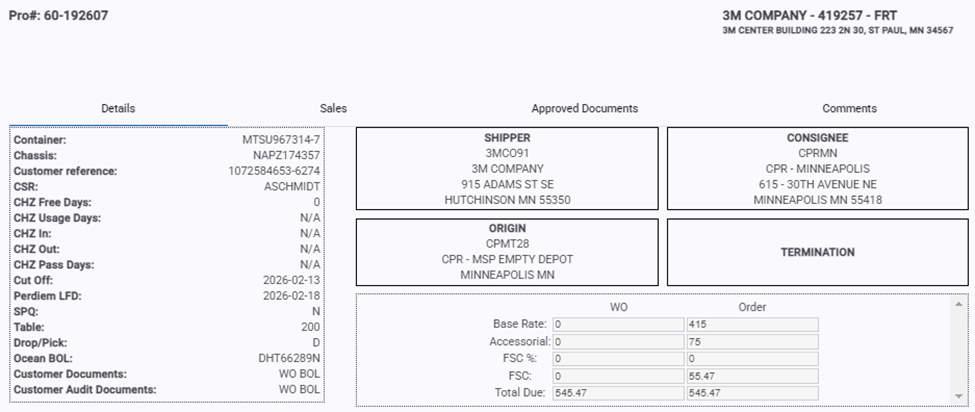
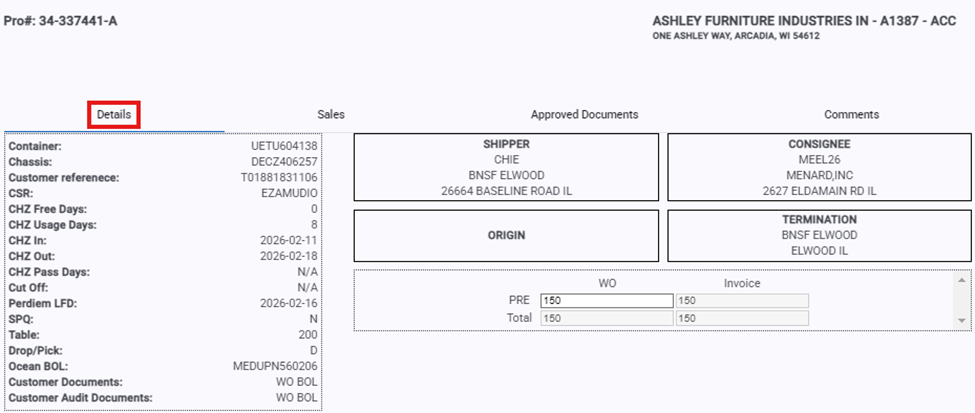
Click on the “Details” tab to display Pro details including the Pro #, BillTo information, container #, etc. (As below)
Left click on the “Sales” header to view T300 accessorial sales. (As below)

Left click on the “Approved Documents” header to view any previously approved documents. (As below)

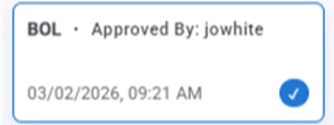
The document type of the previously approved document(s) will be listed followed by the approver’s userid with date & time approved. Left click on any approved doc to display in the viewer window. The selected approved document will then display with a blue border and checkmark indicating the current view. (As below)
Left click on the “Cancel” button at the bottom of the page to return to the list of Rejected Docs. (As below)

For Operations, there are two actions that can be performed when viewing “Rejected” documents:
1) Reclassifying the document
2) Confirming Rejection of the document
1) - Upon researching, if a document was rejected but is valid and needs to be resubmitted to be audited again, first left click on the dropdown arrow to the right of “Reclassify Document” and select the correct document classification. (As below)

Next, left click on the green “Resubmit” button located at the bottom of the page. (As below)

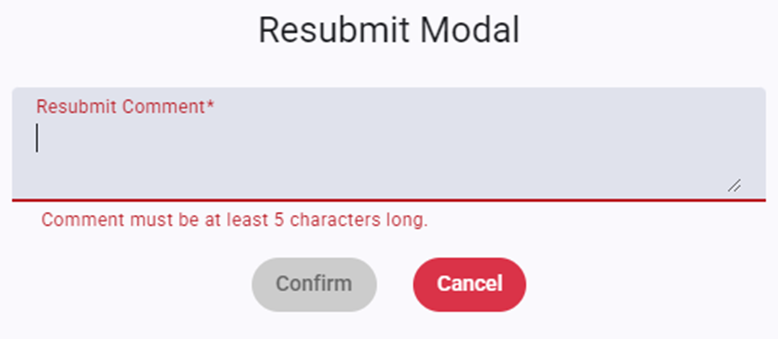
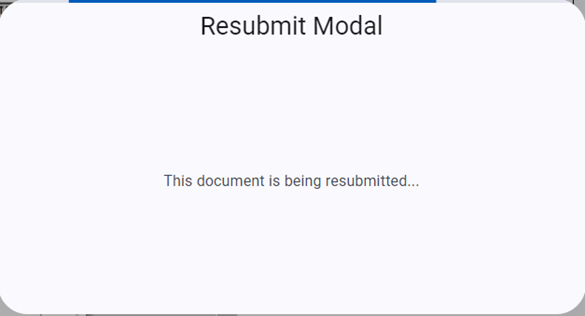
The below “Resubmit Modal” window will popup. A “Resubmit Comment” is required. Type the comment in the field (minimum of 5 characters) then left click on the “Confirm” button. The “Confirm” button will be active (and turn green) once the minimum characters are entered. To abort the process, left click on the red “Cancel” button. (As below)
After left clicking on the “Confirm” button, an additional modal will display. This modal will prevent users from advancing to the next document or Pro before the process has completed. (See example below)
NOTE: Documents that are reclassified and resubmitted will immediately move under the “Pending” status dropdown back into the audit queue. (As below)
2) - Upon researching, if a document was rejected and does not apply to the associated Pro, the “Confirm Rejected” action button should be used. First, left click on the red “Confirm Rejected” button located at the bottom of the page. (As below) NOTE: Left click on the “Cancel” button to abort the process.

The below “Confirm Rejection Modal” window will popup. (As below)
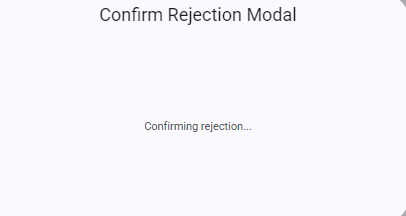
An additional popup will display confirming the rejection.
SPECIAL NOTE: Prior to Confirming Rejection of a doc, if it should be uploaded to another Pro, use the “Save” button located at the top of the screen. (As below) Once downloaded, the doc can be dropped into SmartDoc.

NOTE: Documents that are “Confirmed Rejected” will immediately move under the “Historical - Rejected” status dropdown. (As below)
NAVIGATION: When reviewing the rejected documents, if applicable, left click on the right arrow located in the middle right of the page to move to the next document (or next Pro). The current doc number will display at the bottom left of the page. (As below)


Reversely, left click on the left arrow located in the middle left of the page to move to the previous document (or previous Pro). (As below)


When advancing through the Pros, once the last document has been displayed a pop-up window will advise the user they are at the end and take the user back to the previous item List.
