The Misc. Information (F4) function provides access to supplemental order information maintained outside of the Home tab.
The Misc. Information section can be used in three ways:
Query Mode – Use Misc. Information fields as search criteria when locating orders.
View Mode – Review Misc. Information associated with an existing order.
Update Mode – Modify Misc. Information fields when updates are required.
Use the Misc. Information tab when you need to:
Search for orders using Miscellaneous Information fields.
Review supplemental order details associated with a Pro.
Validate ETA, rail, vessel, broker, notify party, and other miscellaneous information.
Update Miscellaneous Information fields on an existing order.
Misc. Information fields can be included as search criteria when performing a query in the New Order Screen.
Open the New Order Screen.
Select Query mode.
Hit the (F4) key or left click on the Misc. (F4) tab.
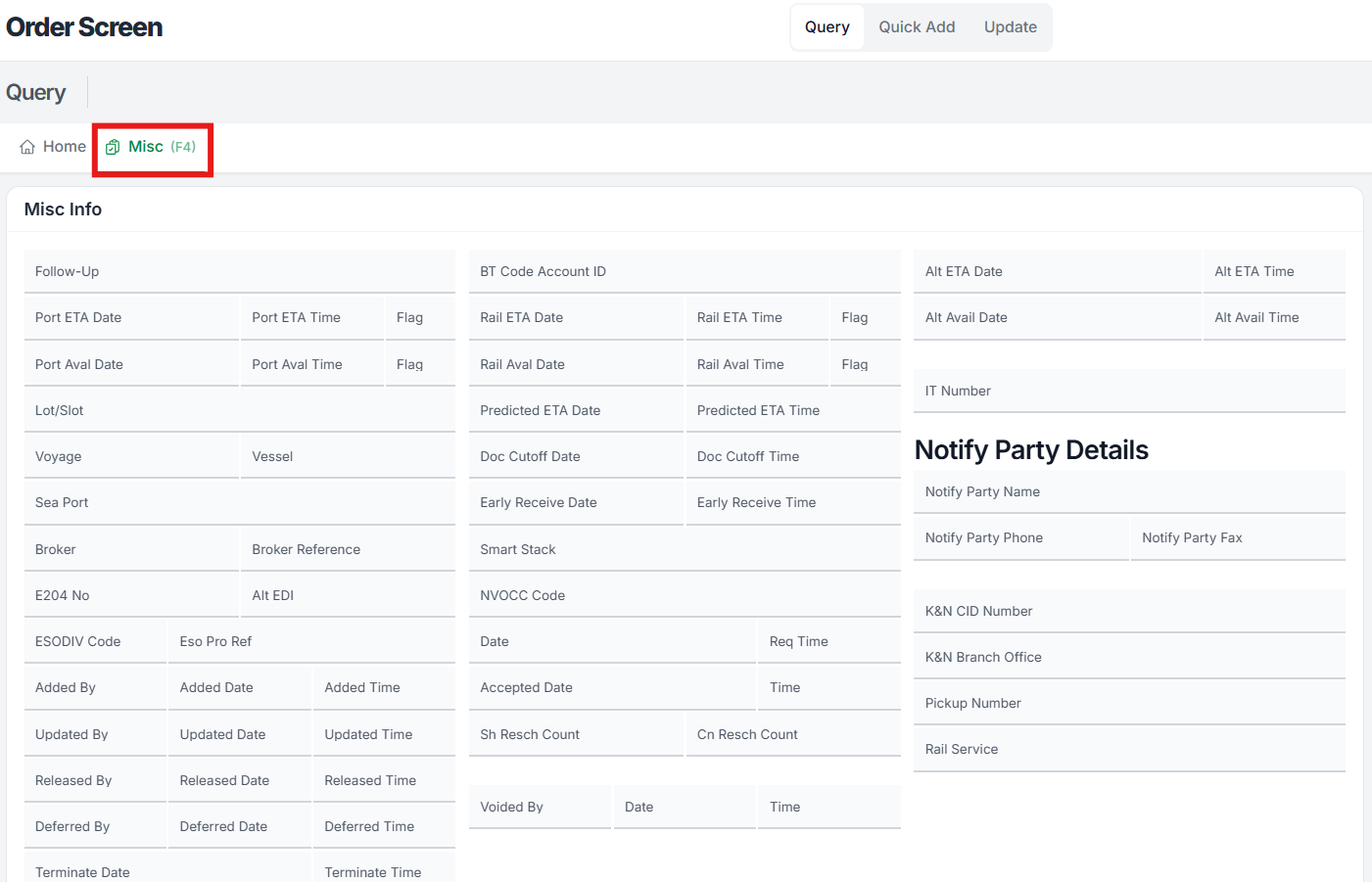
Select the Misc. (F4) tab while in Query Mode to access additional search criteria. (As below)
The Misc. Information screen contains additional fields that can be used to narrow search results and locate specific orders.
Examples include:
Follow-Up
Port ETA Date / Time
Rail ETA Date / Time
Vessel
Broker
Notify Party Information
Enter the appropriate information into one or more fields and execute the query.
The Misc. Information screen provides additional fields that can be used as query criteria when searching for existing orders.
After a Pro has been queried and opened in View Mode, users can review Miscellaneous Information associated with the order.
Query and open the desired order.
Ensure the order is displayed in View Mode.
Hit the (F4) key or left click on the Misc. (F4) tab.
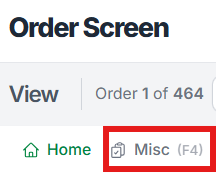
In View Mode, the Misc. (F4) tab displays supplemental information associated with the selected order.
Users with appropriate permissions can update Miscellaneous Information fields from Update Mode.
Query and open the desired order.
Select Update.
Hit the (F4) key or left click on the Misc. (F4) tab.
Modify the necessary information.
Save the order.
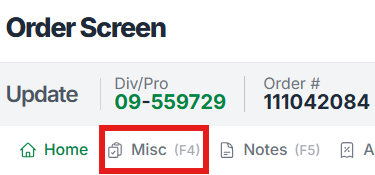
In Update Mode, use the Misc. (F4) tab to maintain miscellaneous information associated with the order.