
To access the Dispatch Optimizer (D.O.) from SWS main menu, go to Easy Operations, left click on Dispatch, then left click on Dispatch Optimizer.
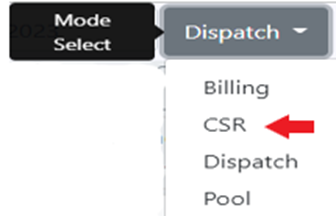
“CSR” mode can be used to display both the assigned & unassigned order moves for a specific CSR. A CSR could use this mode to check on driver’s Eta’s to the customer and/or what order moves have not been assigned yet, among other uses. To access “CSR” mode, left click on the “Dispatch” dropdown arrow then left click on “CSR”. (As below)
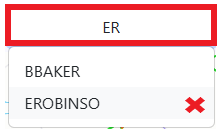
The userid of the person accessing CSR mode within the D.O. will auto populate to this field:

To enter another userid, left click in the box and begin typing to see a list of matching results. (As below)
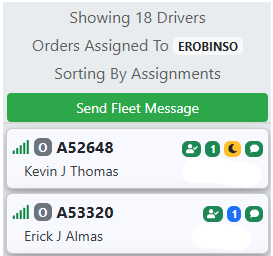
The drivers with assigned moves that contain the entered userid in the CSR field of the Order Screen will display on the left-hand side of the screen. (Example below)
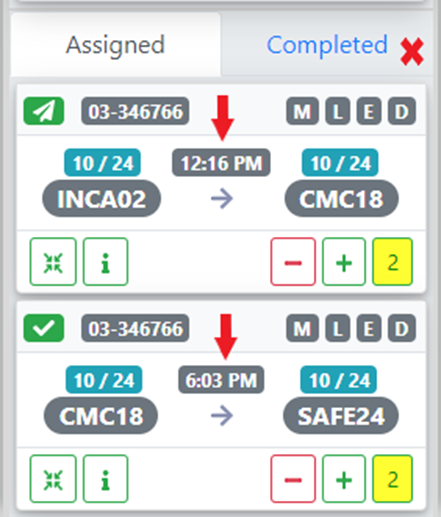
Left click on a driver’s “card” to select that driver. The assigned moves will be displayed with an eta for each move. Left click on the “Completed” tab to view any completed moves. (As below)
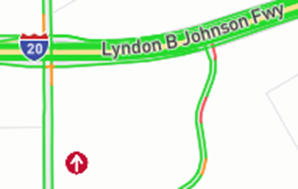
If in “Map” view (refer to D.O. Map View training module), a red arrow representing the selected driver will display on the map indicating driver’s current position. (Example below)
The unassigned moves (if applicable) that contain the entered userid in the CSR field of the Order Screen will display on the right-hand side of the screen. (Example below)
If necessary, refer to D.O. Move Card Sorting Options training module for instructions on how to sort the moves using the drop-down arrow below.
