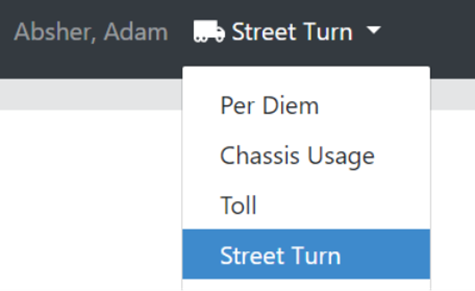
To locate the “Street Turn” invoice dashboard, click the invoice type dropdown from the EMP Landing page and select “Street Turn”. (As below)
How to add Street Turn Invoices
There are two ways to add MSC Street Turn Invoices:
Email Processing:
Email Address – DL-IMCC-EMR-ST-INVOICE
Subject – MSCST
Body – Type MSCST and attach the pdf invoice
Manual Upload
When manually uploading, users can utilize two different paths in the manual upload flow (one with the non-standard invoice spreadsheet and one with PDF only).
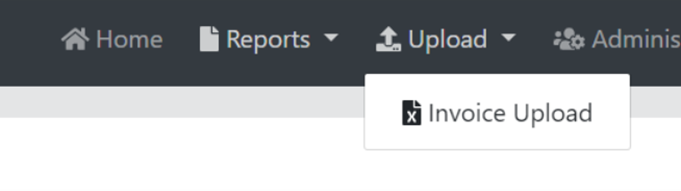
For the first example, let’s assume that the user populates the non-standard invoice template (XLSX). First, navigate to the Invoice Upload screen. (As below)
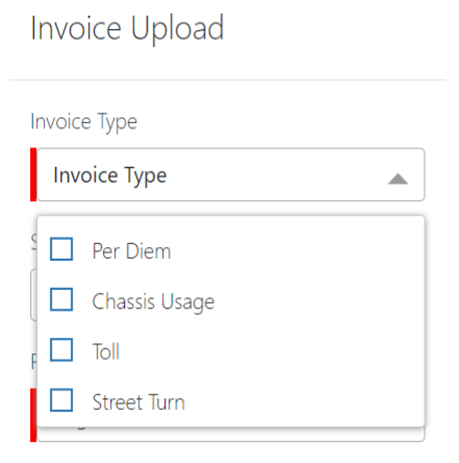
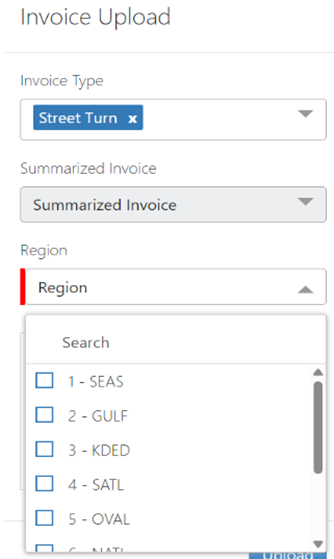
Next, select “Street Turn” from the “Invoice Type” dropdown. (As below)
Next, select the applicable “Region” from the Region dropdown list. (As below)
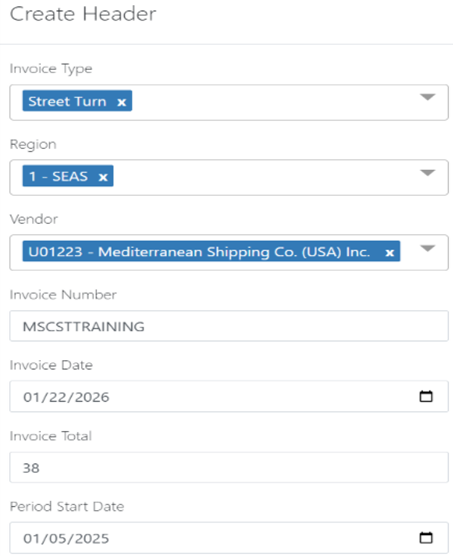
Once a Region is selected, the “Create Header” form below will be presented. Complete all the (required) red fields then click on Add.
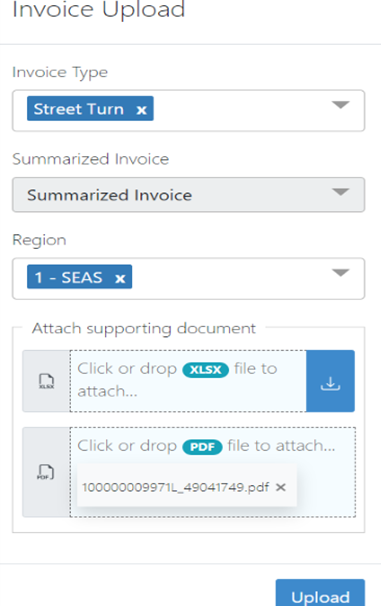
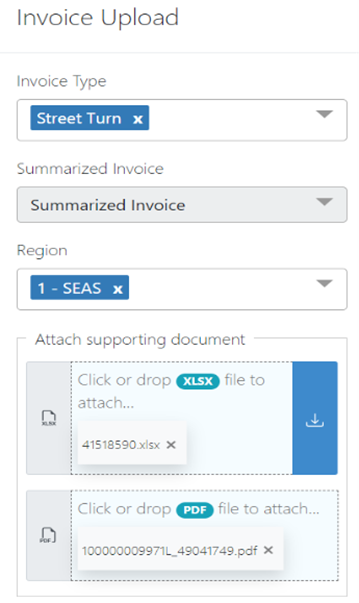
The user will be returned to the “Invoice Upload” landing page. From here, attach the XLSX non-standard template and the PDF invoice. Next, click Upload.
If the user did not populate the non-standard invoice template and only has the PDF invoice, follow the below instructions:
Select “Street Turn” from the “Invoice Type” dropdown list and select the “Region” from the Region dropdown list. (As below)
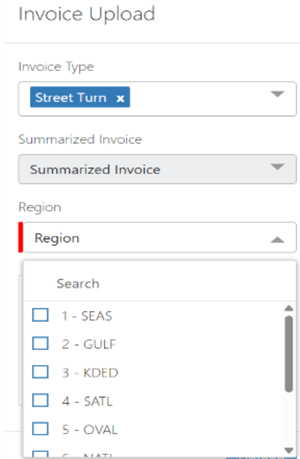
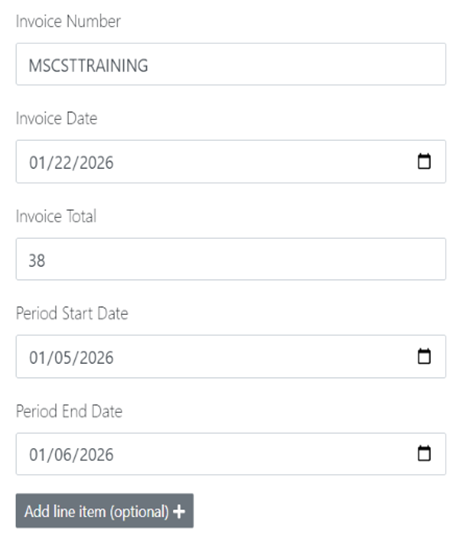
When the user selects a Region, they will be presented with the “Create Header” form below. Complete all the (required) red fields then click on the “Add line item (optional)” button. (As below)
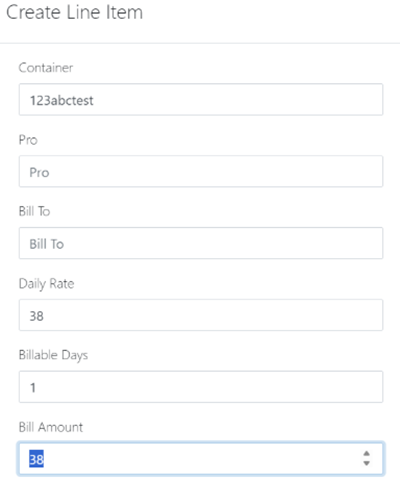
Users will then be presented with the below “Create Line Item” form. Populate all the required red fields. Once completed, click the “Create” button at the bottom of the form. NOTE: The data provided is what users will see on the “Line Item Detail” screen once the invoice is uploaded.
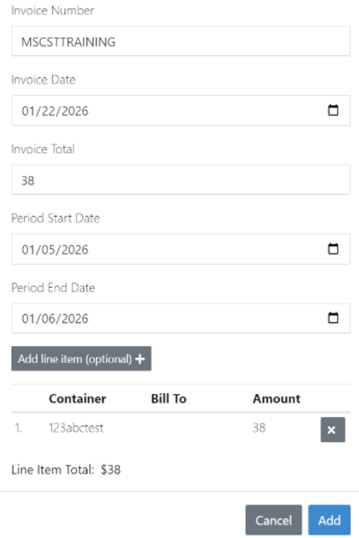
Next, users will be returned to the “Create Header” form but with the newly created Line-Item present. Click the “Add” button to proceed. (As below)
Lastly, users will be returned to the “Invoice Upload” page. Users will then attach the PDF invoice doc and click the “Upload” button. (As below)