Daily Checklist:
Load Tender Worksheet (LTW)
Check for any active/pending load tenders multiple times per day. From SWS main menu go to Customer Service>EDI>Load Tender (204) NEW
If any active Tenders exist, remember to update the Trailer termination field {along with any other missing order screen fields) prior to accepting any Tenders to avoid manual order screen updates after accepting the Tender.
CSR Worksheet
Next, from SWS main menu go to Customer Service>Order Entry>Worksheet
1. Set your filter to display Division 64 and Order Status of Not Released.
2. Use the “Bulk Release” action button to release the Orders just created from the LTW.
3. Adjust your filter to display an Order Status of Ready.
4. Use the “Bulk PrePull” action button and enter the LP code of the transload facility to update the equipment moves on the order(s).
Brokerage/Order Screen
From SWS main menu go to Customer Service>Order Entry>Order
Query the newly released orders now in “Ready” status. When in “Update” mode, use the F9 function to insert/add a “NF” (Non-Fixed Stop) with the transload warehouse LP code between the SH and CN stops already present. (See example below)

Next, manually update the equipment moves. The first leg should be correct: a loaded leg from the Port/Rail to the transload facility. The second leg should be updated to an empty equipment termination move from the transload facility back to the Port/Rail. The third leg (final mile) should be a loaded move from the transload facility to the Consignee.
ICB Screen
From SWS main menu go to Customer Service>Order Entry>ICB.
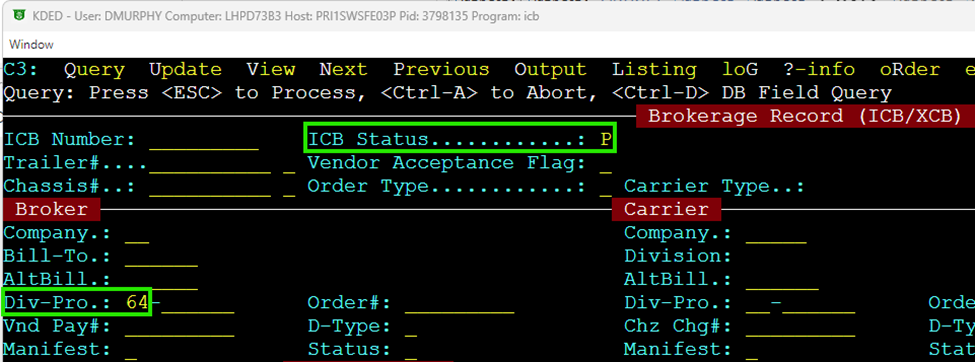
Check that ICB’s have been accepted. Query Div 64 on the Broker Side and ICB Status of “P” for “Pending”. (As below) If there are ICB’s records still pending after a reasonable amount of time following brokerage, contact the applicable terminal to accept the ICB.
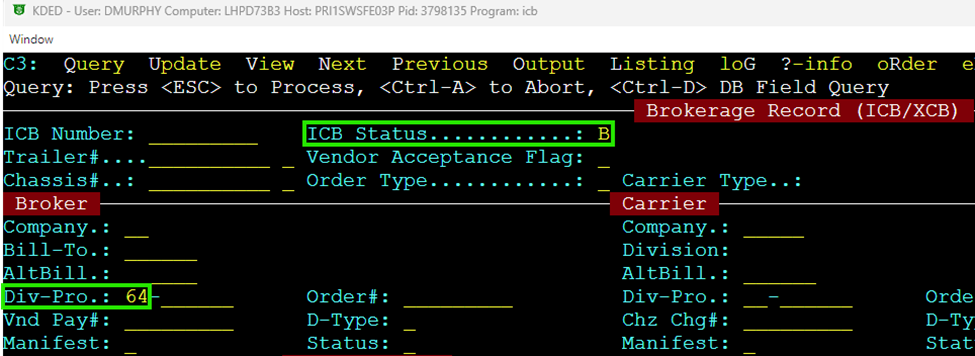
Check for Pending Carrier Charges (includes both ICB & XCB records) that need Broker approval. Query Div 64 on the Broker Side and ICB Status of “B” for “Broker”. (As below)
To view a breakdown of the “Carrier” charges, hit the F8 Key. (As below)
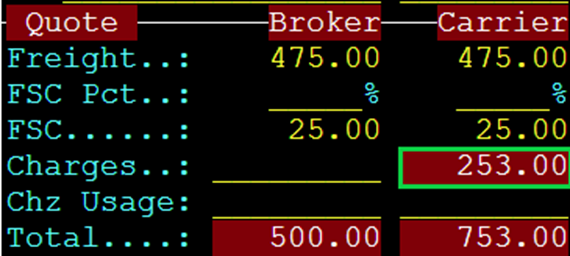

Pending Carrier charges must be “Accepted” or “Declined” in the ICB Screen. NOTE: If one of the Carrier charges is incorrect, ALL charges must be declined, and the Carrier must resubmit either in the Order Screen for ICB’s or IMCPower for XCB’s. In the end, the Total Carrier charges MUST match the Total Broker charges.
Order Completion
Once all Carrier charges have been accepted AND all assessorial charges have been entered/verified in F8, the order can be “Completed” by using the F6 option in the Order Screen. Currently, two “dummy” equipment moves (legs) must be manually added to Division 64 Pros prior to completing:
The fourth leg should be updated to a loaded leg from the Shipper (Port/Rail) to the Consignee (customer) based on the Order Stops on the Pro. The fifth leg should be an empty equipment termination move from the Consignee back to the Trailer Termination LP code. Typically this will be the same LP code as the Shipper but could be different. (Example below)

Lastly, once the Order has been Completed, Update the order with an “N” in the “InvHold” field. (As below)

