Para acceder a la Hoja de Trabajo EDI desde el menú principal de SWS, ve a Servicio al Cliente, haz clic izquierdo en EDI, luego haz clic izquierdo en Tender de Carga (204) NUEVO.
Al abrir la hoja de trabajo, "Filtros - Tenders Activos" es la configuración predeterminada identificada con una estrella negra. (Como se muestra abajo) Este filtro no se puede eliminar. Haz clic izquierdo en la flecha desplegable a la derecha del nombre del filtro mostrado para ver todos los filtros disponibles. (Como se muestra abajo)

NOTA: Haz clic izquierdo en el filtro que deseas ver. El filtro actual o activo se resaltará en azul. (Ver ejemplo abajo)

Para ver las opciones de búsqueda definidas dentro de un filtro determinado, pasa el cursor sobre el símbolo azul del "ojo". (Como se muestra a continuación)
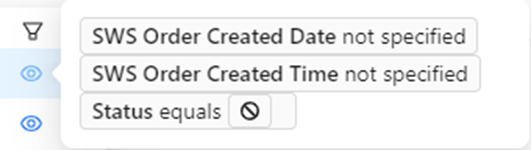
NOTA: Este es un modo de solo lectura; no se pueden hacer cambios al filtro desde esta vista.
Para CONTRAER la vista "Filtros", haz clic izquierdo en la flecha hacia abajo a la izquierda del encabezado "Filtros". Haz clic izquierdo en la flecha hacia la derecha para restaurar la vista "Filtros". (Como se muestra a continuación)

CHANGING a filter:
A displayed filter from the dropdown (“Active Filters” for example) can be further filtered by using the Hot Key “Q” to position the cursor in the “Add filter criteria here” field. (As below)

Next, left click to display a dropdown list and then left click on the desired criteria. (As below)
NOTE: This field uses typeahead. Start typing in the field and the dropdown will display all matching data.
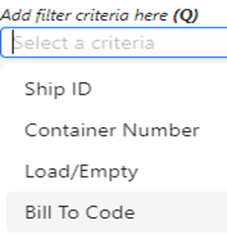
Next, left click on the desired criteria to select, then select between “is” or “in” from the dropdown below.
NOTE: The default “is” does not have to be selected. “is” applies to one exact data match. “in” should be used when searching within a pasted data set, I.E. Container Number. Depending upon the “filter criteria” selected, “contains”, “does not contain” or “NOT in” may be available to select. (See example below)
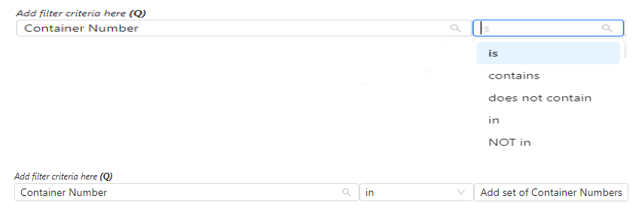
“in” can also be used to add multiple filter selections from the dropdown if a list is displayed. Example: Order “Type” (As below)

A continuación, según los criterios de filtro seleccionados, pega los datos a filtrar en el campo Buscar o selecciona la(s) opción(es) deseada(s) del menú desplegable.
En el ejemplo a continuación, se seleccionó el criterio de filtro EDI "Estado" ES "IGNORADO".

A continuación, haz clic izquierdo en el botón "+ Agregar Filtro". (Como se muestra a continuación)
Repite este proceso hasta que se hayan agregado todos los filtros deseados. Por último, haz clic izquierdo en el botón azul "Buscar" para ejecutar la búsqueda. (Como se muestra a continuación)
HINT: When adding filter criteria, any conflicting filters will display in red. One or more of the filters will need to be deleted before any Search results will display.
Still using the previous example, the default filter of EDI “Status” equals (no value defined) conflicts with the filter EDI “Status” equals “I IGNORED”. (As below)

In the above example, left click on the “x” to delete EDI “Status” equals (no value defined). When no conflicting filters exist, the filter(s) will display in blue. (As below)
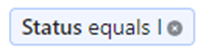
NOTE: You must left click on the “Search” button again after any filters have been deleted to execute the filter and display any results.
To SAVE a “Filter”, there are several options available. Left click on the “Update” button located at the top of the screen to make/save the changes to the current displayed filter. Or, left click on the “Save As New” button. (As below)

If the “Save As New” button is used, a popup window (below) will display. The “Set Title” field is required.
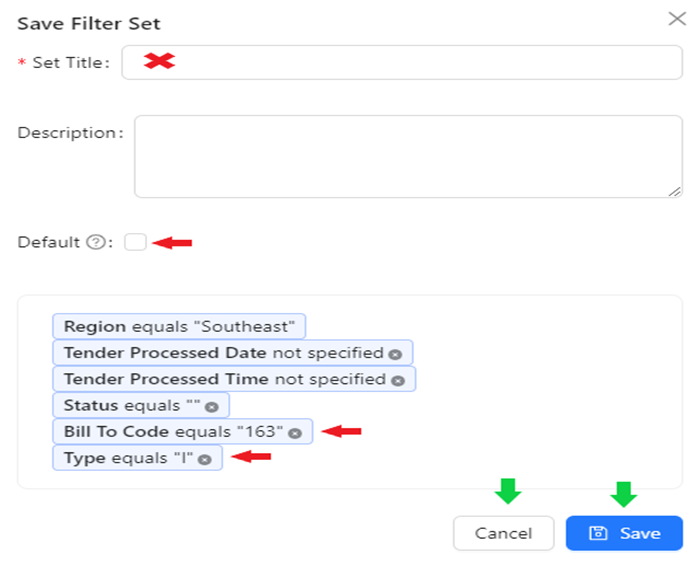
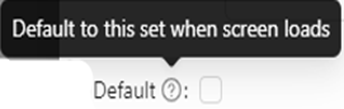
To make this filter the “Default” filter upon opening the worksheet, left click in the box to the right of the selection.
Left click on the “Cancel” button to abort the process. Left click on the blue “Save” button to save the filter.
NOTA: Cualquier filtro no deseado se puede eliminar antes de seleccionar el botón "Guardar" haciendo clic izquierdo en la "x" a la derecha del nombre del filtro. (Como arriba)
Para LIMPIAR un "Filtro" aplicado, haz clic izquierdo en la "x" al final de la descripción del filtro. Los criterios de búsqueda predefinidos para ese filtro se mostrarán en la parte superior de la hoja de cálculo cuando se haya seleccionado el filtro. (Ver ejemplo abajo)

La "Región" aplicable se mostrará según el usuario y no se puede cambiar ni eliminar. (Ver ejemplo arriba)
NOTE: To “CLEAR (ALL) FILTERS”, left click on the trash can symbol. (As below)