NOTE: The system will attempt to “Auto Link” an EDI Tender with the correct Order Pro if one has already been created. This section outlines the process of manual “Order-Linking” if necessary. This would be the exception and not the rule.
HINT: In order for an EDI Tender and Order Pro to “Auto Link”, 3 data points must match: 1) Order Ref # (In the Pro) and ShipId (On EDI Tender), 2) Equipment (Container #) and 3) The Bill-To.
Additionally, the seal # is a data point that will autolink a load tender to an Order Pro IF the container # and Bill-To also match. The seal # in the Order Pro must be an exact match to the load tender. If these conditions exist, the Order Pro will update with the order ref# and autolink the EDI load tender to the pro.
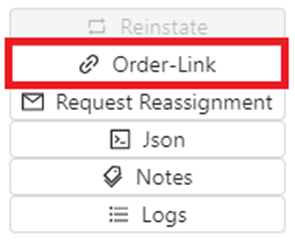
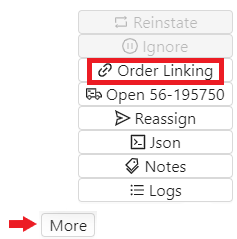
Once an EDI Load Tender has been selected, from the “Action Bar”, left click on the “More” button. Next, left click on the “Order-Link” button. (As below)

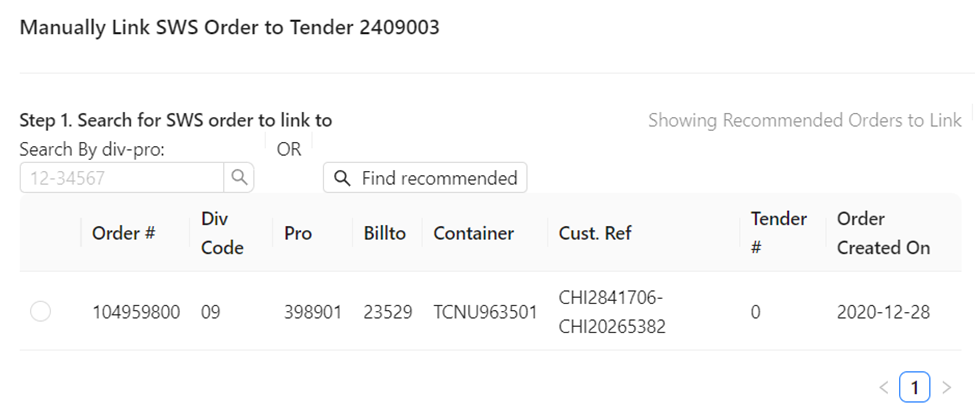
If an already created Order Pro matches the data in the tender, it will be listed under “Showing Recommended Orders to Link“. Left click in the circle to the left of the applicable Order Pro line to select, then left click on the blue “Manually Link” button. Left click on the “Cancel” button to abort the manual linking process. (See snapshots below)
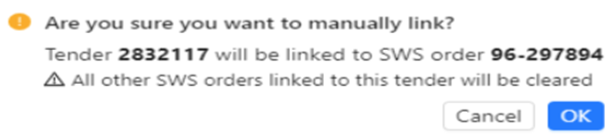
If the queried EDI Load Tender is already matched to an Order Pro, it will display in blue as below.
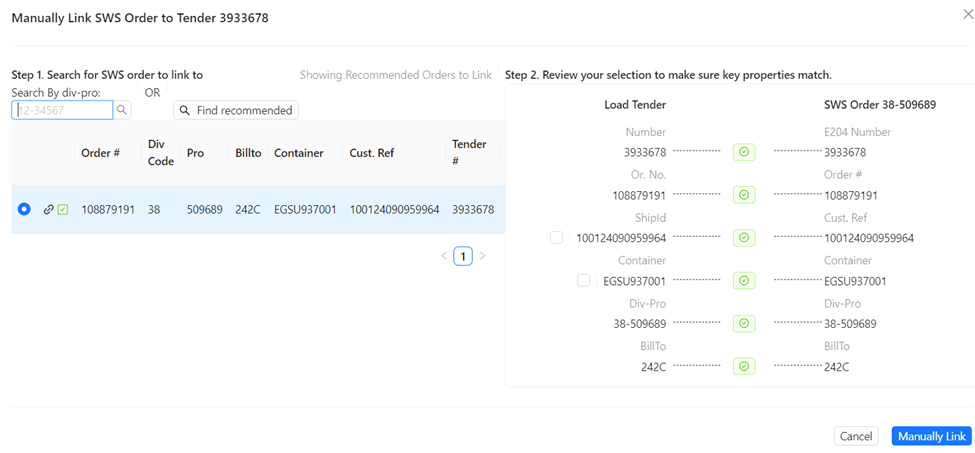
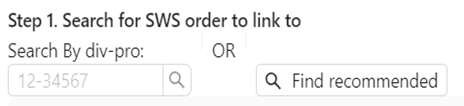
If the desired Order Pro does not display, enter the correct Pro # in the “Search By div-pro” field. Next, left click on the magnifying class symbol to execute the search. Left click on the “Find recommended” button to display any Order Pros that displayed prior to using the “Search By div-pro” option. (As below)
Prior to manual linking, there are two field values that can be selected on the Load Tender side to override the information in the Order Pro itself. If applicable, left click in the box to the left of “ShipID” and/or “Container”. (As below)
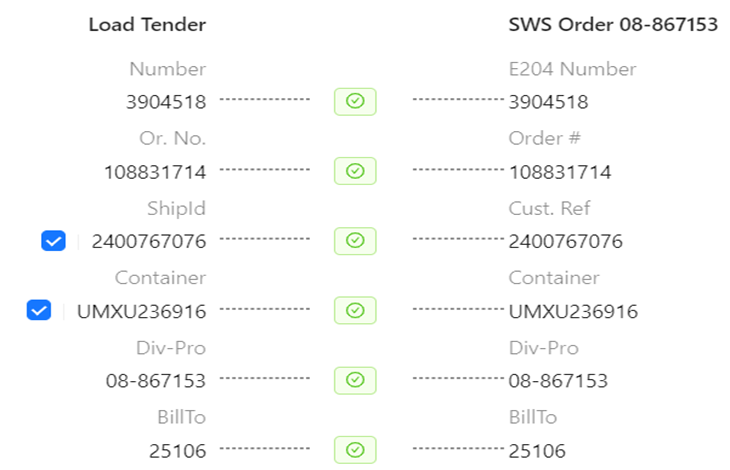
NOTE: Using the “Manually Link” button/process will break any other existing links. Therefore, there is not a Break Link option.
ORDER RELEASE ERROR MESSAGE
If an error message (see below example) displays when attempting to “Release” an accepted EDI order, this means that the Pro is not currently linked to an EDI tender and that a duplicate most likely exists.

Refer to the Order Linking steps above to identify what Pro # the EDI load tender is currently attached to. The decision will need to be made to link the EDI load to this Pro or Void the Pro and use the Pro the tender is currently attached to.
LINKING INDIVIDUAL FIELDS
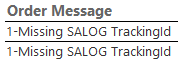
For those users that receive the KN CNI report daily, when reviewing those with an Order Message of 1-Missing SALOG TrackingId (as below), there is a “quick fix” that can be used to update this information using the Load Tender Worksheet.
First, query the Pro in the Order Screen. Next, type an “E” to display the EDI Tender. Next, close the Tender display window and from the “Action Bar”, left click on the “More”
button. Next, left click on “Order Linking”. (As below)
An example of the Linking Screen is below. Note that the “Brokerref” (which is the Tracking ID) can be found on the Load Tender but is not found in the SWS Order itself.
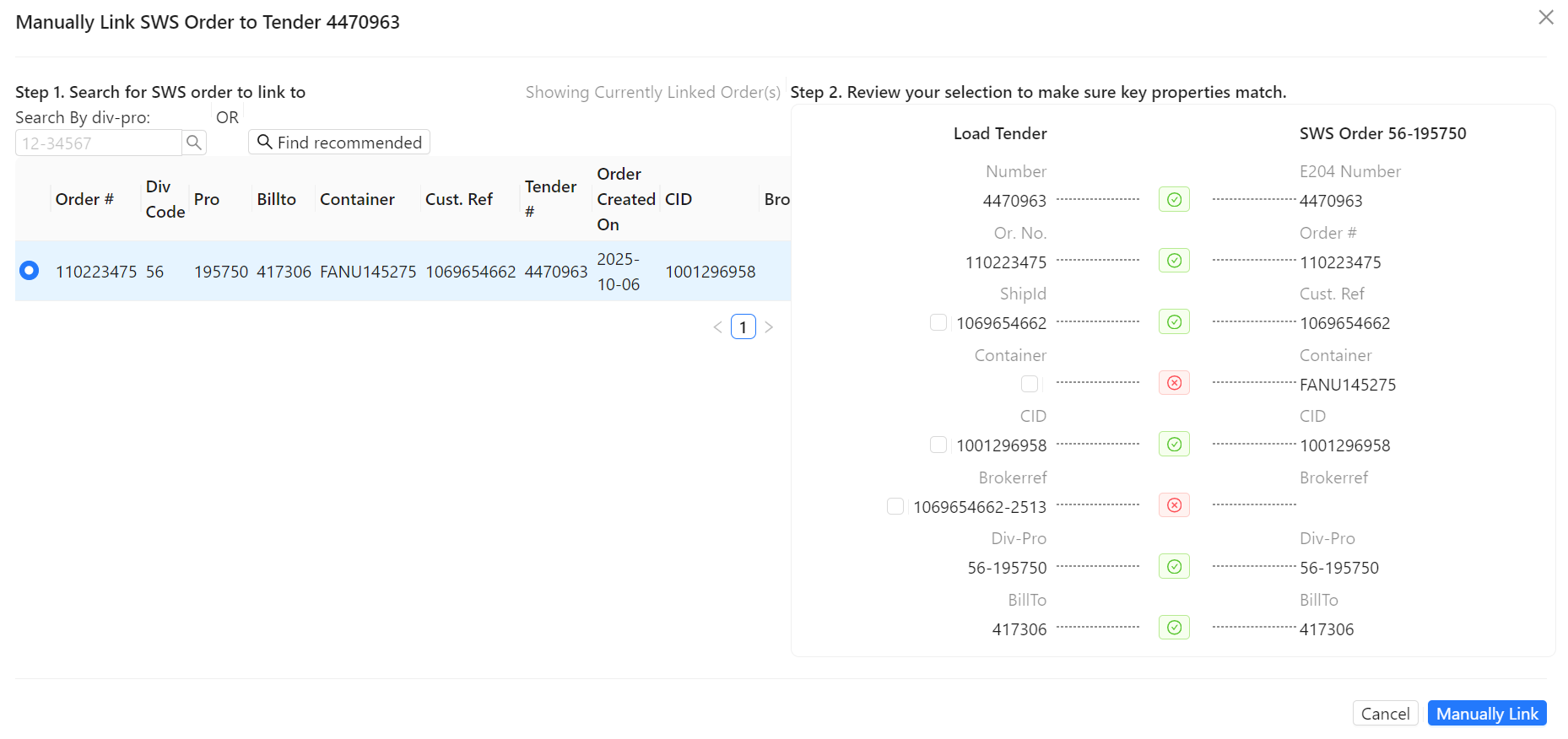
To ADD the “Brokerref” number to the SWSOrder, simply left click the checkbox to the left of that row. The “Brokerref” number will populate under the “SWS Order” column. (As below)

NOTE: Keep in mind this process can be used to update the “CID” number as well if included in the Load Tender record.
Next, left click on the “Manually Link” button below.

Notice the green checkmark in the middle indicates both values match. (As below)
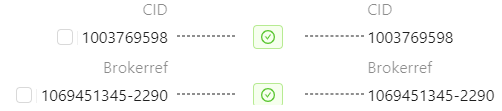
Once the Manually Linking has been completed, users should then follow the established “Order Rerate” procedures. If updated via Manually Linking, the “CID” & “Brokerref” fields will then populate in the F4 section of the Pro. (As below)