NOTA: El sistema intentará "Vincular Automáticamente" una Licitación EDI con la Orden Pro correcta si ya ha sido creada. Esta sección describe el proceso de "Vinculación de Orden" manual si es necesario. Esto sería la excepción y no la regla.
SUGERENCIA: Para que una Licitación EDI y una Orden Pro se "Vinculen Automáticamente", deben coincidir 3 puntos de datos: 1) Número de Referencia de Orden (En la Pro) y ShipId (En la Licitación EDI), 2) Equipo (Número de Contenedor) y 3) El Facturar A.
Además, el número de sello es un punto de datos que vinculará automáticamente una licitación de carga a una Orden Pro SI el número de contenedor y Facturar A también coinciden. El número de sello en la Orden Pro debe ser una coincidencia exacta con la licitación de carga. Si estas condiciones existen, la Orden Pro se actualizará con el número de referencia de orden y vinculará automáticamente la licitación de carga EDI a la pro.
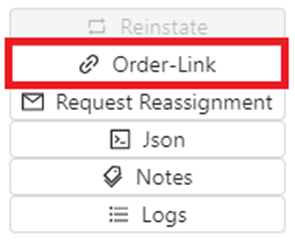
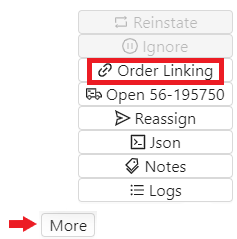
Once an EDI Load Tender has been selected, from the “Action Bar”, left click on the “More” button. Next, left click on the “Order-Link” button. (As below)

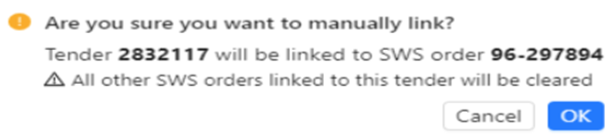
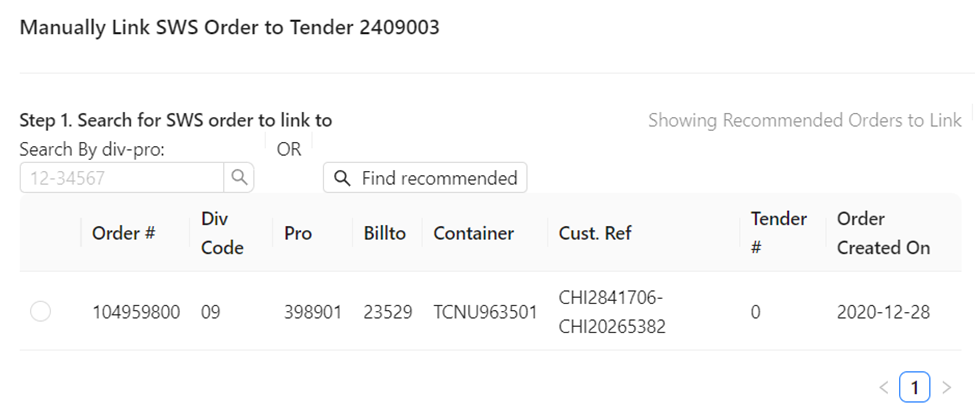
If an already created Order Pro matches the data in the tender, it will be listed under “Showing Recommended Orders to Link“. Left click in the circle to the left of the applicable Order Pro line to select, then left click on the blue “Manually Link” button. Left click on the “Cancel” button to abort the manual linking process. (See snapshots below)
If the queried EDI Load Tender is already matched to an Order Pro, it will display in blue as below.
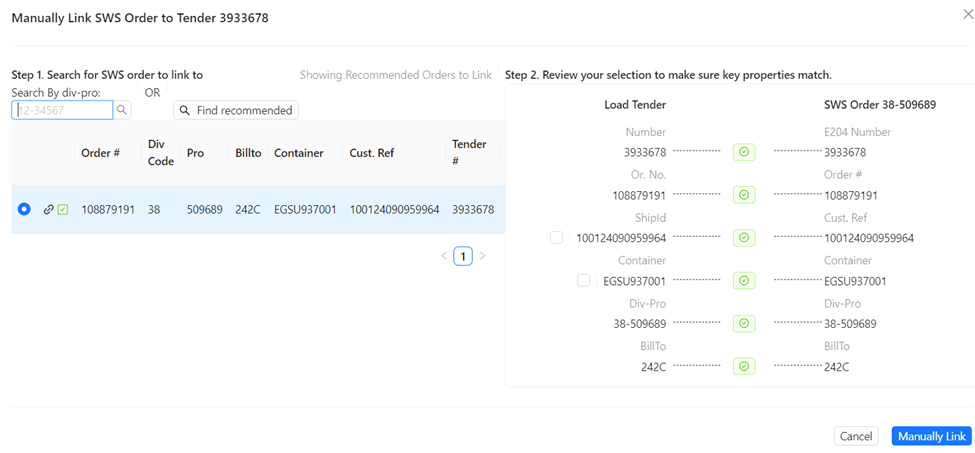
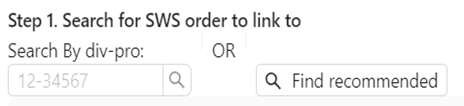
If the desired Order Pro does not display, enter the correct Pro # in the “Search By div-pro” field. Next, left click on the magnifying class symbol to execute the search. Left click on the “Find recommended” button to display any Order Pros that displayed prior to using the “Search By div-pro” option. (As below)
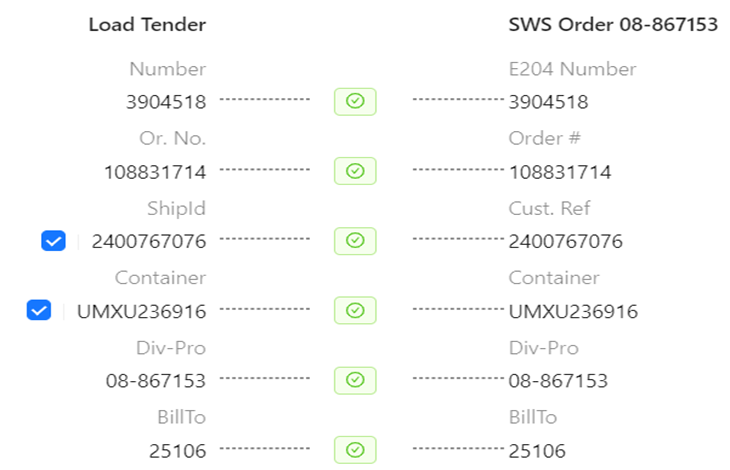
Prior to manual linking, there are two field values that can be selected on the Load Tender side to override the information in the Order Pro itself. If applicable, left click in the box to the left of “ShipID” and/or “Container”. (As below)
NOTA: Usar el botón/proceso "Vincular Manualmente" romperá cualquier otro vínculo existente. Por lo tanto, no hay una opción "Romper Vínculo".
MENSAJE DE ERROR AL LIBERAR ORDEN
Si aparece un mensaje de error (ver ejemplo abajo) al intentar "Liberar" una orden EDI aceptada, esto significa que el Pro no está actualmente vinculado a una licitación EDI y que probablemente existe un duplicado.

Consulta los pasos de Vinculación de Orden anteriores para identificar a qué Pro # está actualmente vinculada la licitación de carga EDI. Será necesario tomar la decisión de vincular la carga EDI a este Pro o Anular el Pro y usar el Pro al que está actualmente vinculada la licitación.
VINCULACIÓN DE CAMPOS INDIVIDUALES
Para aquellos usuarios que reciben el reporte KN CNI diariamente, al revisar aquellos con un Order Message de 1-Missing SALOG TrackingId (como se muestra abajo), hay una "solución rápida" que se puede usar para actualizar esta información usando la Load Tender Worksheet.
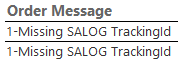
Primero, consulta el Pro en la pantalla Order. Luego, escribe una "E" para mostrar el EDI Tender. Después, cierra la ventana de visualización Tender y desde la "Action Bar", haz clic izquierdo en "More"
botón. Luego, haz clic izquierdo en "Order Linking". (Como se muestra abajo)
Un ejemplo de la pantalla de Linking se muestra abajo. Ten en cuenta que el "Brokerref" (que es el Tracking ID) se puede encontrar en el Load Tender pero no se encuentra en la SWS Order en sí.
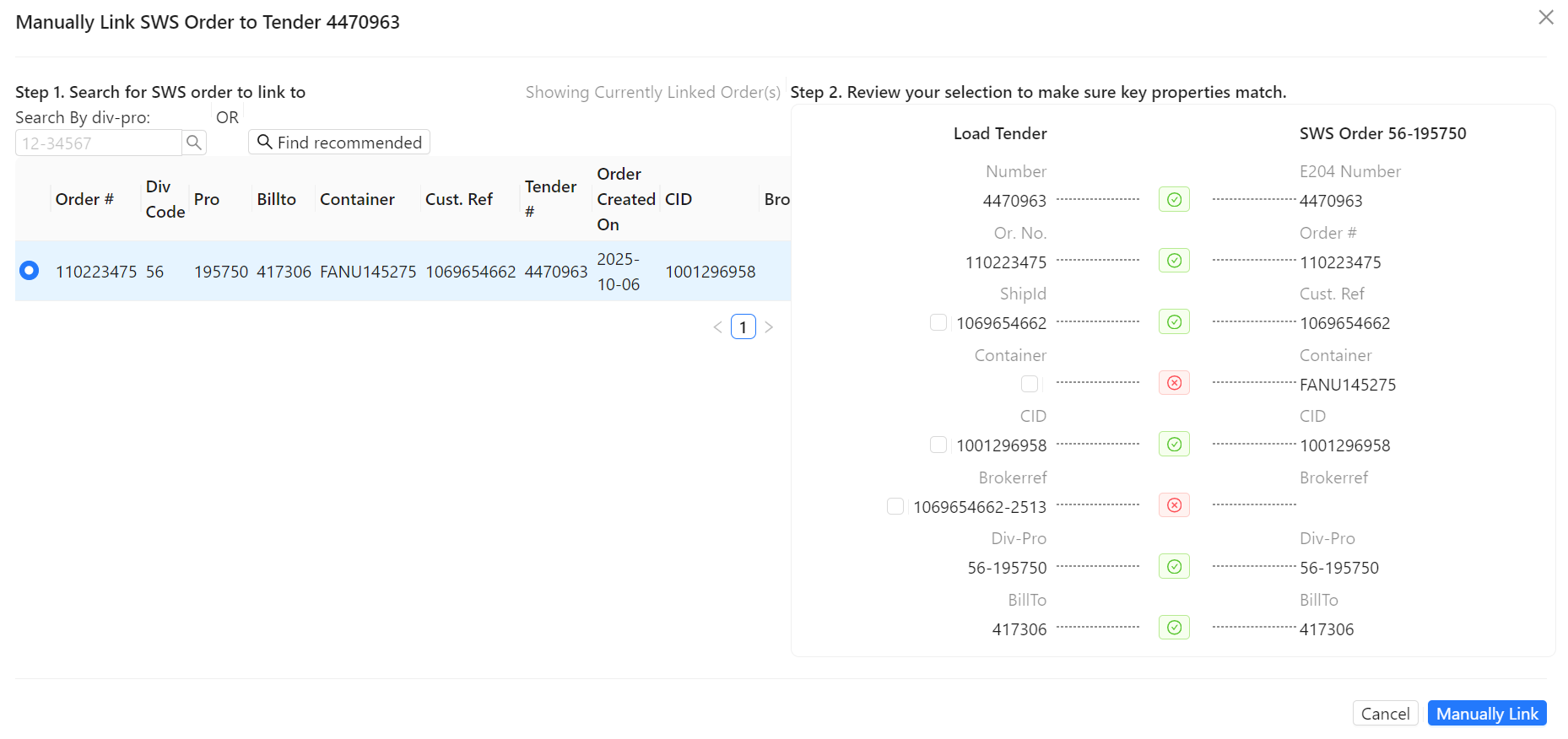
To ADD the “Brokerref” number to the SWSOrder, simply left click the checkbox to the left of that row. The “Brokerref” number will populate under the “SWS Order” column. (As below)

NOTE: Keep in mind this process can be used to update the “CID” number as well if included in the Load Tender record.
Next, left click on the “Manually Link” button below.

Notice the green checkmark in the middle indicates both values match. (As below)
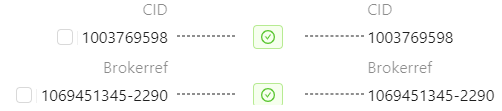
Once the Manually Linking has been completed, users should then follow the established “Order Rerate” procedures. If updated via Manually Linking, the “CID” & “Brokerref” fields will then populate in the F4 section of the Pro. (As below)

