The Doc Audit Portal provides the Revenue Accounting team the ability to audit all documents that a customer will require before accepting our invoice. During the audit process, documents that do not meet customer requirements are rejected in the Portal and field operations will be required to review and resubmit those documents.
To access the Doc Audit Portal, go to:
Users will have up to five (5) statuses to choose from under the “DocAudit” dropdown located at the top right of the screen upon launch of the portal. The default setting is “Rejected”. Left click on the dropdown, then left click on the desired status name. (As below)
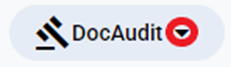
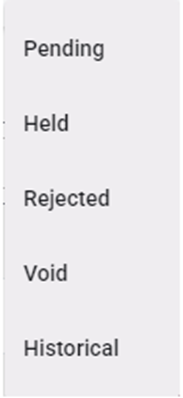
NOTE: Except for “Rejected” status, Operations will have “Read Only” access to the other dropdown selections.
To View detailed information for any Pro, Container, etc., left click on the line to open the document viewing and (if applicable) action window.
Left click on the “Cancel” button located at the bottom right of the display window to return to the previously selected status. (As below)

If applicable, left click on the desired page # or use the left arrow to go back or right arrow to move forward. (As below)

To access DocAudit training docs, left click on the “?FAQ” button located at the top right of the page. (As below)
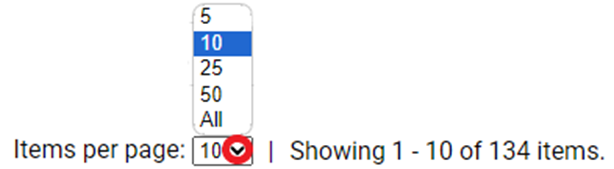
The default viewable items per page is ten (10). Left click on the down arrow below to change that setting.
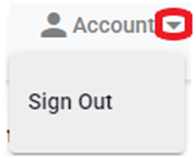
To sign out of the Portal, first left click on the dropdown arrow to the right of “Account” located in the top right corner of the page. Next, left click on “Sign Out”. (As below)
SPECIAL NOTE: If the Portal freezes or does not appear to be updating, try performing a HARD REFRESH. To do this, hold down the <Ctrl> and <Shift> keys and hit the “R” key. The Portal will reload.
Please refer to the applicable training doc for information on the individual “DocAudit” statuses.