Doc Audit Portal – Filter Settings
To access the Doc Audit Portal, go to:
Column names are “fixed” and cannot be reordered. (Example below)

However, the data displayed in the columns can be sorted by hovering to the right of the column name to display a gray “Up” arrow. Left click on this arrow once to sort the data in that column in ascending order (Black “Up” arrow will be displayed) or left click on the arrow twice to sort the data in that column in descending order (Black “Down” arrow will be displayed). (As below)

Left click on the “Down” arrow again to clear the sort.
NOTE: Only one column can be sorted at a time.
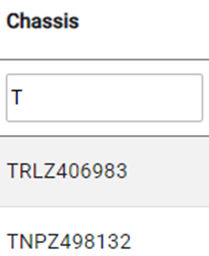
To FILTER data under one (or more) Column names, left click in the “Filter” box under the desired Column name. Next, begin typing the data you wish to display.
NOTE: All of the “Filter” fields use typeahead functionality and will display any matches to the entered data in that field. (See below example)