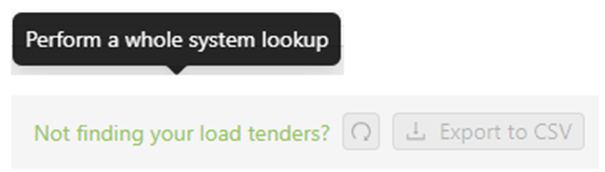
To search Enterprise wide for an EDI Load Tender, left click on “Not finding your load tenders?” located to the left of the refresh button. (As below)
The below screen will display:

Two default Filters will be applied automatically which will display all Tenders across the entire enterprise in “S” status (REASSIGN REQUESTED) for the last 30 days. It may be necessary to adjust one or both of the default filters in the event no result is returned initially. The “Status in “S” filter can be removed by clicking on the “x” and the date range can be pushed out to 60 days, 100 days, etc. (See below)


Type a “Q” to position the cursor in the “Add filter criteria here” field (or left click in the field). Next, select the applicable filter criteria from the dropdown menu and Add Filter/Search as with any other filter. If a result is found, it will display on the page. Check the “Status”, “Assigned To” and “Actions” columns. (See example below)
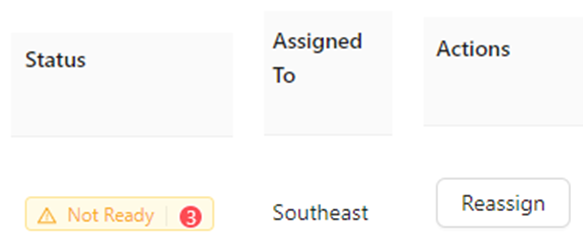
If the “Reassign” button under the “Actions” column is active (not grayed out), the Load Tender can be Reassigned to your Region by left clicking on the button. The below message will display confirming the action:

Left click on the blue “Yes!” button to execute the Load Tender reassignment. Otherwise, left click on the “Cancel” button. (As above)
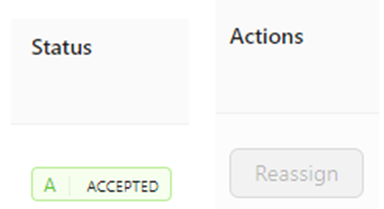
If the “Status” shows “Accepted” and “Reassign” is grayed out under the “Actions” column, the Load Tender cannot be moved to your Region. (As below)
Contact the Region who accepted the Load Tender to confirm they will be covering the move or if it was accepted in error.
NOTE: If no result is found when filtering by one of the filter criteria, double check that the entered data is correct. If correct as entered, no EDI Load Tender has been received at that current time. Reach out to the customer and request the “missing” tenders be resent.
HINT: If the customer provides more than one filter criteria, (Ship ID & Container # for example), try searching by both criteria before reaching out to the customer.
To return to the Worksheet, left click on the below left arrow located at the top left of the screen.