Desde el menú principal de SWS ve a Customer Service, haz clic izquierdo en Order Entry, luego haz clic izquierdo
en New Order Screen.
La pantalla New Order reemplaza la versión Legacy.
Una vez que la Orden deseada ha sido consultada y se muestra, usa el comando CTRL+U o haz clic izquierdo en el botón verde "Update" ubicado en la esquina superior derecha de la pantalla para activar el modo "Update".
(Como se muestra abajo)

La pantalla se mostrará entonces como se ve abajo (ejemplo abreviado) con todos los campos Verde sombreados siendo editables.
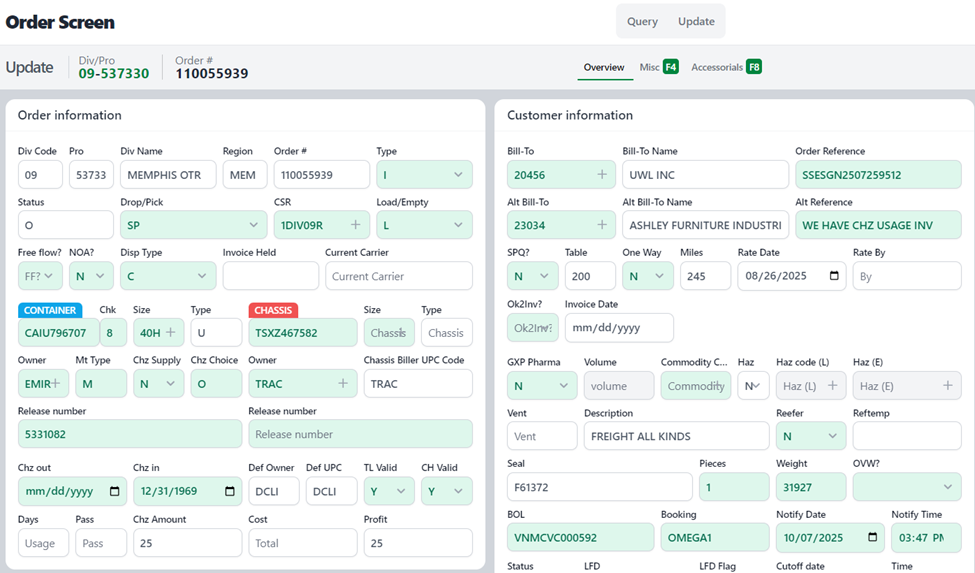
A continuación, actualiza el/los campo(s) aplicable(s) y cuando termines, usa el comando CTRL+Enter para ejecutar la "Actualización" o haz clic izquierdo en el botón verde "Guardar Actualización" ubicado en la esquina superior derecha de la pantalla. Para CANCELAR la Actualización, haz clic izquierdo en el botón rojo "Cancelar" para volver a la Orden. (Como se muestra a continuación)

Si haces clic en el botón "Cancelar", se mostrará el siguiente mensaje:
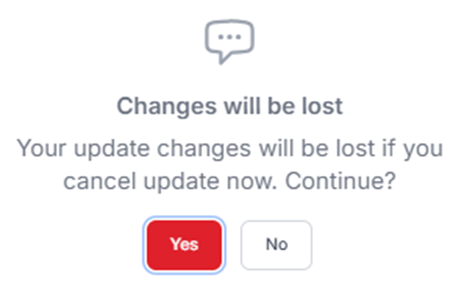
Presiona la tecla <Enter> o haz clic izquierdo en el botón de acción rojo "Sí" para GUARDAR los cambios.
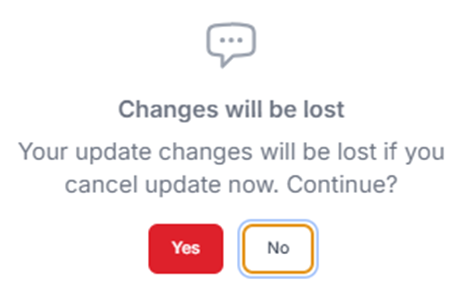
To CONTINUE with the “Cancel” command, use the <Tab> key or Right Arrow button to highlight the “No”’ action button then hit the <Enter> key or left click on the “No” action button to execute. (As below)
If SAVING the “Update”, the below message will display:
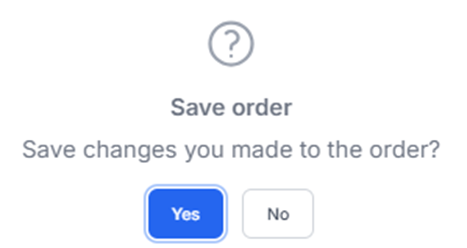
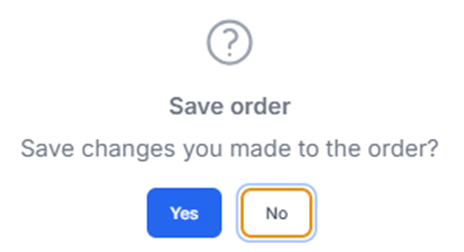
Hit the <Enter> key or left click on the default blue “Yes” action button to SAVE the changes.
To ABORT the SAVE, use the <Tab> key or Right Arrow button to highlight the “No”’ action button then hit the <Enter> key or left click on the “No” action button to execute. (As below)