To access the EDI Worksheet from SWS main menu, go to Customer Service, left click on EDI, then left click on Load Tender (204) NEW.
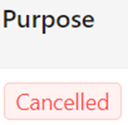
When a customer cancels a Load Tender, they send an EDI Cancellation. There are two places this cancellation with show up in SWS:
1) On the Tender itself under “Purpose” (As below)
2) On the Order Screen when the Linked Pro is displayed (As below)

Users should confirm not only that this is a valid EDI Cancellation, but also that it was not replaced with a NEW EDI load tender with some updated information.
If the cancelled EDI load tender has not been accepted yet (creating a Pro), there is no further action to take.
If it is discovered that a NEW EDI load tender has been received that replaces a previously accepted EDI load tender that has been subsequently cancelled, there are two ways to handle:
1) VOID the Pro that has the Cancelled EDI load tender and then ACCEPT the new EDI load tender.
OR
2) Manually link the new EDI load tender to the existing Pro that is attached to the Cancelled Tender, which will also break that link. Only one active tender should be linked to one Pro.
Use the link below to navigate to the Order Link module for additional instructions if needed.
OrderLink/Reinstate | Sixth Wheel Software