To access the Doc Audit Portal, go to:
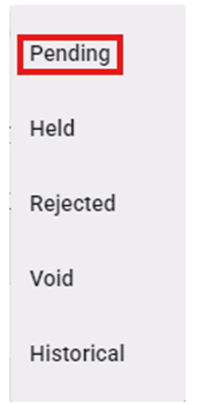
If you have Revenue Accounting Approver Permissions, upon launch of the portal, “Pending” is the default status. The current status will display at the top center of the page. (As below)

Users will have five (5) statuses to choose from under the “DocAudit” dropdown located at the top right of the page upon launch of the portal. Left click on the dropdown, then left click on the desired status name to select. (As below)
To Audit a particular Pro in “Pending” status, left click on the line to open the document viewing and (if applicable) action window. (See example below)
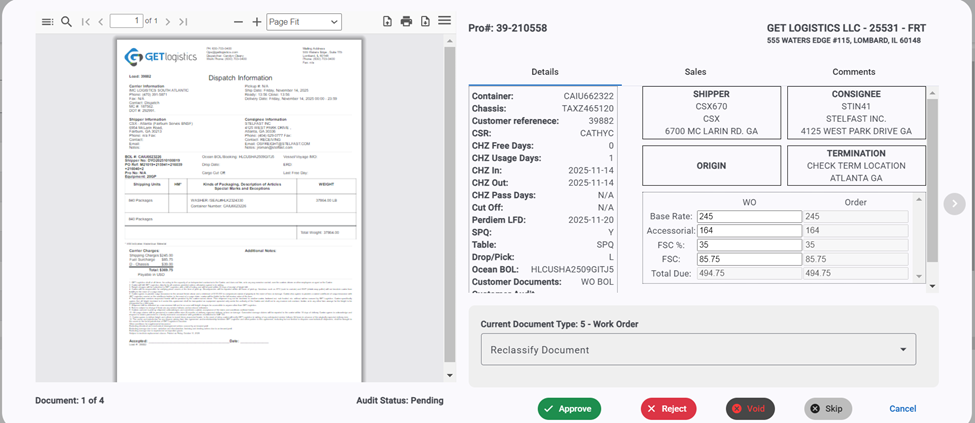
The Pro “Details” will display (as above) including the Pro # and BillTo information. Left click on the “Sales” header to view T300 accessorial sales. (As below)

NAVIGATION: When auditing the “Pending” documents, if applicable, left click on the right arrow located in the middle right of the page to move to the next document (or next Pro). The current doc number will display at the bottom left of the page. (As below)


Reversely, left click on the left arrow located in the middle left of the page to move to the previous document (or previous Pro). (As below)


Left click on the “Cancel” button at the bottom of the page to return to the list of “Pending” Docs. (As below)

If you wish to Skip the audit process on a document, left click on the “Skip” button located at the bottom of the page. (As below)

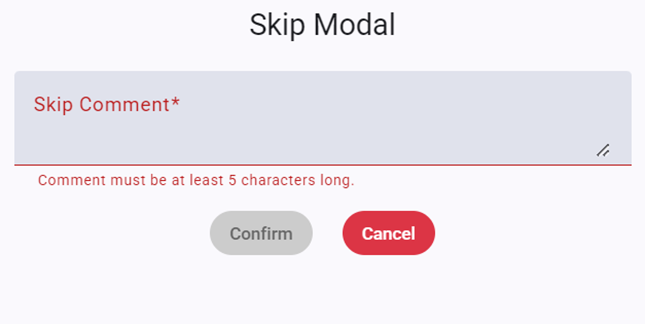
The below “Skip Modal” window will popup. A “Skip Comment” is required. Type the comment in the field (minimum of 5 characters) then left click on the “Confirm” button. The “Confirm” button will be active (and turn green) once the minimum characters are entered. To abort the process, left click on the red “Cancel” button. (As below)
If you notice that a document has just been classified incorrectly, you can use the “Reclassify Document” dropdown arrow to select the correct classification, then left click on the “Approve” button located at the bottom of the screen. In the example below, the document being audited was classified as a “Work Order” but the document was determined to be a “Bill of Lading”.


Rejecting a document- If a document does not pass audit, it should be “Rejected”. When viewing the document, left click the red “Reject” button located at the bottom of the page. (As below)
The below “Rejection Modal” window will popup.
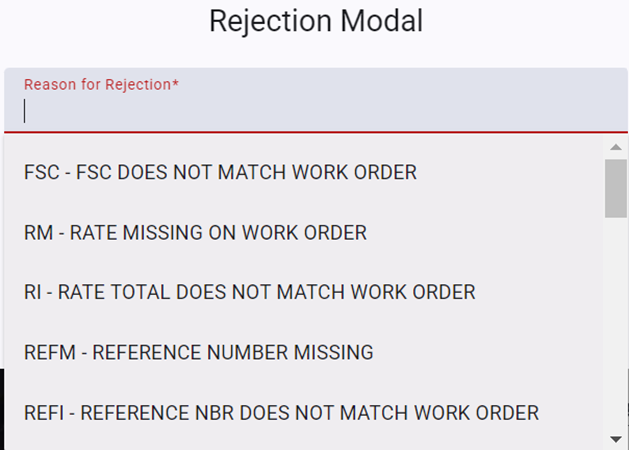
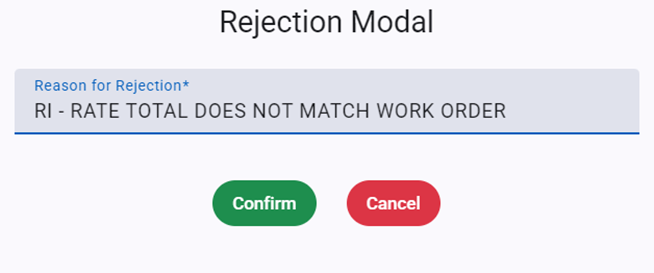
Start typing the reason for rejection in the “Reason for Rejection*” field to find the desired code or use the dropdown to locate and select. Once a Reason has been selected, left click on the “Confirm” button. Otherwise, left click on the “Cancel” button to return to the previous screen. (As below)
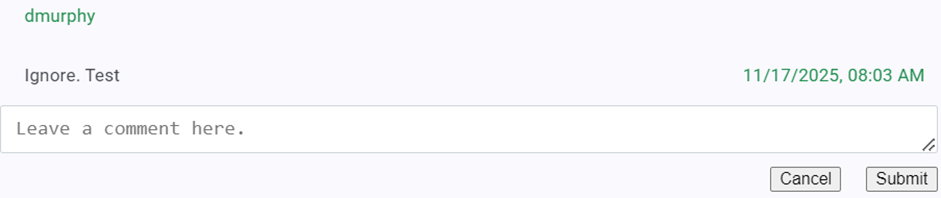
Left click on the “Comments” tab when a Pro is selected to view to confirm the reason for rejecting said document. (As below)


Additional comments can be entered in the “Leave a comment here” field above, then left click the “Submit” button. Comments are not required. (Example below)