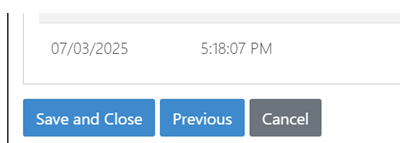
Currently, when users are working an invoice with several line items, it can be challenging to navigate from one to the next without remembering what the previous line item was or where they were in a list of line items. The new buttons that appear are dynamic and will change depending on the situation.
In the example below, we see 59 line items separated into different Invoice Status groupings (all Accounting Review together, all Operations Review together, etc).
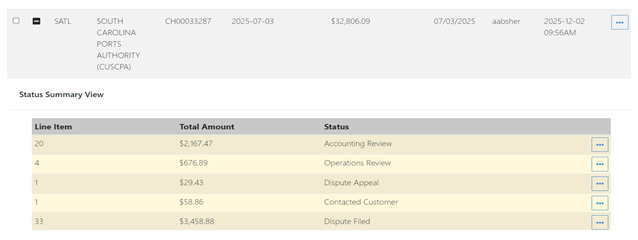
In the example below, the user chooses to start with the line items in Accounting Review:

The user is then presented with the Line Items for Invoice screen containing only the line items in Accounting Review. This is business as usual. From here, the user selects the line item they would like to begin working.
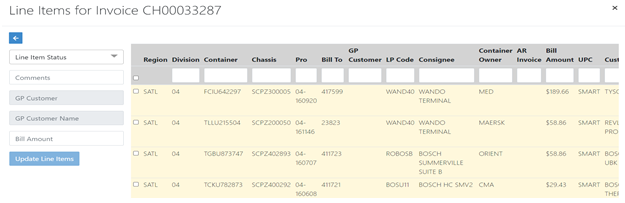
After choosing a line item by clicking on it, the user is presented with the Line Item Details screen. After the user completes auditing the line item and makes the necessary changes, they will see new options at the bottom of the screen.
Save and Next – Saves the changes made and moves to the next line item in the status group (i.e. for this example, the next line item in Accounting Review status)
Save and Close – Saves the changes made and returns the user back to the previous screen
Cancel – Returns the user to the Line Item Details Screen
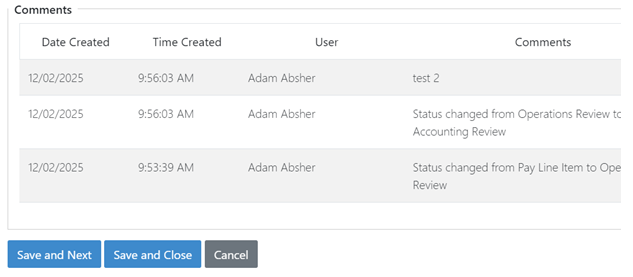
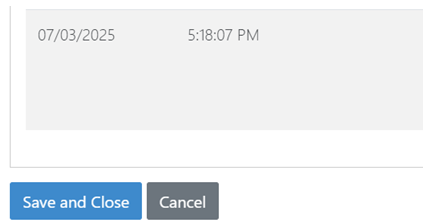
If there is only one line item in a status, the Save and Next button will not appear. Instead, the user will see the Save and Close and the Cancel buttons.
Save and Close – Saves the changes made and returns the user back to the previous screen
Cancel – Returns the user to the Line Item Details Screen
When a user reaches the last line item in a status group, they will not see the Save and Next button but instead see the Save and Close, Previous and Cancel buttons.
Save and Close – Saves the changes made and returns the user back to the previous screen
Previous – Returns the user to the previous line item worked
Cancel – Returns the user to the Line Item Details Screen