To access the Dispatch Optimizer (D.O.) from SWS main menu, go to Easy Operations, left click on Dispatch, then left click on Dispatch Optimizer.
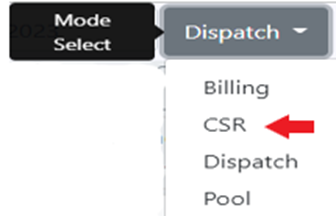
“CSR” mode can be used to display both the assigned & unassigned order pros for a specific CSR. A CSR could use this mode to check on driver’s eta’s to the customer and/or what order pros have not been assigned yet, among other uses. To access “CSR” mode, left click on the “Dispatch” dropdown arrow then left click on “CSR”. (As below)
Next, left click on the “person” action button below:
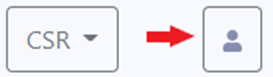
La siguiente ventana se mostrará y se completará automáticamente con el userid del individuo que lanzó el D.O. Para ingresar un userid diferente, borra la entrada, escribe el nuevo userid en el campo y presiona la tecla "Enter".

Los conductores con movimientos asignados de los que es responsable el userid de CSR ingresado se mostrarán en el lado izquierdo de la pantalla. (Ejemplo abajo)
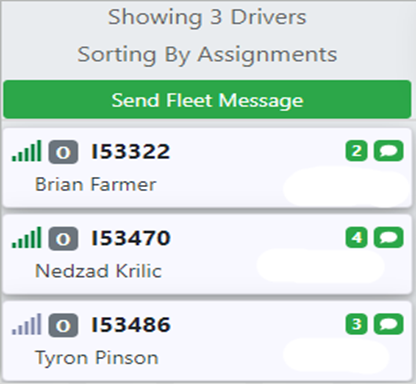
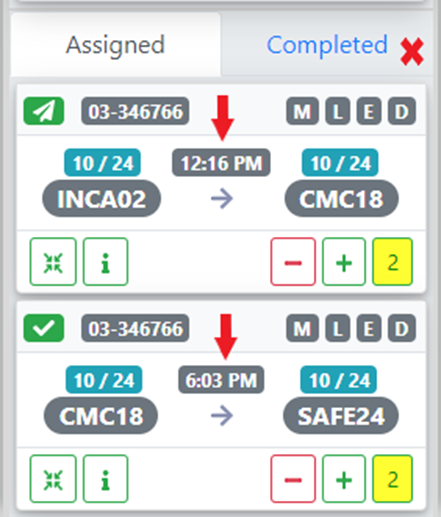
Haz clic izquierdo en la "tarjeta" de un conductor para seleccionar ese conductor. Los movimientos asignados se mostrarán con un eta para cada movimiento. Haz clic izquierdo en la pestaña "Completed" para ver cualquier movimiento completado. (Como se muestra abajo)
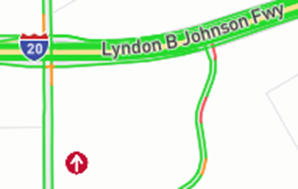
If in “Map” view (refer to D.O. Map View training module), a red arrow representing the selected driver will display on the map indicating driver’s current position. (Example below)
The unassigned order pros (if applicable) that the entered CSR userid is responsible for will display on the right-hand side of the screen. (As below)
If necessary, refer to D.O. Move Card Sorting Options training module for instructions on how to sort the moves using the drop-down arrow below.

