Once all equipment moves on any given Pro have been executed, the order status can then be updated to “Completed” in the system. For Imports, the order can be completed after the empty container has been either reloaded or terminated. For Exports, the order can be completed when the loaded container has in-gated at a rail or port.
NOTE: Many Regions assign the responsibility of completing Pros to the dispatch team. Please check with your supervisor or manager for terminal specific expectations/responsibilities.
From SWS main menu go to Customer Service, click on Order Entry, then click on Order. Next, type a “Q” to “Query”. Type the Div/Pro for the Pro # you wish to complete and hit the “Esc” key to display the Pro.
Next, type a “U” to “Update” then hit the “F6=Complete” key. The below window will display:


Type a “Y” for “Yes” to Complete the Order and hit the “Esc” key to update the order Status.: to “C” COMPLETE. NOTE: If any errors exist on the Pro, they will display on the screen and must be corrected before the Pro can be completed. The date completed and the Userid of the person completing the order pro will also populate in the Status.: field. (See example below) Type an “N” for “No” to return to “Update” mode.

Para DESMARCAR un Pro previamente Completado, sigue los mismos pasos de arriba pero escribe una "N" para "No" y presiona la tecla "Esc". Aún se pueden hacer cambios a un pro completado usando la opción "U" para "Update".
NOTA: Una vez que un Pro ha sido Facturado, No desmarques un Pro. No agregues ni cambies cargos ya que no se procesarán automáticamente.
El Representante de Servicio al Cliente (RSC) es típicamente responsable de asegurar que todos los cargos necesarios hayan sido agregados a un Pro antes de remover la Bandera de Retención de Factura. Sin embargo, debes verificar con tu supervisor o gerente las expectativas/responsabilidades específicas de la terminal.
Desde el menú principal de SWS ve a Customer Service, haz clic en Order Entry, luego haz clic en Order. A continuación, escribe una "Q" para "Query". Escribe el Div/Pro del Pro completado que deseas revisar o escribe el número Div y escribe una "C" en el campo Status.: para revisar todos los Pros con estado "Completado". Presiona la tecla "Esc" para mostrar el Pro individual o la lista de Pros.
Para cada orden completada, escribe una "U" para "Update". El cursor se posicionará automáticamente en el campo InvHold? . (Ver ejemplo abajo)
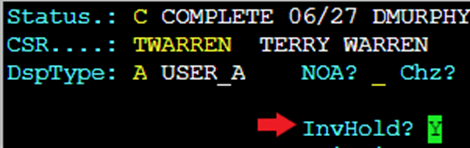

If the order charges need to be reviewed prior to removing the Invoice Hold Flag, hit the “F8” key. If changes need to be made, refer to the Adding Customer Charges module. If no changes need to be made, hit the “F8” key again to return to the order screen main page. The cursor will still be in the InvHold? field. Type an “N” for “No” to remove the hold and hit the “Esc” key to update the Pro.
Siempre que toda la documentación requerida haya sido cargada en el Pro, la orden debe manifestarse cuando se ejecute la siguiente facturación.
SUGERENCIA: Desde la hoja de trabajo del CSR, existe la capacidad de remover la Bandera de Retención de Factura en múltiples Pros a la vez (Actualización Masiva).
