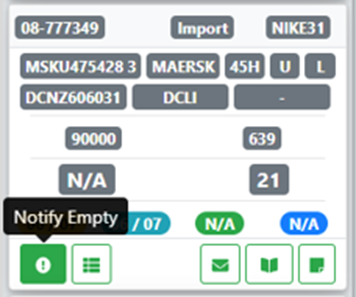
Cuando un cliente o conductor te haya informado que un contenedor dejado ha sido descargado y está listo para recoger/terminar, debes actualizar ese contenedor como vacío en el sistema.
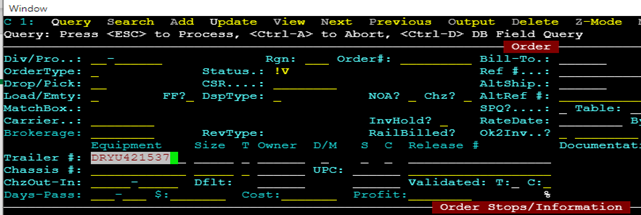
Desde el menú principal de SWS ve a Customer Service, haz clic en Order Entry, luego haz clic en Order. A continuación, escribe una "Q" para "Query". Usa la flecha hacia abajo para posicionar el cursor en el campo Trailer #: . Escribe el número de contenedor de 10 dígitos (no incluyas el dígito de verificación como se muestra abajo) y presiona la tecla "Esc" para mostrar la orden asociada.
NOTA: La capacidad de notificar en lote contenedores cargados como vacíos existe en la hoja de trabajo CSR. Todas las Regiones deben usar esta función para ahorrar tiempo en el proceso general.
Next, type a “U” to “Update” then hit the “Esc” key. Use the directional arrows to position the cursor in the Notified: field as below (note the L to the right of the field indicating the container was Loaded)

NOTE: Shortcut: if you wish to notify the container with the current date and time simply type a “T” for Today in the Notified: field and hit the “Enter” key. The field will update with today’s date and current time and the cursor will advance to the next field (example below).

To notify the container as empty for a different date and time, use the left directional arrow to position the cursor back in the Notified: field. Type the desired date in this format: MMDDYY
If the current year is correct simply type MMDD and hit the “Enter” key. The time will always default/update to the current time. To change the time to match the time of the empty notification, use the left directional arrow to position the cursor at the beginning of this field and type the correct time as in the below example:

Once the desired notification date and time have been entered hit the “Esc” key. The message TBD EMPTY LEG QUEUED will flash in blue at the bottom of the order screen. After a brief processing time, the system should add an empty line or “leg” of dispatch. You will have to type a “U” for “Update” or re-Query the order to see the added leg. (Example below)

NOTE: The LP code for the container/chassis termination point must be entered through the order update process before the leg be assigned in the order screen.
If you have notified a loaded container as empty in error, simply follow the previous steps to notify an empty, but erase the date/time in the Notified: field and delete the empty termination leg. Then hit the “Esc” key to save the changes to the order.
Loaded containers can also be notified as empty from the “Pool” mode in the Dispatch Optimizer by clicking on the “Notify Empty” button. (See example below)