Viewing Vendor Costs in a Pro
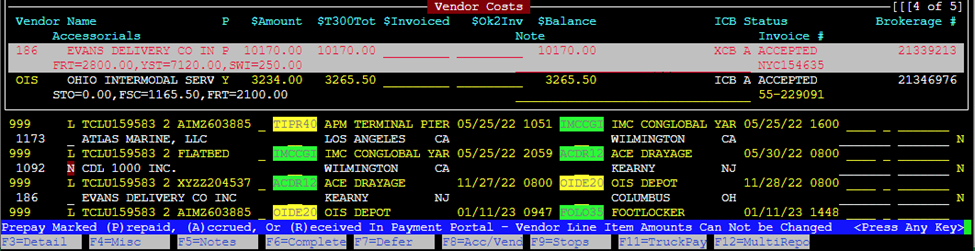
From “View” mode in the Order screen, hit the “F8” key to view “Accessorial Sales/Costs & Vendor Costs”. Vendor costs will be displayed by T300 accessorial alpha code. (As below)

The cost line will display up to 4 entries. … indicates more costs exist. (As below)

To view all Vendor costs, hit the ”Enter” key when the desired vendor is selected. (As below)

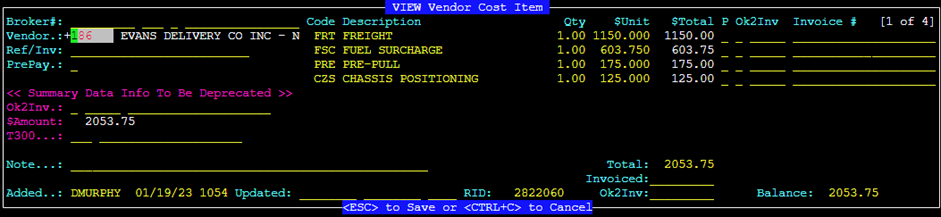
XCB & ICB processes remain the same. For XCB orders, Carriers will continue to submit costs by adding Rate adjustments in IMCPower. When rate/charge errors occur, ICB & XCB orders will need to be voided and resent.
For Non-XCB and ICB orders (on the carrier side), Vendor costs can be added via ”F8” in the order screen. From “Update” mode in the Order screen hit the “F8” key to view “Accessorial Sales/Costs & Vendor Costs”. Position the cursor below the last Vendor cost displayed and hit the “Enter” key.
Next, input the “Vendor” number or use the (Thumb function) “Ctrl T” to search for vendor number and then hit the right arrow to position the cursor under the “Code Description” header. (See below)
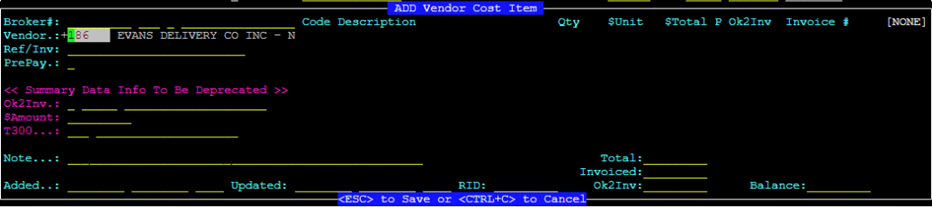
Next hit the “Enter” key or “Insert” key. Type the 3-character T300 alpha code in the field or use the (Thumb function) “Ctrl T” to search for code. (See below)

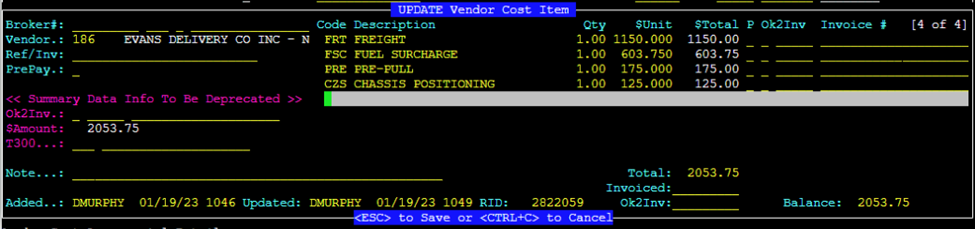
The “Description” line will auto populate. Type the ”Qty” (If greater than 1) and “$Unit”. The system will extend the cost to the “$Total” field. (See below)

Para agregar otro Costo de Proveedor, presiona la tecla "Esc" y luego la tecla "Enter" o "Insert" para ingresar el siguiente Costo de Proveedor. Cuando se hayan ingresado todos los costos, presiona la tecla "Esc" dos veces para guardar el registro.
Los procesos XCB e ICB permanecen igual. Cuando ocurren errores de tarifa/cargo, los pedidos ICB y XCB deberán ser anulados y reenviados.
Para pedidos que no sean XCB e ICB (en el lado del transportista), los Costos de Proveedor se pueden editar mediante "F8" en la pantalla de pedido. Desde el modo "Update" en la pantalla de Pedido, presiona la tecla "F8" para ver "Accessorial Sales/Costs y "Vendor Costs". Posiciona el cursor en la línea de Costo de Proveedor aplicable. A continuación, presiona la tecla "Enter". Utiliza las teclas direccionales para posicionar el cursor en la línea de costo que necesita ser cambiada. Actualiza la(s) línea(s) de costo según sea necesario. Una vez que se hayan realizado todos los cambios, presiona la tecla "Esc" dos veces para guardar el registro. (Ver ejemplo a continuación)
NOTA: Si los costos del Proveedor se ingresaron manualmente y si aplica, la línea de costo del Proveedor completa se puede eliminar cuando está resaltada. Si no se permiten ediciones/eliminaciones, el sistema mostrará el mensaje: Vendor Payout Prepaid Status is P – Cannot Add/Delete Line Items o el mensaje de error a continuación: