Un filtro "Predeterminado" se agregará automáticamente al primer uso.
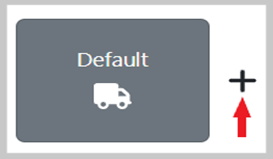
Para Agregar un nuevo filtro, haz clic izquierdo en el símbolo más (+) a la derecha del "Predeterminado" u otros filtros guardados. (Ver abajo)
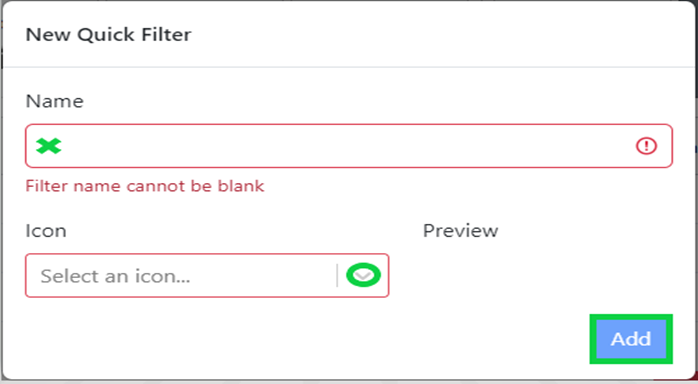
The below box will display. Enter a filter name then chose an “Icon” for the filter from the dropdown. Left click on the ”Add” button to complete the process.
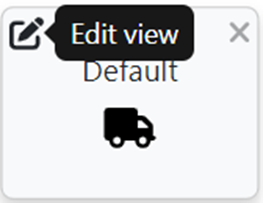
To Change a saved filter name or icon, left click on the “Pencil” symbol at the top left of the filter card. (See below)
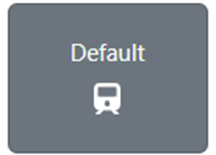
To Set filters, first left click on the desired filter. The filter will turn Gray indicating it is the active filter. (As below)
Next, left click on “Filters” located in the far-right margin of the Worksheet. (As below)
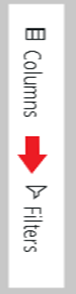
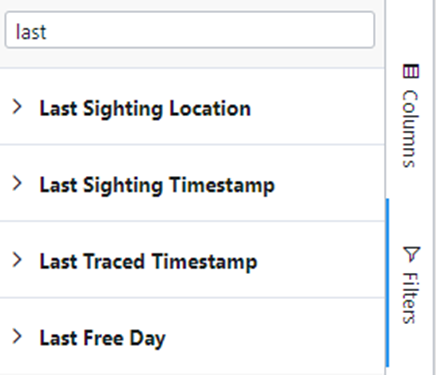
NOTE: You can use the “Search” box to locate and select a specific column name. (Example below)
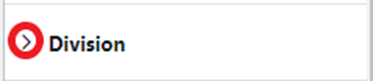
Left click on the right arrow that appears to the left of the filter name to open up the filter options. (As below)
Select the Filter(s) you wish then left click on the “Apply” button below each section if applicable. (As below)
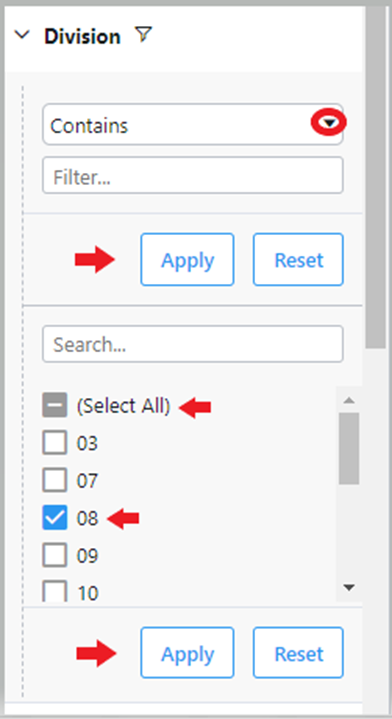
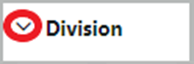
To close an individual filter once selected, left click on the down arrow. (As below)
To Save changes made to a filter, left click on the icon below located at the top left of the selected Filter/View button.
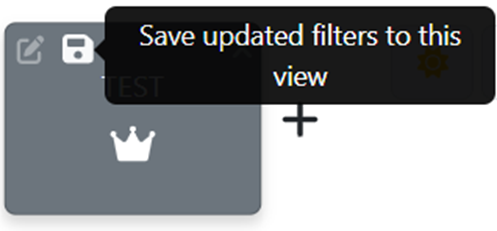
IMPORTANT: Any changes made to a filter MUST be saved prior to moving on to select another Filter or exiting the worksheet or they will be lost.
Once all selections have been made, left click on “Filters” again to close the selection window.
To CLEAR or RESET a Filter selection, left click on the saved filter first (will turn gray), then left click on “Filters”. Any field name that has a filter applied will have the filter symbol to the right of the field name itself. (As below)
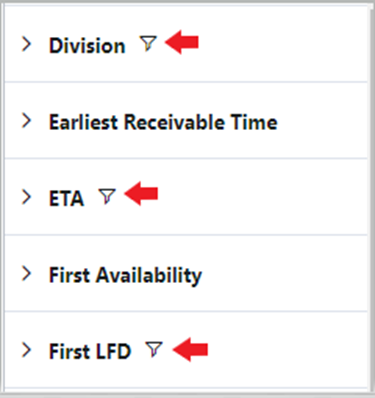
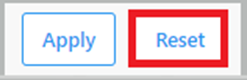
Left click on the right arrow to open the filter selections for that field. Next, left click on the ”RESET” button to clear any previously selected filters. (As below)
Si se han borrado las selecciones de filtro para un campo determinado, el símbolo de filtro ya no aparecerá a la derecha del nombre del campo. (Como se muestra a continuación)
IMPORTANTE: Cualquier cambio realizado en un filtro DEBE guardarse antes de pasar a seleccionar otro filtro o salir de la hoja de cálculo, de lo contrario se perderán.
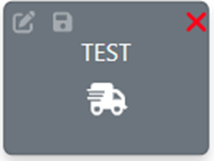
Para ELIMINAR un filtro guardado, haz clic izquierdo en la "X" en la esquina superior derecha de la tarjeta de filtro. (Como se muestra a continuación)
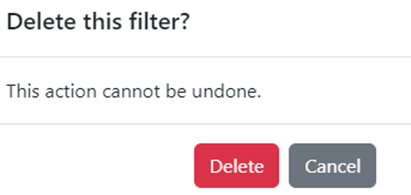
The below message will display. Left click on the “Delete” button to delete the filter or left click on the “Cancel” button to cancel the deletion.
/
