CRONOGRAMA DEL CONDUCTOR
Para acceder al Cronograma del Conductor desde el menú principal de SWS, ve a Easy Operations, haz clic izquierdo en Driver Information, luego haz clic izquierdo en Cronograma del Conductor.
El Cronograma del Conductor se puede usar para:
· Revisar el pago del conductor por día y semana
· Revisar las millas completadas por día y semana
· Review driver completed move list by day
· Review driver events & add driver notes
Once the application is launched, there are 3 search options available: “By Division”, “By Driver”, or “By Dispatcher”. (As below)

NOTE: By default, “By Division” will be the active selection. To select “By Driver” or “By Dispatcher”, left click on either option in the green box. The active search category will then be shaded in a darker green. (As below)

SEARCH BY DIVISION:
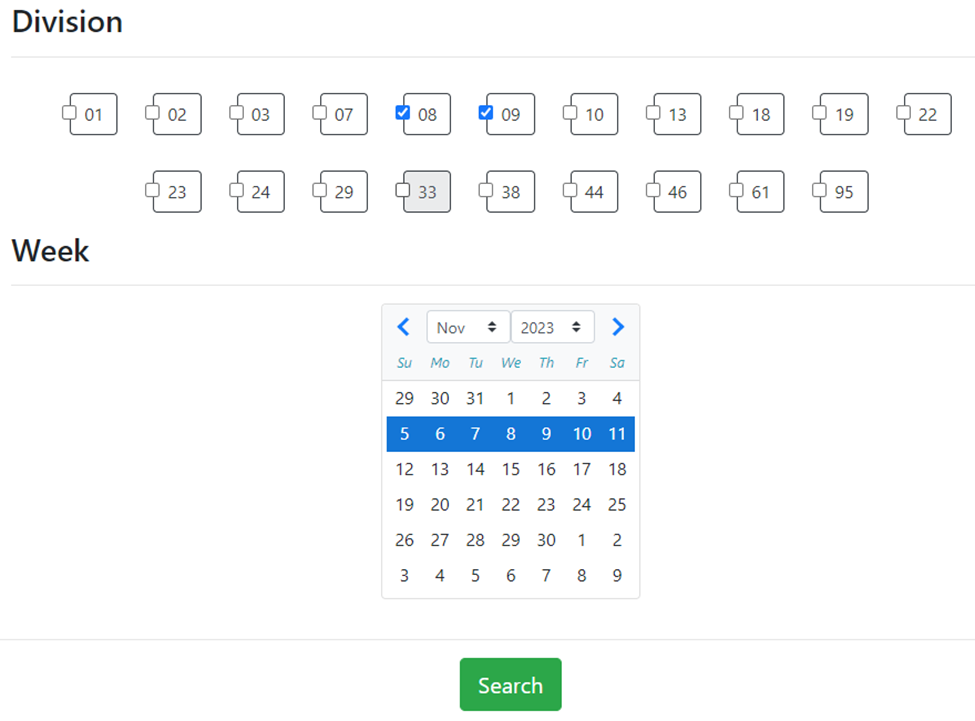
Select one or more divisions to search by left clicking in the box to the left of the division number.
Next, left click the week on the calendar that you wish to review. The selected week will be shaded in blue. (See below)
NOTE: When searching by division, only one week can be selected and viewed at a time.
Once the desired divisions and week to review have been selected, left click on the green “Search” button.
After the “Search” button has been clicked, the report data will be displayed for review. At the top left of the page are three (3) green action buttons: “Query”, “Refresh” and “Export”. The selected week will be displayed in the middle of the report and at the top right is a “Search” box. (All as below)

“Query” button- Left click to return to the previous page and select new Search criteria.
“Refresh” button- If applicable, left click to refresh the data. NOTE: An automatic counter will refresh the data every 5 minutes. Any previously set Sorts will NOT be saved and will have to be reselected after the Refresh.
“Pause Refresh”- Left click in the box to Pause the 5-minute Refresh countdown timer. Left click in the box again to restart the countdown.
“Export” button- If needed, left click to save the report data to a file for reference
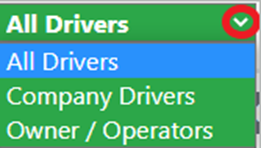
Debajo de los botones de acción, hay un menú desplegable "Todos los conductores". La selección predeterminada es "Todos los conductores".
Haz clic izquierdo en la flecha desplegable para seleccionar/ver "Conductores de empresa" o "Propietarios / Operadores". (Como se muestra a continuación)
NOTA: Para ubicar un conductor específico, usa el cuadro "Buscar" mencionado arriba. Escribe el # o nombre del conductor en el campo para mostrar cualquier dato de ese conductor. Borra los datos en el campo "Buscar" para volver a la vista anterior.
El informe muestra el nombre/número del conductor que aparece en el lado izquierdo seguido de datos de pago diario y millas de domingo a viernes de la semana elegida. Además, hay una columna de "Totales" para toda la semana. (Vista abreviada a continuación)

Cualquier día en el que el conductor haya completado movimientos se mostrará de la siguiente manera:
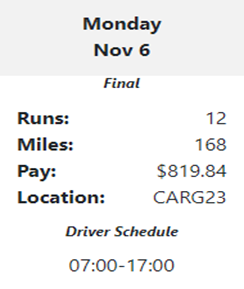
NOTA: El "Horario del Conductor" para ese día solo se mostrará si se ha ingresado como un "Evento de Cambio de Conductor" en el Dispatch Optimizer. Cualquier evento ingresado (vacaciones, enfermedad, camión averiado, etc.) además de las notas ingresadas también se mostrará. Por favor, revisa el documento de capacitación "Eventos del Horario del Conductor" en SharePoint para obtener instrucciones.
Left click on any day to display “Completed Miles” and “Completed Pay” in graph form. “Accessorial Pay” will also display if applicable as well as a list of all Order Pros the driver completed that day. (See abbreviated example below)
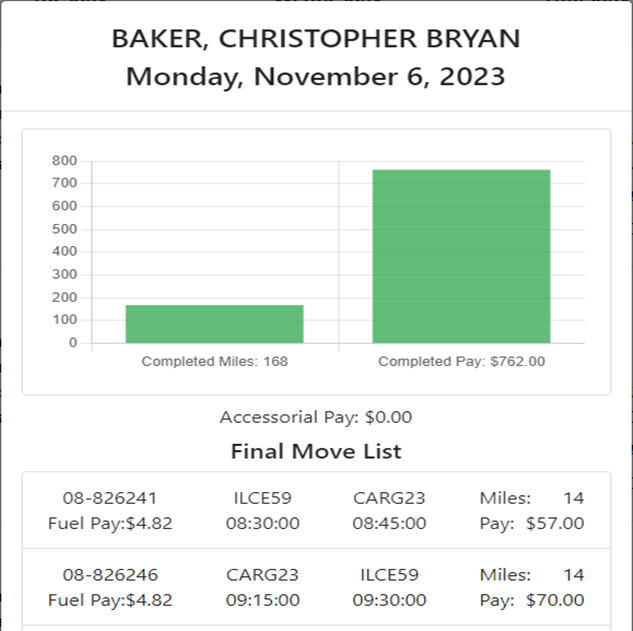
NOTE: Left click on the Current day/date and the graph will show “Actual Moves” and “Planned Moves’ versus Completed.
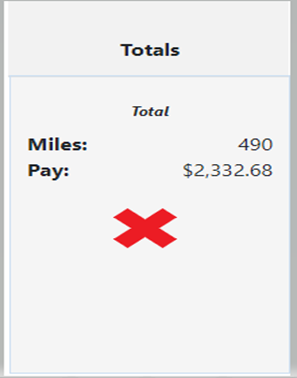
Left click anywhere in a driver’s “Totals” section and a line graph will display Completed Pay (top line) and Completed Miles (bottom line) information for the selected week. (As below)
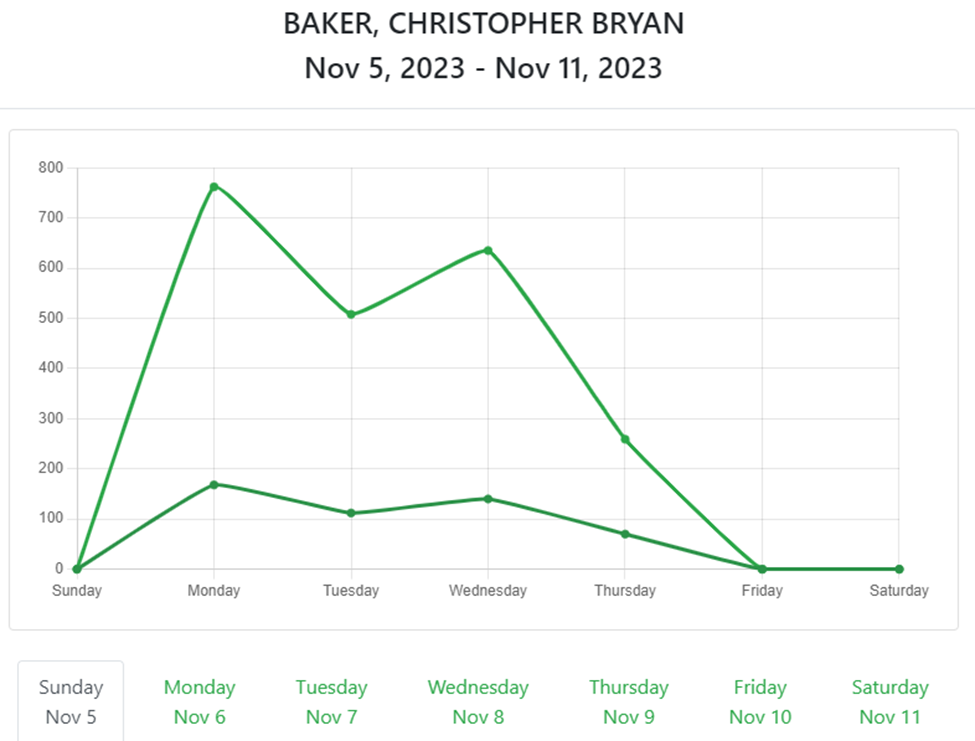
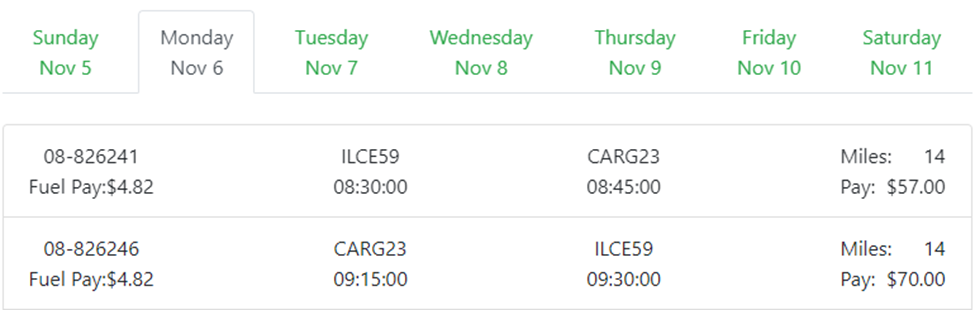
Haz clic izquierdo en cualquiera de las pestañas de día/fecha debajo del gráfico para ver la Lista Final de Movimientos para ese día. (Ejemplo abreviado a continuación)
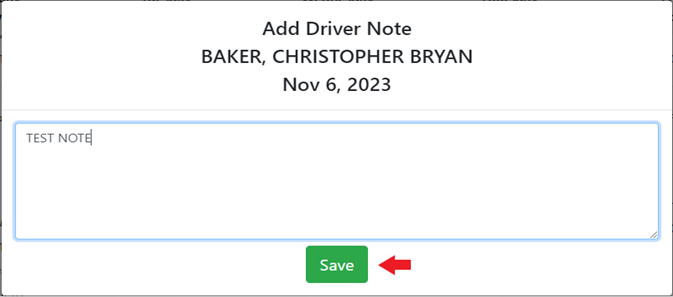
Para AGREGAR UNA NOTA DEL CONDUCTOR como despachador, D.I. u otro revisor, haz clic derecho en un día específico y aparecerá la siguiente ventana. Ingresa las notas deseadas en el cuadro y luego haz clic izquierdo en el botón verde "Guardar". (Como se muestra a continuación)
La nota Guardada se mostrará en ese día específico en el calendario. (Como se muestra a continuación)
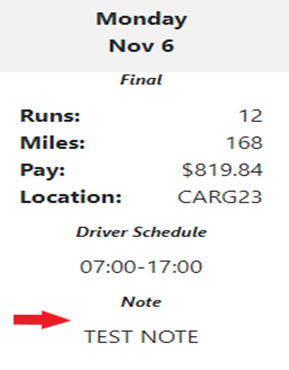
NOTE: To erase or edit a previously entered note, right click on that specific day to display the note window again. Erase or make changes to the note then left click on the “Save” button again.
To SORT DATA, left click on an individual Day/Date column header or the “Totals” column header. The below window will display:
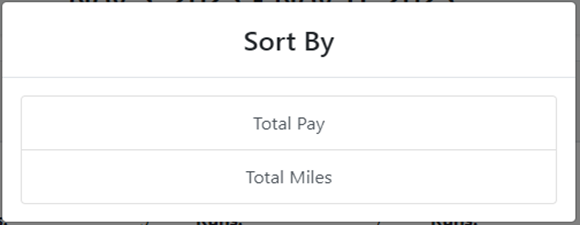
Left click on either “Total Pay” or “Total Miles”. The below window will display:
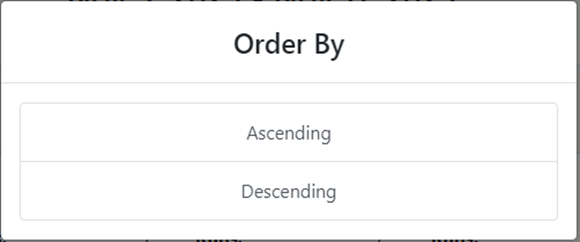
Left click on either “Ascending” or “Descending” and the individual Day/Date or “Totals” column will reflect the applied Sort.
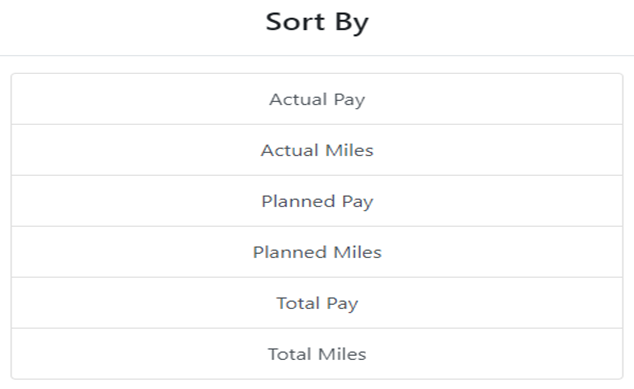
NOTE: Left click on the Current day/date and additional sorting options are available. (As below)
SEARCH BY DRIVER:
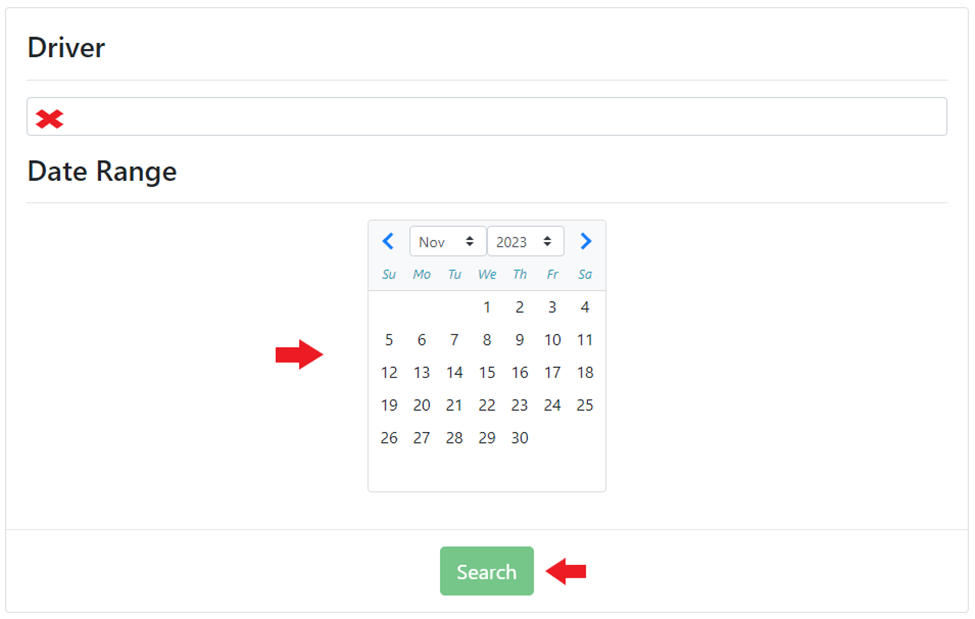
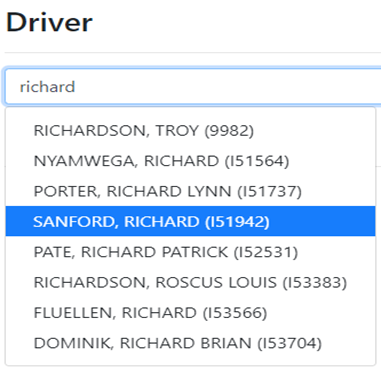
In the “Driver” field, begin typing either the driver’s last name, first name or driver #. This field uses typeahead and will display all matches. Left click on the desired driver to select. (Will highlight in blue as below).
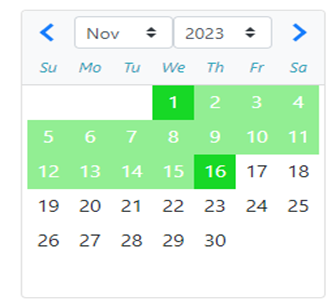
Next, select the “Date Range” you wish to view on the calendar. First left click on the desired start date then left click on the desired end date. The selected days within the range will all be highlighted. (As below) Once date range has been selected, left click on the green “Search” button.
NOTA: Al ver un conductor, también puedes hacer clic izquierdo en cualquier día con actividad para mostrar "Millas Completadas" y "Pago Completado" en forma de gráfico. Haz clic derecho en cualquier día para agregar una "Nota del Conductor".
Haz clic izquierdo en el botón "Consulta" para ver otro conductor o realizar una búsqueda diferente.
BUSCAR POR DESPACHADOR:
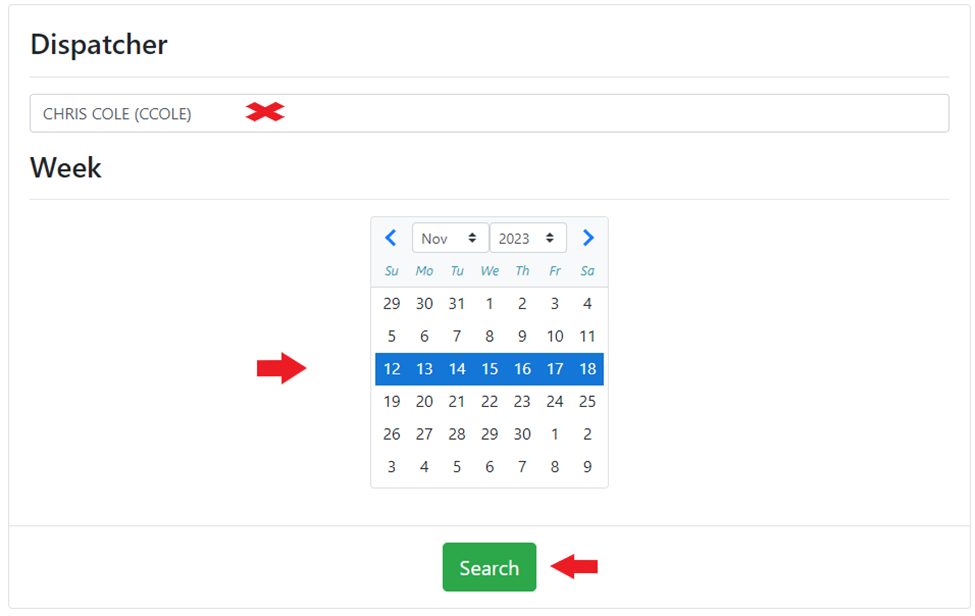
En el campo "Despachador", comienza a escribir el nombre o apellido del despachador. Este campo utiliza escritura anticipada y mostrará todas las coincidencias. Haz clic izquierdo en el despachador deseado para seleccionar. (Se resaltará en azul).
Next, left click the week on the calendar that you wish to review. The selected week will be shaded in blue. (See example below)
NOTE: When searching by dispatcher, only one week can be selected and viewed at a time.
Once the desired dispatcher and week to review have been selected, left click on the green “Search” button.
As in the other views, left click on any day to display a “Completed Miles” and “Completed Pay” graph for that day as well as a “Final Move List”.
Left click anywhere in a driver’s “Totals” section and a line graph will display Completed Pay (top line) and Completed Miles (bottom line) information for the selected week. Left click on any of the day/date tabs below the graph to view the Final Move List for that day.
Right click on any day to add a “Driver Note”.
