From SWS main menu go to Customer Service, left click on Order Entry, then left click
on New Order Screen.
The New Order screen replaces the Legacy version.
Once the desired Order has been queried and is displayed, use the CTRL+U command or left click on the green “Update” button located at the top right of the screen to activate “Update” mode.
(As below)

The screen will then display as below (abbreviated example) with all the Green shaded fields being editable.
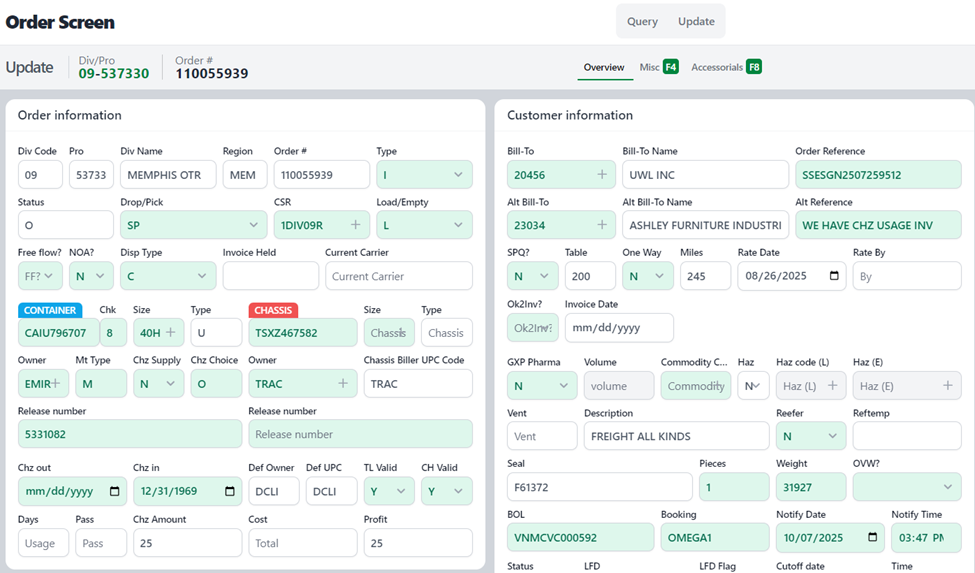
Next, update the applicable field(s) and when finished, use the CTRL+Enter command to execute the “Update” or left click on the green “Save Update” button located at the top right of the screen. To ABORT the Update, left click on the red “Cancel” button to return to the Order. (As below)

If you hit the “Cancel” button, the below message will display:
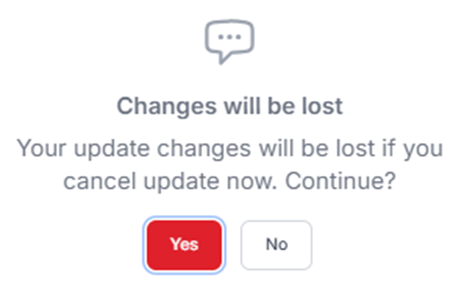
Hit the <Enter> key or left click on the red “Yes” action button to SAVE the changes.
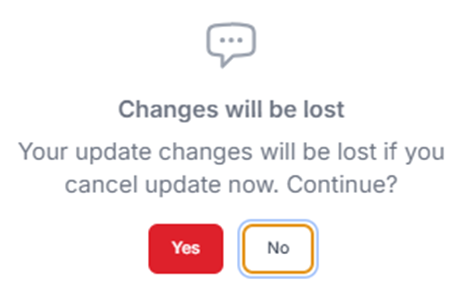
To CONTINUE with the “Cancel” command, use the <Tab> key or Right Arrow button to highlight the “No”’ action button then hit the <Enter> key or left click on the “No” action button to execute. (As below)
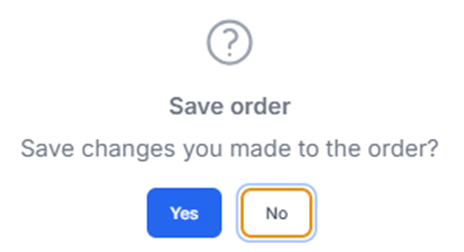
If SAVING the “Update”, the below message will display:
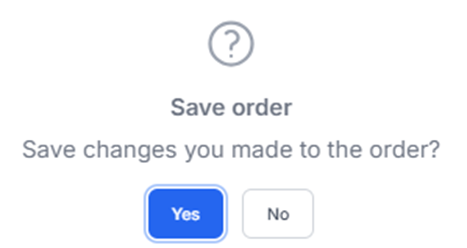
Hit the <Enter> key or left click on the default blue “Yes” action button to SAVE the changes.
To ABORT the SAVE, use the <Tab> key or Right Arrow button to highlight the “No”’ action button then hit the <Enter> key or left click on the “No” action button to execute. (As below)