The MatchBox (New) screen (like the Legacy version) allows users to create, look up, update, and delete MatchBox records — records that link an inbound order to an outbound order sharing the same container, so the container can be reused for the outbound move instead of being returned empty. Each record is typed as either a Matchback or a Street-Turn.
Use MatchBox (New) when you need to:
Create a new MatchBox record — typed as Matchback or Street-Turn — linking an inbound order to an outbound order that shares the same container.
Look up an existing MatchBox record by its MATCHBOX #.
Update the Comments, Failure Reason, or order/container details on an existing match.
Mark a match as Failed and record why.
Delete an incorrect or obsolete MatchBox record (requires delete permission).
From the SWS main menu, click Customer Service.
Click Order Entry.
Click MatchBox (New), listed below the Matchbox group.
Note: Users without delete permission can still Add, Update, and Query MatchBox records — only the Delete command is restricted.
The MatchBox Maintenance screen (see snapshot below) always shows the Add, Update, Query, and Delete commands at the top. (As below)

Clicking one of these switches the screen into that mode, shown by a colored badge (QUERY, EDIT MATCHBOX, etc.) and a set of mode-specific action buttons — the record header and Inbound / Outbound panels described below appear in Add and Update (Edit Matchbox) mode.
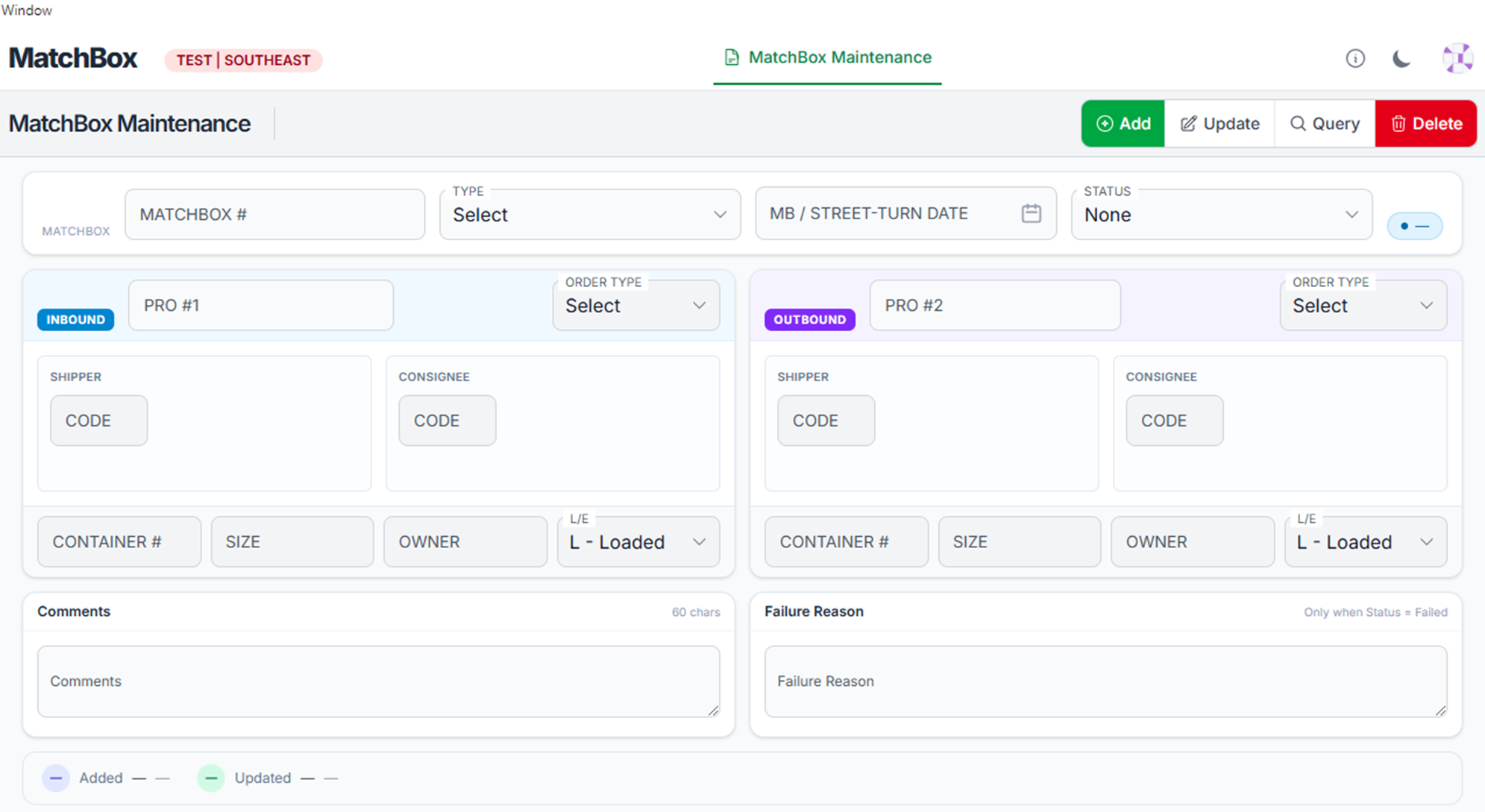
The record header fields are:
MATCHBOX # — the unique identifier for the MatchBox record. System-generated when a record is added (see Adding a MatchBox Record); used afterward to search for the record.
TYPE — identifies the record as M - Matchback or S - Street-Turn.
MB / STREET-TURN DATE — the date associated with the record; reflects the Matchback date or the Street-Turn date depending on the TYPE selected.
STATUS — the current status of the record: None (default on a new record), A - Audited, P - Pending, or F - Failed. A colored status pill (e.g., Pending) displays next to the dropdown, reflecting the selected value.
TYPE and STATUS are the only dropdowns on this screen that users can edit directly.
Below the header, the Inbound (blue) and Outbound (purple) panels each capture one leg of the match:
PRO #1 / PRO #2 — the PRO number of the inbound (PRO #1) or outbound (PRO #2) order tied to this match. Once a PRO is on file, its associated Order # displays next to the field (read-only).
ORDER TYPE — the type of order tied to that PRO (e.g., I - Import, E - Export). Read-only; populated from the linked order and not user-editable.
SHIPPER / CONSIGNEE (CODE) — the shipper and consignee codes for that leg.
CONTAINER # — the container number involved in the match.
SIZE — the container's size.
OWNER — the code identifying the container's owning line/entity.
L/E — indicates whether the container is Loaded or Empty. Read-only; populated from the linked order and not user-editable.
Below both panels:
Comments — a free-text note about the record (60-character limit).
Failure Reason — a free-text field explaining why a match failed; only relevant when STATUS is set to Failed.
Along the bottom of the screen, Added and Updated indicators show whether the record has been created and/or last modified.
Left-click Add to open a blank MatchBox record.
Fill in the TYPE, MB / STREET-TURN DATE, and STATUS header fields (as below), then complete the Inbound and Outbound panel fields for the match.

Enter any relevant Comments.
Left-click Save to create the record, or Cancel to discard it. (As below)
Note: MATCHBOX # is system-generated when the record is saved — it is not entered manually.
Left-click Query to open Query mode. (As below)

In the Search Criteria panel, enter any combination of MATCHBOX #, PRO (Inbound or Outbound), ORDER # (1 or 2), TYPE, MB / STREET-TURN DATE, and STATUS. Leave fields blank to match all records.
Left-click Search. Matching records appear in the Results panel below, listing MatchBox #, Type, Date, Status, Pro #1, Order #1, Pro #2, and Order #2 for each match, with the total match count shown in the upper right. (As below)

Left-click anywhere on a row to display that MatchBox record. A Back to MatchBox button lets you return to the Results list.
Left-click Clear to reset the Search Criteria fields, or Back to exit Query mode without searching.
Query the MatchBox record you want to change, as described above.
Left-click the record's row in the Results list to display it, then left-click Update to open it in Edit Matchbox mode. (As below)

Edit any field in the header, Inbound, Outbound, Comments, or Failure Reason sections.
Left-click Save to apply the changes, or Cancel to discard them.
Important: Setting STATUS to P - Pending requires exactly one order — either the Inbound (PRO #1) or the Outbound (PRO #2) — to be entered, not both. If both PRO fields are populated when Save is clicked, the message "Only 1 Order can/must be Entered on a Pending MatchBox" displays at the top of the panel and beside each PRO field. To resolve it, clear the Outbound PRO # field and click Save again, or click Cancel to discard the change.
Query the MatchBox record you want to remove.
Left-click its row in the Results list to display it.
Left-click Delete.
Note: The Delete command is permission-controlled. If it isn't available, request Delete access for MatchBox (New) from your SWS administrator.
Setting STATUS to Failed is what activates the Failure Reason field — it isn't available for entry under other statuses.
Setting STATUS to Pending requires exactly one order (Inbound or Outbound, not both) — see Updating a MatchBox Record for the validation message and how to resolve it.
TYPE and STATUS are the only dropdowns on the record header/panels that can be edited; ORDER TYPE and L/E are system-populated from the linked order and are read-only.
MATCHBOX # is assigned automatically by the system when a record is saved; it is not entered manually.
MatchBox (New) sits in the Order Entry > Matchbox menu group alongside the classic Maintenance, Performance Report, and Revenue Share Report screens; it appears to be an updated interface for the same add/update/query/delete function.
Left-click the X in the upper right corner of the page to close the screen.