Quand un conteneur d'Import (ou possiblement Inbound) est réutilisé/rechargé sur une commande d'Export (ou possiblement Outbound), on l'appelle un "MatchBox" ou Matchback. À partir de l'écran de commande, un MatchBox (MB) est identifié par un numéro MB généré par le système et le numéro Pro auquel il est « appairé » dans le champ MatchBox.: lorsque l'un ou l'autre des Pro est interrogé. (Notez le champ en rose dans l'exemple ci-dessous)

Pour afficher les détails du MB, tapez la touche « Hot » « M" ou utilisez la touche « Tab" ou la flèche directionnelle vers la droite pour sélectionner « Matchbox" et appuyez sur la touche « Entrée". Pour l'exemple MB ci-dessus, l'écran « Maintenance Matchbox" affiche :
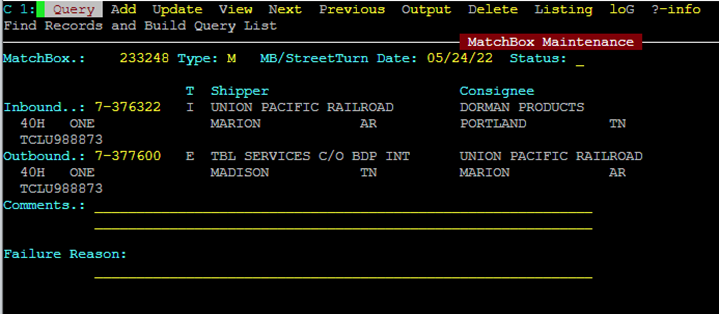
The MB Maintenance screen displays the MB #, date created, Inboud & Outbound Pro #’s, container #, order type and both shipper and consignee information.
To create the actual MatchBox record itself, follow these steps:
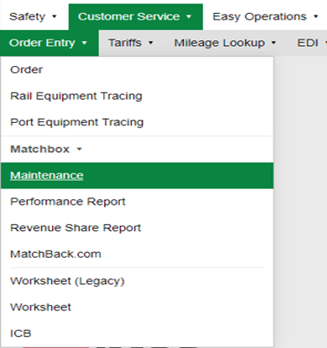
From SWS main menu go to Customer Service, click on Order Entry, then under Matchbox click on Maintenance. (As below)
A blank MB Maintenance screen will display. Type an “A” to “Add” a record. The cursor will advance to the Type: field. Type an “M” for MatchBox.
The cursor will advance to the next field MB/StreetTurn Date: This field will auto populate to the current date. If the *Street Turn will be requested/processed another day, enter that date in this field.
Le curseur avancera au champ Statut : . Ce champ sera normalement laissé vide. Cependant, si vous voulez « RETENIR » un équipement particulier pour un possible rechargement (la boîte doit être déchargée, inspectée, etc.), tapez un « P» pour « En attente». Appuyez sur la touche « Tab» pour avancer au champ Entrant.. : .
Tapez le n° Pro de la commande Entrante au format Div-Pro ##-###### ou #-######. Ensuite, appuyez sur la touche « Tab» pour avancer au champ Sortant. : . Tapez le n° Pro de la commande Sortante au même format que ci-dessus.
REMARQUE: Si vous créez une MB au statut « En attente», le système ne permet d'entrer qu'un seul Pro ou le message d'erreur suivant s'affichera :

Si seul le n° Pro Entrant est entré, ce qui suit s'affichera dans le champ MatchBox. : une fois que la MB a été créée :

Si seulement le numéro Outbound Pro # est entré, ce qui suit s'affichera dans le MatchBox.: champ une fois que le MB a été créé :

Appuyez sur la touche « Tab» pour accéder au champ Commentaires.: Il s'agit d'un champ d'utilisation facultatif. Appuyez deux fois sur la touche « Tab » pour accéder au champ Motif de l'échec : Il s'agit également d'un champ d'utilisation facultatif et peut être utilisé si le champ Statut: de l'enregistrement MB est mis à jour avec l'option « F» Échec. (Voir l'exemple ci-dessous)
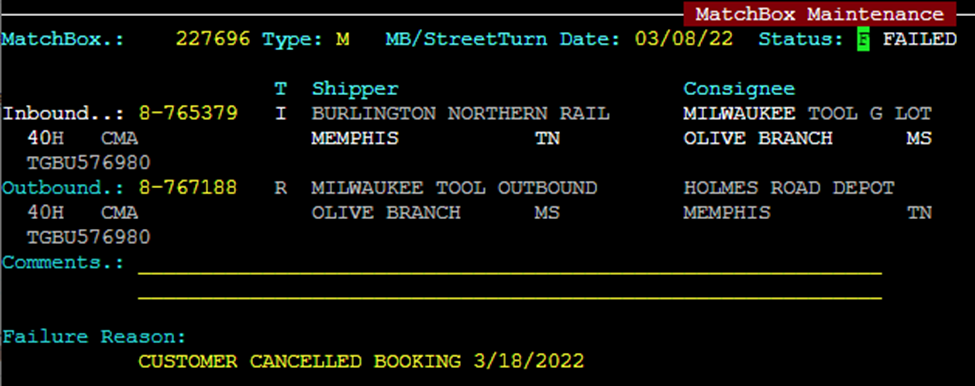
Une fois les champs obligatoires remplis, appuyez sur la touche « Esc" » pour ajouter/créer l'enregistrement. Le système créera automatiquement le numéro MB comme dans l'exemple ci-dessous :

Pour SUPPRIMER un enregistrement MB, à partir de l'écran Matchbox Maintenance, tapez un « Q" pour « Query" et entrez le numéro d'enregistrement MB. Ensuite, appuyez sur la touche « Esc" » pour afficher l'enregistrement. Tapez un « D" pour « Delete" et appuyez sur la touche « Enter" ».
Le message ci-dessous s'affichera :

To delete the MB record, type a “Y” for “Yes” and hit the “Enter” key.
To UPDATE a MB record in “P” (Pending) status, from the Matchbox Maintenance screen, type a “Q” for “Query” and enter the MB record #. Next hit the “Esc” key to display the record. Next, type a “U” for “Update” and hit the “Tab” key or right directional arrow to position the cursor in the Status: field. Next, hit the Space bar to erase the “P”. Enter the missing Pro # in either the Inbound..: or Outbound.: field and hit the “Esc” key to update the record.
*REMARQUE : Il est toujours nécessaire de demander et d'obtenir l'approbation du SSL approprié pour Street Turn un conteneur MB! Cela doit être fait avant que le conteneur soit chargé au lieu du chargeur.
