Haz clic derecho en cualquier línea para mostrar el cuadro de acciones a continuación.
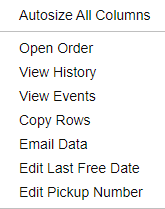
Ver Historial - Proporciona una lista más detallada de los "valores" de la hoja de trabajo para la línea de equipo seleccionada, incluidos cambios en avistamientos, ETA, etc.
Ver Eventos - Proporciona una lista de movimientos de contenedores (llegadas/salidas de puerto/ferrocarril, eventos de intercambio, avistamientos, etc. (Ver ejemplo a continuación)
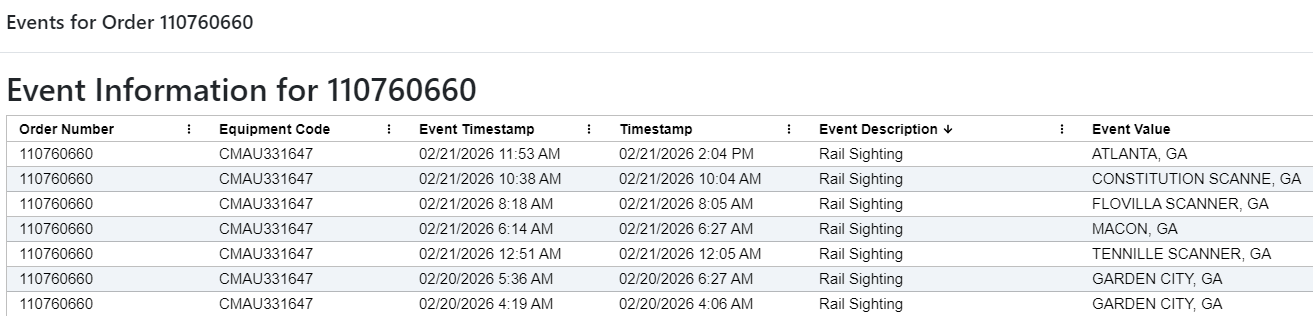
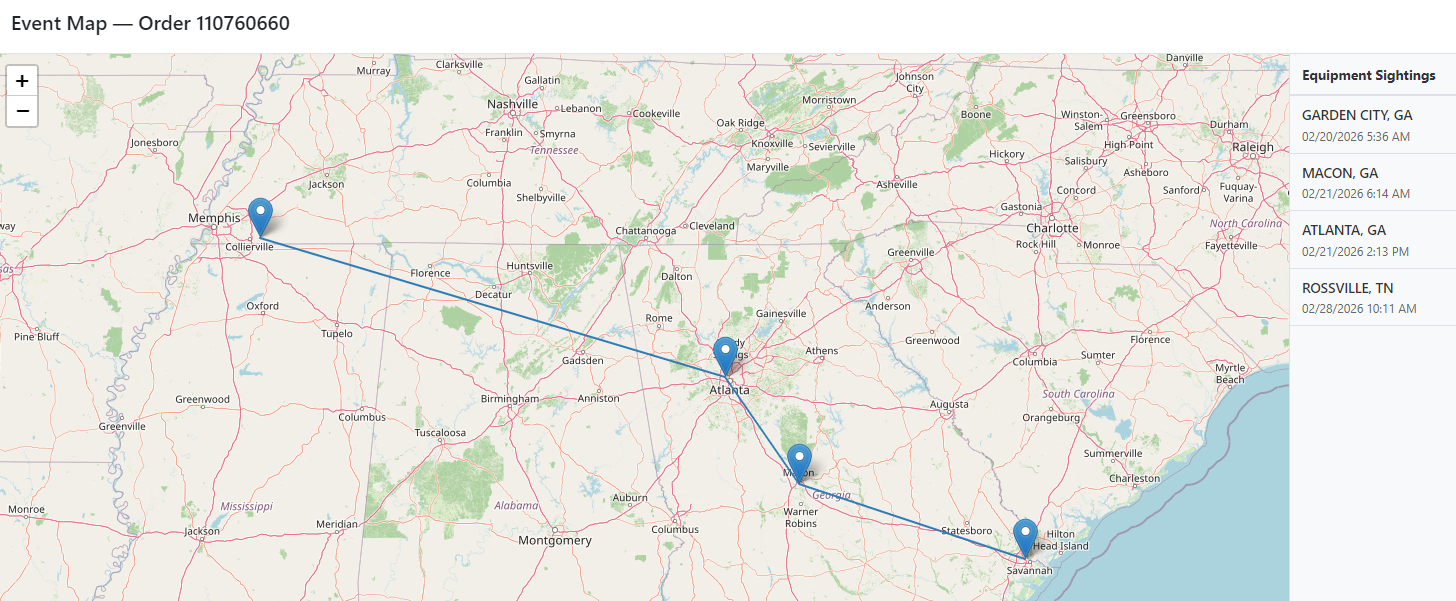
Además, si el botón de acción azul "Ver en Mapa" (ubicado en la parte derecha de la pantalla) tiene un número al lado, haz clic izquierdo en el botón para ver los "Avistamientos de Equipo". (Ver ejemplo a continuación)
To Copy data lines, select the line(s) first, then right click and select ”Copy Rows” from the action box. The copied data can then be pasted into an external spreadsheet or document.
To Email data lines, select the line(s) first, then right click and select “Email Data” from the action box. The below box will display:
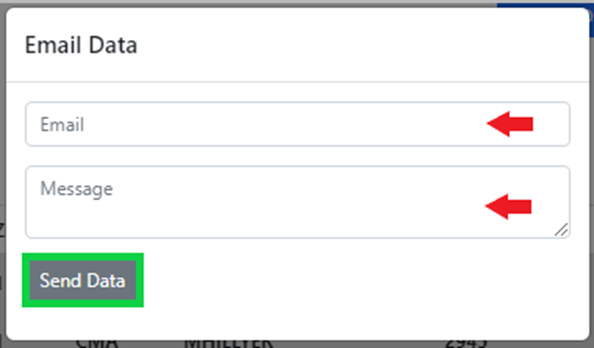
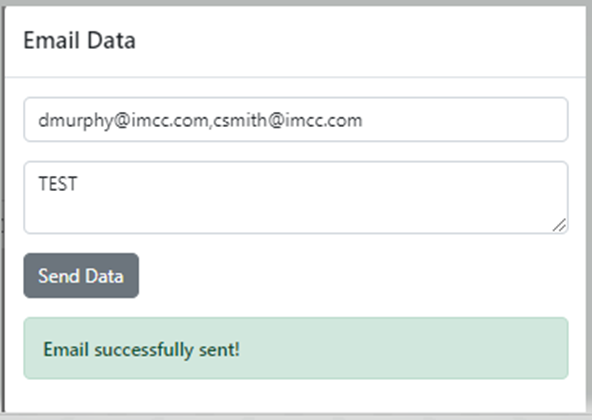
Enter the Email address (separate multiple email addresses with a comma) and Message if applicable and then left click the “Send Data” button. If the process is successful the below message will display:
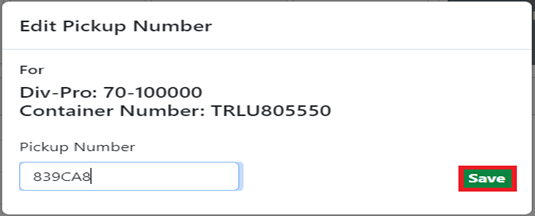
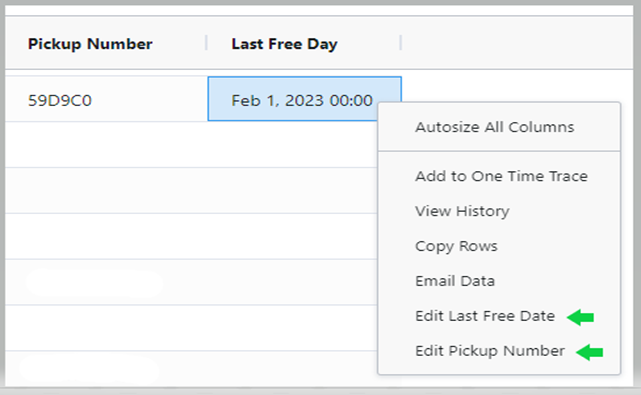
To Update the “Last Free Day” or the “Pickup Number”, right click on the line & select the applicable edit line from the action box. (See below)
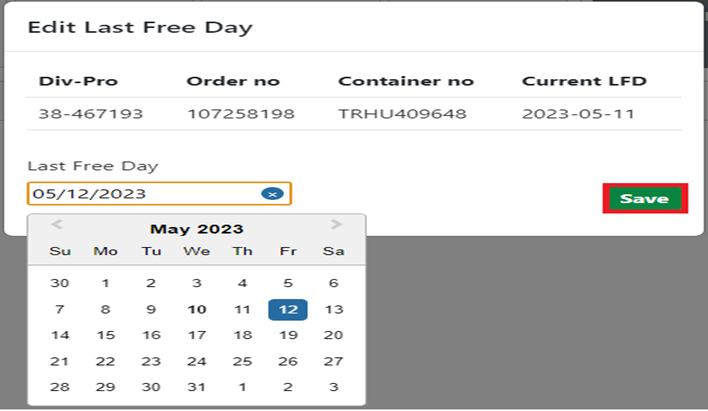
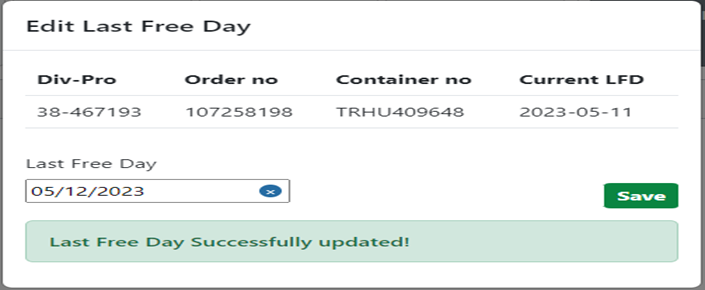
To Edit Last Free Day, select the calendar date and left click on the “Save” button to process the change. (As below)
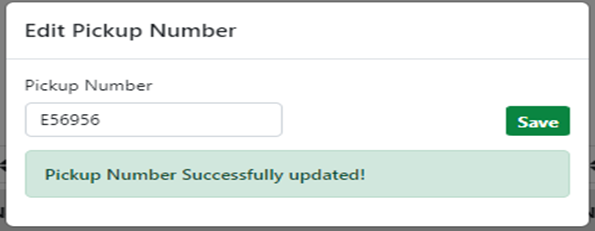
To Edit Pickup Number, enter the number and left click on the “Save” button to process the change. (As below)