Primeros pasos
La Hoja de trabajo de EDI Load Tender (204) se utiliza para gestionar todas las transacciones EDI dentro de una aplicación.
Para acceder a la Hoja de trabajo de EDI desde el menú principal de SWS, ve a Customer Service, haz clic izquierdo en EDI, luego haz clic izquierdo en LoadTender (204) NEW.
La Hoja de trabajo de EDI se puede utilizar para hacer lo siguiente:
Mostrar todos los Tenders EDI Activos
Mostrar todos los Tenders EDI de importación que están Listos para aceptar
Ver Tenders EDI individuales
Editar Tenders EDI individuales
Aceptar en lote Tenders EDI
Editar en lote Tenders EDI
Filter Settings
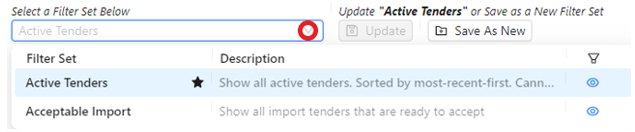
“Active Tenders” is the default filter upon launch of the Worksheet and cannot be deleted. Left click on the dropdown arrow to select “Acceptable Import” or another Filter previously created and saved. (As below)
Preferences
Left click on the below symbol located at the top right of the worksheet to manage the “Appearance” of the worksheet as well as manage all “Filter Sets”, “Views” and “Column Layout”.

Actions
Below are the actions available from the “Action Bar”:

“View” - Left click on this action button to display the EDI Tender in more detail.
“Edit” - Left click on this action button to make edits to and update the EDI Tender.
“Accept” - Left click on this action button to “Accept” EDI Tenders in “Ready” status.
Left click on the “More” button to access three (3) more possible Actions. (As below)
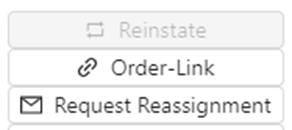
“Reinstate” - Left click on this action button to “Reinstate” an EDI Tender in Ignored or Declined Status.
NOTE: This action button will be grayed out if not active.
“Order-Link” - Left click on this action button to “Link” the EDI Tender to an active Order Pro.
“Request Reassignment” - This action button will remove an EDI Load Tender (received in error) from the worksheet and send to the EDI team to route to the correct Region.
Ability to Bulk Accept
Qualifying Tenders can be accepted at the same time using the “Accept” action button found on the “Action Bar” or from “Edit” mode. (As below)

Ability to Bulk Edit
If applicable, EDI Tenders that require information to be changed can be selected and the changes made & applied at the same time by using the “Update All” action button found on the “Action Bar”. (As below)

FAQ Button
Left click on “? FAQ” (below) located at the top right of the worksheet to navigate to the SWS Help Center for any available training materials designed to help users navigate the Worksheet.

