Para acceder a la Location Profile Screen desde el menú principal de SWS, ve a Customer Service, haz clic izquierdo en File Maintenance, luego haz clic izquierdo en NewLocationProfileScreen
Para AGREGAR un nuevo registro de LP (una vez que se haya confirmado que no existe ningún código de LP), haz clic izquierdo en el botón de acción "Create new" ubicado en la esquina superior derecha de la pantalla. (Como se muestra a continuación)

A continuación, escribe la dirección del nuevo perfil de ubicación en el campo a continuación:
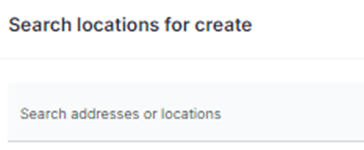
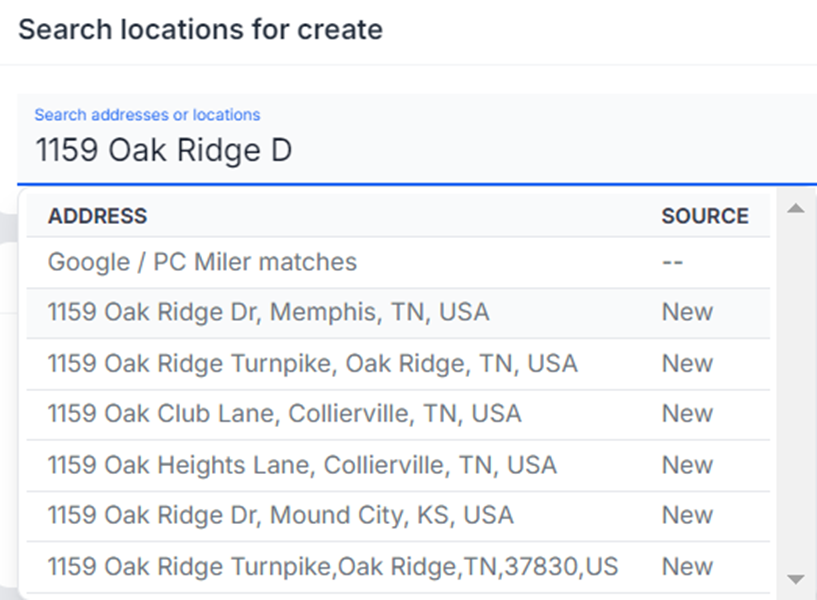
NOTA: Este campo utiliza typeahead y mostrará cualquier dirección coincidente.
Once located, left click on the correct address to select. (See example below)
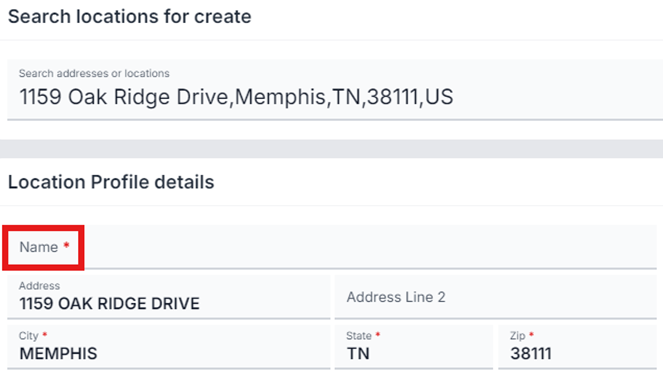
The “Name” of the business or entity (see field above) will need to be entered. If the “Zip” field does not populate, it should do so when the new record is created.
Next, left click on the green “Create” button located at the top right of the screen. (As below)

NOTE: Left click on the “Cancel” button to return to the launch screen.
If any input errors have occurred, “Error!” messages will display. (See examples below)
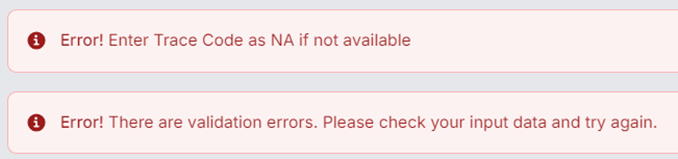
NOTE: For Rail and Port locations, a Trace Code for that location will typically be required to initiate our track & trace services.
Once any existing errors have been corrected, left click on the green “Create” button again.
The below message will confirm the process:

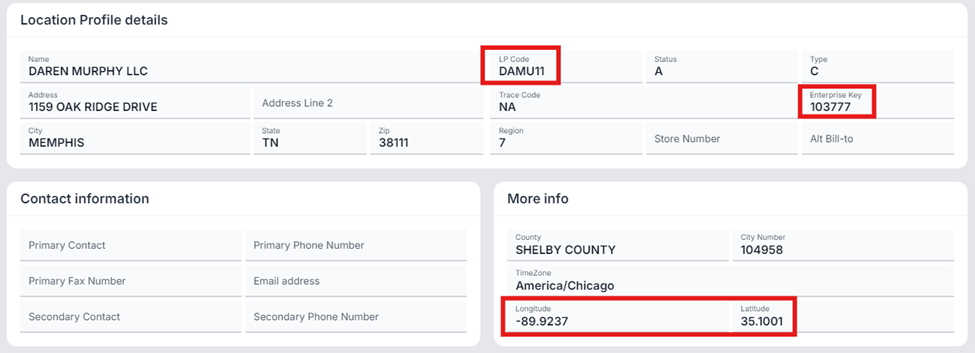
RECORDATORIO: El sistema creará automáticamente el nuevo LP Code, Enterprise Location Code y aplicará la Latitude y Longitude correctas al registro. (Ver ejemplo abajo)
NOTA ESPECIAL: Independientemente de la región, cuando un usuario crea un nuevo registro LP, ese código LP se agrega en TODAS LAS REGIONES.
NOTA: No es posible ELIMINAR un código LP una vez creado. Los usuarios deben actualizar/cambiar el registro a "Inactive" y luego crear un nuevo registro LP con la información correcta.
