Para hacer cambios a una Licitación EDI, primero selecciónala haciendo clic izquierdo en la casilla a la izquierda de la línea. Luego, haz clic izquierdo en "Edit" en la "Action Bar". (Como se muestra a continuación) Recordatorio: Hacer clic izquierdo en el botón "Update" cuando se visualiza una Licitación EDI también permitirá hacer cambios.

Cuando estés en modo "Edit", el usuario puede "Decline", "Ignore" o "Accept" la Licitación. El botón de acción "Reinstate" solo está disponible si la licitación ha sido rechazada o cancelada. (Como se muestra a continuación)

Actualiza cualquier información aplicable. Los campos en la hoja de trabajo que estén "atenuados" no permitirán cambios. Una vez que se hayan realizado cambios, haz clic izquierdo en el botón "Guardar" ubicado debajo de "Tender # " en la parte superior izquierda de la pantalla. (Como se muestra a continuación)
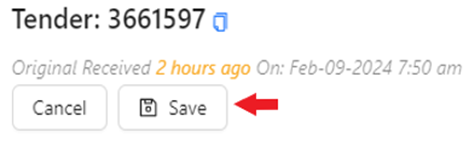
NOTA: Para cancelar el proceso de edición o actualización, haz clic izquierdo en el botón "Cancelar". Se mostrará el siguiente mensaje. Haz clic izquierdo en el botón azul "Aceptar" para confirmar que los cambios realizados no se guardarán y para salir del modo "Editar". Haz clic izquierdo en el botón "Cancelar" para volver al modo "Editar". El mismo
mensaje se mostrará si haces clic izquierdo en la "X" en la parte superior derecha de la pantalla. (También como se muestra a continuación)

Información de Sección Adicional:
Under the “Locations” section of an EDI Tender, for both “Shipper” and “Consignee”, the default view will show you the information received by the customer in red. (See example below)
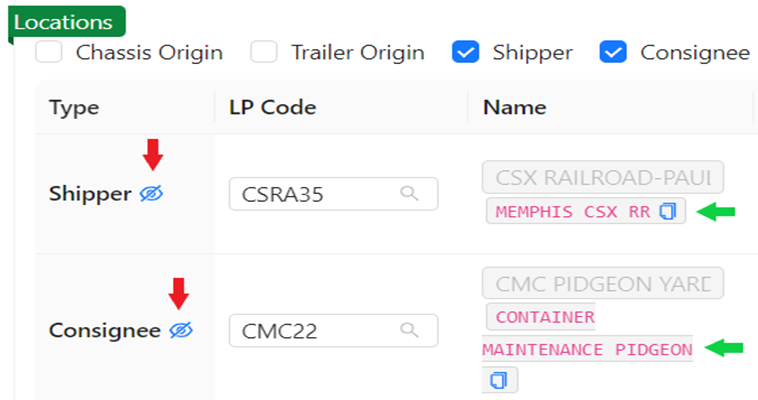

All of the below six (6) “Locations” will default to being selected and displayed. If you wish to view fewer Locations”, left click in the box to the left to deselect that Location. (See below)

NOTE: The “Locations” you select will become your default view going forward and until changed.
Los campos de ubicación utilizan typeahead. Para localizar un Perfil de Ubicación específico, haga clic izquierdo en el campo y comience a escribir el nombre del cliente, la ciudad o el código LP en sí. Se mostrarán todos los resultados que coincidan con la información de búsqueda ingresada. Si corresponde, haga clic izquierdo en una línea LP mostrada para actualizar. (Vea el ejemplo a continuación)
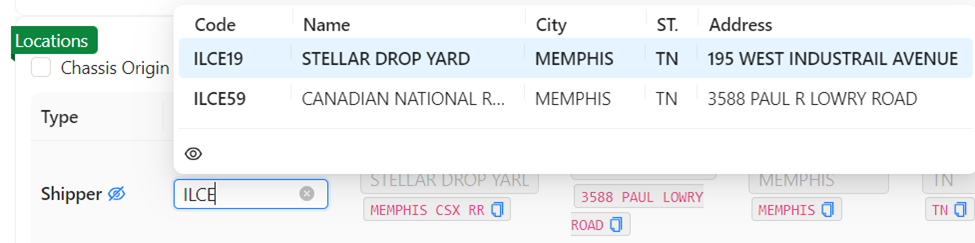
Alternativamente, puede hacer clic izquierdo en el botón azul "copy" ubicado a la derecha de la información Edi del cliente y pegarlo en el campo "LP Code" para buscar códigos LP activos. (Como se muestra a continuación)

En lugar de seleccionar un EDI Tender y hacer clic izquierdo en "Edit" en la Barra de Acciones para realizar una edición más "profunda", una función de "Quick Edit" está disponible haciendo doble clic izquierdo en una línea EDI Tender. La línea se volverá azul y ciertos campos se volverán editables. (Vea la instantánea abreviada a continuación)

Once any fields have been updated, left click on the “Save” button in the “Action Bar”. (As below)

"BULK EDIT”
More than one EDI Tender line can be edited at the same time. First, select the box to the left of the EDI Tender line(s). Next, left click on the “Edit” button on the “Action Bar”. (As below)

The worksheet will open up the selected lines to be edited. Note that multiple fields can be edited in different lines prior to saving.
HINT: To navigate more quickly between line fields, hold down the “CTRL” key and use the directional arrows on the keyboard to move left & right in a tender line or up & down to another line.
Users can also update multiple lines in the same column with the same data. As an example, if the CSR userid needed to be updated in 3 (three) records, first type (or select from the dropdown menu if applicable) the new data in the field on the first EDI Tender line. Next, left click on the “Update All” button on the “Action Bar” which is now active. (As below)
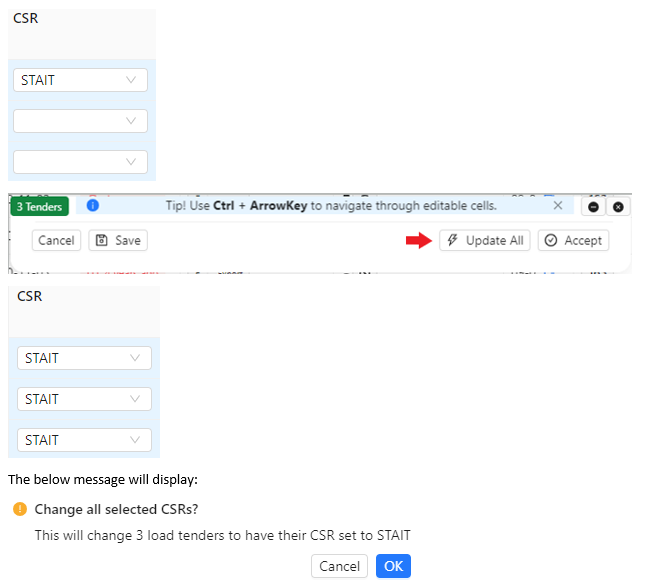
Left click on the “Cancel” button to return to editing. Left click on the blue “OK” button to execute the change.
Lastly, left click on the “SAVE” button on the “Action Bar” to save the change!
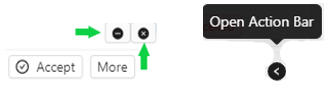
ADDED NOTE: To HIDE or minimize the “Action Bar”, left click on the “-” symbol located at the top right of the “ActionBar”. To UNHIDE the “Action Bar”, left click on the left arrow “Open Action Bar” visible at the bottom right of the worksheet. To close the “Action Bar” and “deselect” any tenders, left click on the “x” at the top right of the “Action Bar”. (All as below)