From SWS main menu go to Customer Service, left click on Order Entry, then left click
on New Order Screen.
The New Order screen replaces the Legacy version.
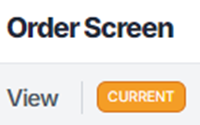
The default Query mode is “Current” status indicated by the orange label at the top left of the screen to the right of “View”. (As below)
To CHANGE the View to “History Orders Only” or “All Orders”, use the “Z Mode” option located under “Search options” at the top right of the screen. Use the up/down arrow or left click on the dropdown arrow to select. (As below)
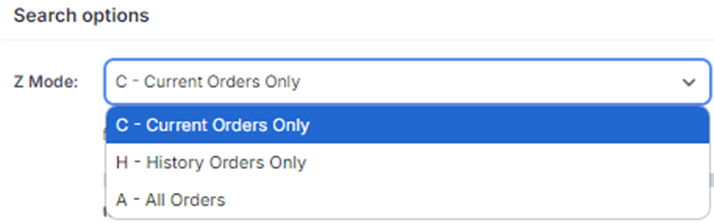
“CURRENT” status = Orders that have not yet invoiced (with some exceptions for Region 3)
“HISTORY” status = Orders that have invoiced
“ALL” status = Includes ALL orders in both “Current” and “History” status.
The screen will display the selected MODE once a query has been executed. (As below)
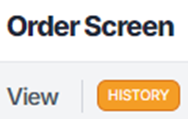
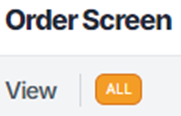
NOTE: Users must reselect “HISTORY” or “ALL” modes if another query is performed as the system will automatically default back to “Current” status.