Desde el menú principal de SWS ve a Customer Service, haz clic en Order Entry, luego haz clic en Order. A continuación, escribe una "Q" para "Query". Escribe el Div/Pro del número de Pro al que deseas agregar cargos y presiona la tecla "Esc" para mostrar el Pro.
A continuación, escribe una "U" para "Update" y luego presiona la tecla "F8". El cursor se posicionará en la primera línea de cargo bajo Accessorial Sales/Costs (ver ejemplo a continuación):

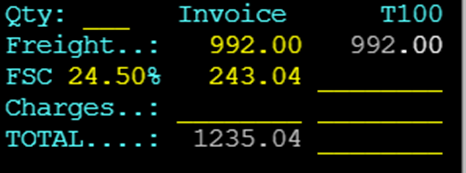
NOTA: El FRT (Tarifa de Flete (Dray)) y el FSC (Recargo de Combustible) se completarán automáticamente en esta sección como elementos de línea individuales y reflejarán los cargos del cliente en el pedido como se muestra a continuación. Estos deben considerarse solo como elementos de memorándum y se están haciendo para preparar el sistema para futuras mejoras en la manifestación o facturación de pedidos.
Using the down directional arrow, position the cursor on the first blank line available below any charges that already appear. (This line will be highlighted in white)
Next, hit the “Enter” key to begin line data input. If you already know the 3-character accessorial alpha code you can type it in the field or you can search for the code by using the Thumb function “Ctrl T” within that field to display a list of assessorial codes. Start typing the accessorial name and once located and highlighted in white, hit the “enter” key to select. (See example below)
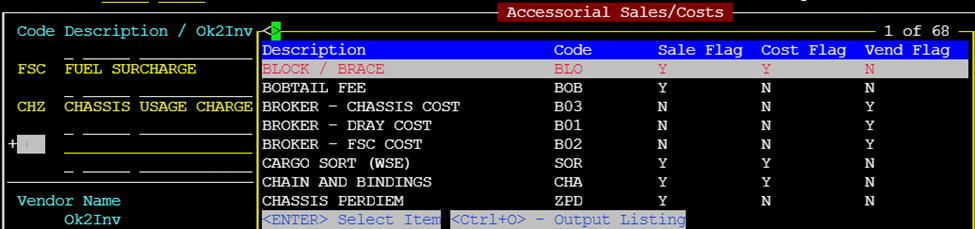
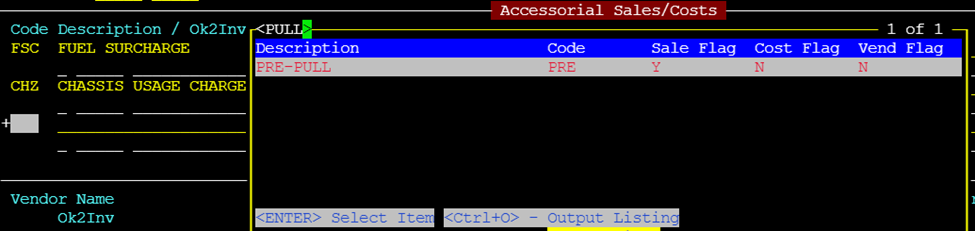

NOTE: It is possible to type in additional text in the description line. However, the default description should be sufficient so changing it should not be necessary. The BillTo customer code will auto populate to match the Bill-To code on the order. In the case of a Split bill or A-bill customer, it will be necessary to change the code. See the “Split Bills” section within this module.

The Qty will default to 1.00 for one cost unit. If applicable, hit the “Tab” key or right directional arrow to change the Qty within the field. Next, position the cursor in the $Unit field. Type the dollar amount per individual charge. If the amount is in whole dollars, it is not necessary to use the decimal.
Next, hit the “Esc” key. If there are more charges to add, hit the “Enter” key as outlined above until all charges have been entered. Hit the “Esc” key twice to save the changes to the Pro.
NOTE: If a correction is needed at a later time/date, type a “U” to “Update” then hit the “F8” key. Using the up & down arrows, position the cursor on the line that needs to be changed (will be highlighted in white). Hit the “Enter” key and make the necessary correction(s). You can erase an entire highlighted line by hitting the “Delete” key. Hit the “Esc” key twice to save the changes to the Pro.
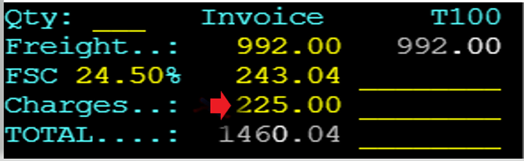
Una vez que se hayan ingresado todos los cargos, el Charges campo en la esquina superior derecha de la pantalla de pedido debe ser igual a la suma de todos los artículos de línea individuales. Sin embargo, esto excluye los artículos de línea FRT y FSC. Ver ejemplo a continuación:

NOTA: Algunos códigos de evaluación pueden completarse automáticamente con un monto predeterminado de $Unit . (Ejemplo de Cargos por Uso de Chasis a continuación). Se debe ingresar una Qty para que el cargo se agregue.

Regla general: Por cada Costo agregado a una orden, también debe agregarse un Cargo de compensación.
Según el tipo de orden (peligrosa, sobrepeso, etc.), algunos cargos accesorios se completarán automáticamente y se pueden ver y/o cambiar a través de la pantalla "F8". Ver ejemplos a continuación:


NOTA: Una vez que un Pro ha facturado, No intentes agregar o cambiar cargos ya que no se procesarán automáticamente.
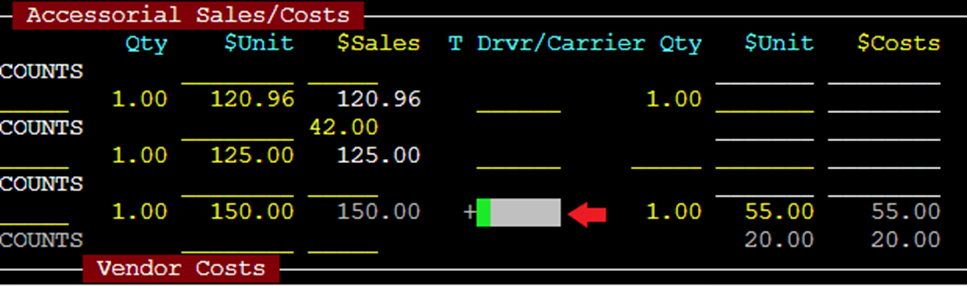
La pantalla "F8" es también donde ingresas el pago del conductor para un cargo accesorio en particular (si aplica). Sigue los mismos pasos que arriba para ingresar una entrada de pago del conductor. Ingresa el código del conductor (si lo conoces) o busca el código usando la función "Thumb" "Ctrl T" para localizarlo. Presiona la tecla "Esc" dos veces para guardar los cambios en el Pro.
Dividir Facturas
Cuando hay cargos adicionales en un Pro que se aplican a un cliente de Facturación Dirigida diferente, se conoce como una factura dividida o una factura Pro. En el ejemplo a continuación, el cliente #24618 es el cliente de Factura Dividida.
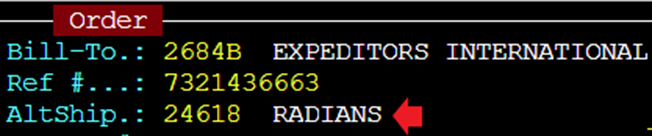
Al ingresar cargos en la pantalla "F8", el sistema extraerá automáticamente el cliente Facturación Dirigida en la línea de cargo. Si un cargo debe aplicarse a una parte de facturación diferente, simplemente presione la Barra Espaciadora para borrar los datos e ingrese el código FacturaA correcto en el campo. Ingrese el/los cargo(s) correcto(s) y presione la tecla "Esc" dos veces para guardar los cambios en el Pro.


