The Settings Options for a Location Profile (LP) record provide access to additional configuration tools that support customer communications, depot relationships, and geofencing behavior.
These options are accessed directly from the Settings menu within the Location Profile screen.
First, query the desired Location Profile record on the Location Profile screen.
Once the record is displayed, locate the Settings menu in the upper left corner of the screen.
Left click on Settings to display the available options. (As below)
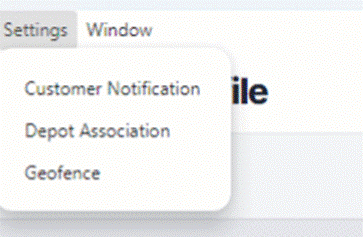
The Settings menu provides access to the following configuration areas:
Customer Notification modal
Depot Association
Geofence settings
Each option opens a separate modal or screen for managing location-specific settings.
Customer Notification
Provides access to the Customer Notification modal, where users can manage customer-facing notification settings associated with the LP code.
For detailed instructions, refer to the help article below found in this collection:
Customer Notifications Modal | Sixth Wheel Software
Depot Association
Allows users to associate the Location Profile with one or more depots, supporting operational routing and depot-related workflows.
For detailed instructions, refer to the help article below found in this collection:
Depot Association | Sixth Wheel Software
Geofence
Provides access to Geofence settings, allowing users to define and manage geofenced boundaries for the location.
These geofences are used to support features such as arrival detection, dwell tracking, and related automation.
For detailed instructions, refer to the help article below found in this collection:
GeoFence Setup | Sixth Wheel Software
NOTE: The Settings menu options displayed are specific to the active LP record currently queried.
REMINDER: Changes made within Settings options apply only to the selected Location Profile.
TIP: Always confirm you are updating the correct LP code before making changes within Settings.
